Getting Started
ClearVantage will help you manage the day-to-day and long-term operations of your association or nonprofit. It provides comprehensive functionality for effectively managing all aspects of member-centric organizations.
ClearVantage can be configured for your organization and for you as an individual user. You can also configure the look and feel to best suit your work style. Because of this extensive configuration, you may have additional or different features than are listed in this manual or a particular button may be in a slightly different location.
New User Learning Pathway
If you are a new user to ClearVantage and new to learning the system, we suggest you review the following guides:
-
Start with the "Basics" section and go through all the user guides.
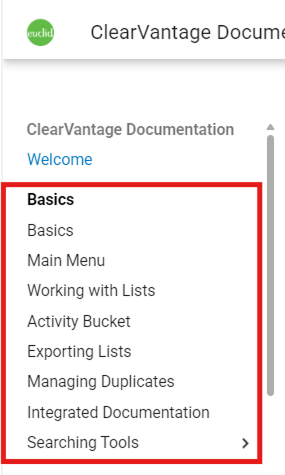
Use the links below to view each guide:
-
Next, review the following 3 user guides under the "Membership" section.
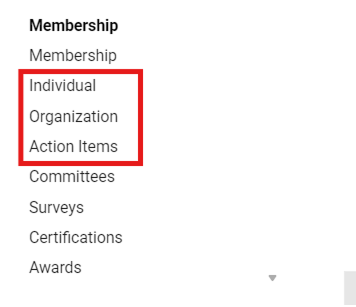
Use the links below to view each guide:
Updating Your 2FA Preferences
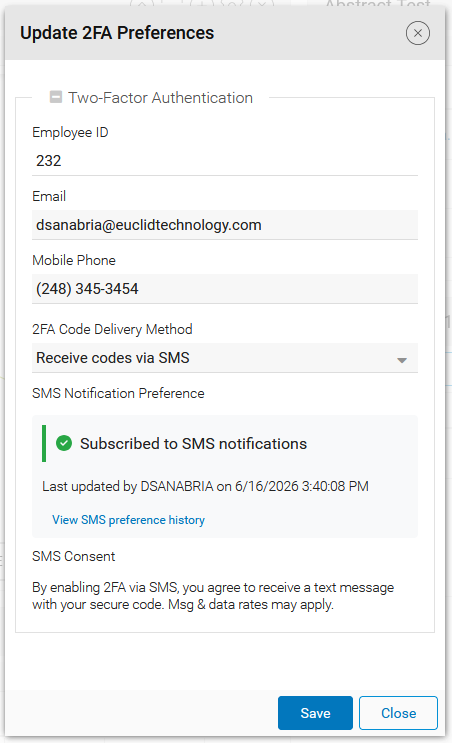
By default, two-factor authentication (2FA) codes are sent to your email address. However, you can configure your preferences to receive 2FA codes via SMS instead. The 2FA preferences settings also allow you to update the email address or phone number where the authentication codes will be sent.
To update your 2FA preferences:
-
From the main menu, click "CV | Euclid" and select "Update My 2FA Preferences".
-
Select your preferred 2FA code delivery method (email or SMS).
-
Update your email address or phone number as needed.
-
Click "Save" to apply the changes.
Changing Your ClearVantage Password
For security reasons, you should change the default password that is assigned to you when you first log into ClearVantage. Depending on your organization's rules for passwords, you may be required to change your password at your first login and/or change your password every 90 days.
To change your password:
-
From the main menu, click "Tools" and select "Update My Password".
-
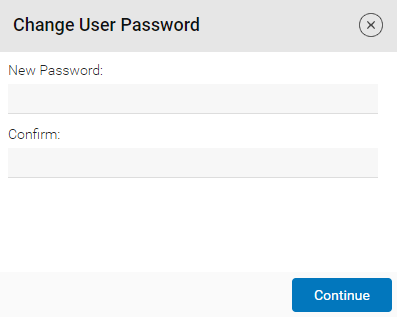
Click the "Change User Password" button.
-
Your organization may have rules relating to password strength. For instance, your password may be required to be at least 8 characters long. If the new password does not meet your organization's password requirements, you will get a message explaining the unmet requirement.
-
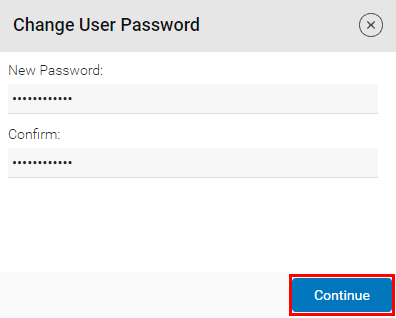
Enter and confirm your new password and click "Continue".
-
You will receive an alert that your password has been accepted and that you must save changes for the new password to take effect.
-
Click "OK".
-
Click the "Save" button to confirm your new password.
-
Use your new password next time you log into ClearVantage.
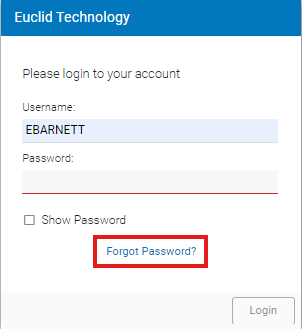
If you’re not logged in and need to reset your password, enter your "User ID" and click "Forgot Password". A password reset email will be sent to you.
Useful Tips for Navigating ClearVantage
Common Buttons and Tools
-
The "Save" button located in the bottom right corner of most records/notebooks will save any changes that have been made to that record. Changes will be lost if the "Save" button is not selected.

-
The curved arrow at the bottom of any list refreshes the list based on the criteria used to create the list.

-
The arrow buttons at the bottom of any list scroll between pages within the list. The buttons from left to right are "First Page", "Prior Page", "Next Page", and "Last Page".

-
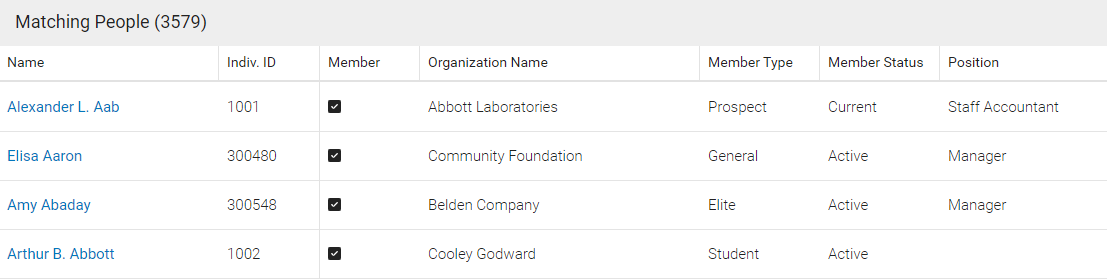
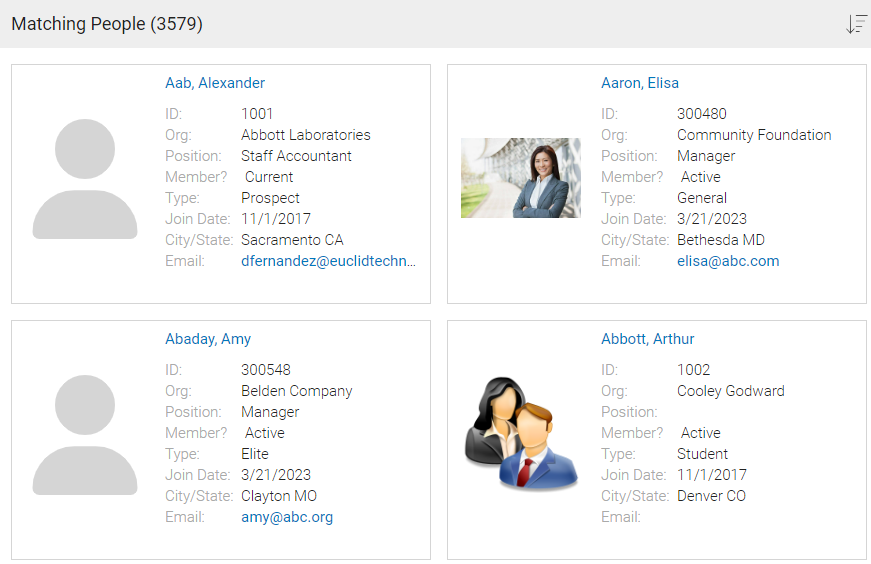
Check the "Card View" box to change the way lists are displayed.

-
Standard List View:
-
Card List View:
-
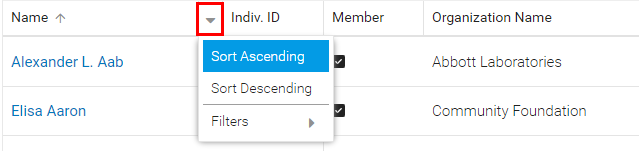
Click the arrow next to any field label in a list to sort the list by that field.
-
Click the gear icon in the top right corner to change which columns are displayed in the list. Drag the fields from the "Active Columns" column to the "Hidden Columns" column for any fields that should no longer be displayed in the list.

-
Drag and drop fields to rearrange the order of the columns.
-
The "Save List" button allows you to save lists of records by saving the search criteria.

-
Use the tabbed browsing at the top of the ClearVantage workspace to switch between open windows.

-
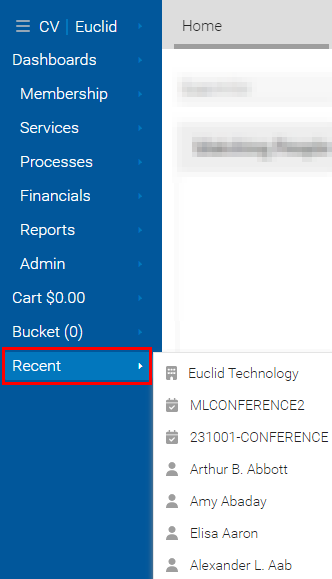
Quickly access recently opened records/notebooks from the "Recent" main menu dropdown button.
Keyboard Shortcuts in ClearVantage
-
Right/Left Arrows: Move between History Tabs in an open record/notebook.

-
Alt-Down Arrow: Open the dropdown menu when a dropdown field is selected. Once open, use the up and down arrow keys to highlight a value from the menu. Press "Enter" to select the highlighted value.
-
Tab: Move cursor to the next field or button.
-
Shift-Tab: Move cursor to the previous field or button.
-
%: Acts as a wildcard in searches.