Main Menu
Main Menu Dropdowns
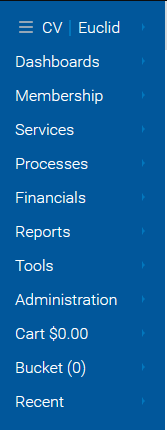
The Main Menu Dropdowns are located either on the left-hand side or top of the ClearVantage Workspace and provide a wide range of functionality. Main Menu Dropdowns include:
-
CV | Euclid: Settings, password reset, 2FA preferences, help resources and much more.
-
Membership: Individuals, Organizations, Chapters, Committees, Surveys, Awards, Abstracts, Dues/Sub/Don List, Master Certification List, Opportunities.
-
Services: Events, Event Calendar, Event Programs, Event Packages, Products, Subscriptions, Memberships, Donations.
-
Processes: Email Marketing, Order Fulfillment, Membership Renewals, Delete Dues Batch.
-
Financials: Invoices, Payments, Batches, Accounting.
-
Reports: Membership Reports, Event Reports, Product Reports, Subscriptions/Dues Reports, Marketing Reports, Financial Reports, Administrative Reports, Exports.
-
Tools: Email Editor, My Calendar, Close all but active tab, Settings, External Services, Update My Password, Release Notes, About CV.
-
Administration: Add Product, Add Event, Add Subscription/Dues/Donation, Add Chapter, Add Committee, Edit Certification Types, Edit Companies, Edit Employees, Edit Users, Edit Reference Tables, Edit Taxonomy Terms, Search Action Items, Web Admin.
-
Cart: Working with Individual, Stop working with Individual, View/Edit Cart, Clear Cart, Checkout.
For more on the checkout process, see the Payments and Refunds guide.
-
Bucket: View Bucket, Empty Bucket.
For more on the Activity Bucket, see the Basics guide.
-
Recent: A list of recently opened notebooks.
Note
Main Menu Dropdown options will vary depending on your organization’s configuration.
Customize Main Menu Dropdowns
Role Administrators can customize user roles to determine which features appear in the Main Menu Dropdowns. For example, the Membership Role can be customized to have a most features available in the Membership dropdown but only basic features available in the Events dropdown.
Reorder Main Menu Dropdown Buttons
-
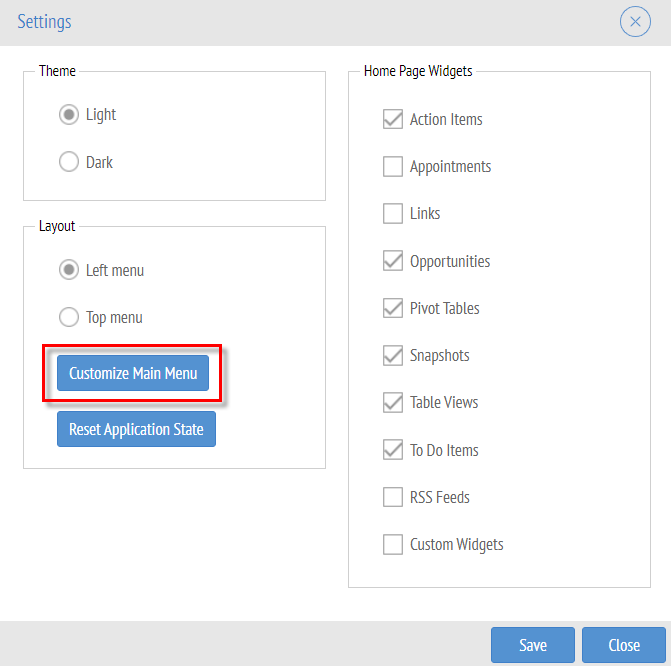
From the main menu, click "Tools" and select "Settings" to open the settings window.
-
Click the "Customize Main Menu" button.
-
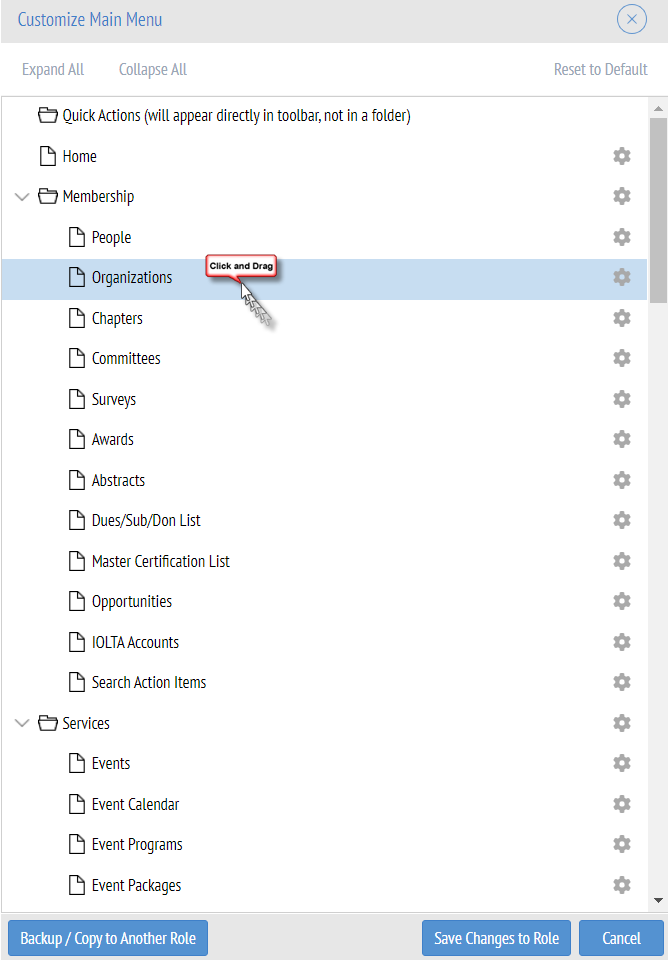
This will open the Customize Main Menu window. To reorder the main menu buttons, drag and drop the button to the desired location.
-
Click the "Save Changes to Role" button on the bottom right-hand corner to save the changes.
Relabel and Hide Main Menu Buttons
-
From the main menu, click "Tools" and select "Settings" to open the settings window.
-
Click the "Customize Main Menu" button.
-
This will open the "Customize Main Menu" window.
-
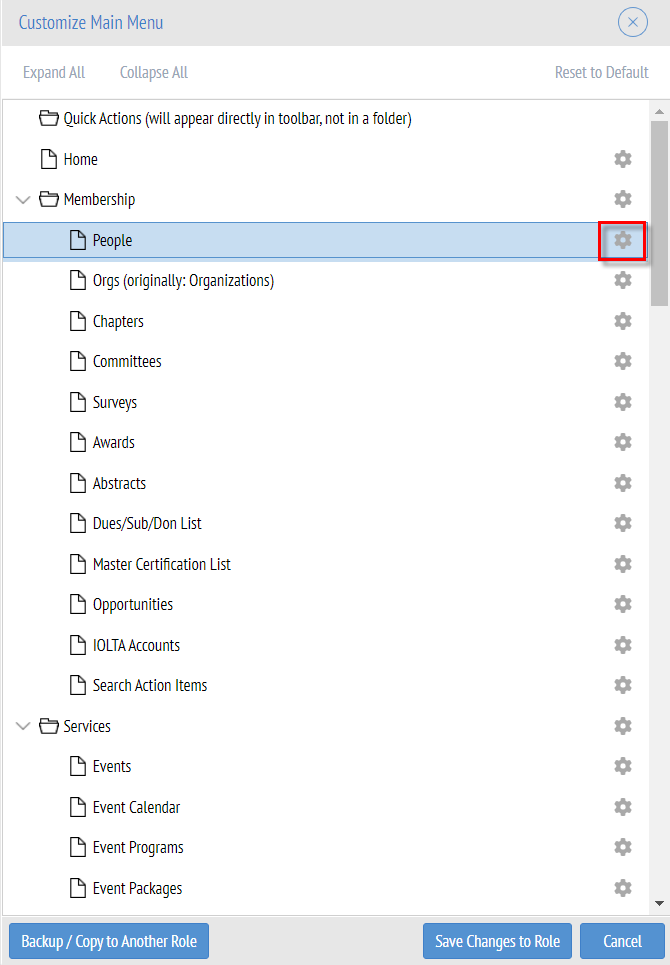
Click the gear icon to the right of the button.
-
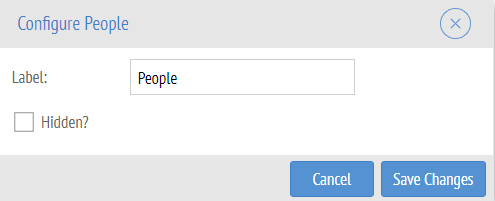
This will open the field configuration window. Check the "Hidden?" checkbox to hide the button from displaying. Relabel the button in the label field. Click the "Save Changes" button to save and close.
-
Click "Save Changes to Role" to save.
Copy Main Menu Dropdown Settings to a Different User Role
To copy main menu dropdown settings to a different user role:
-
From the main menu, click "Tools" and select "Settings" to open the settings window.
-
Click the "Customize Main Menu" button.
-
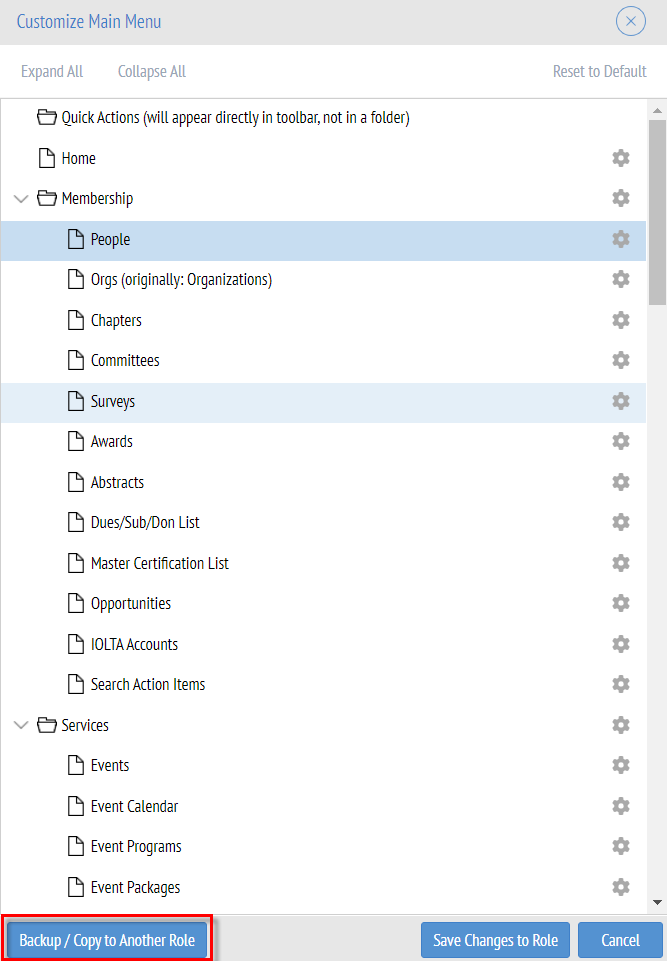
This will open the Customize Main Menu window.
-
Click the "Backup / Copy to Another Role" button on the bottom left-hand corner.
-
Select the role from the "Select destination role" dropdown to copy main menu settings to.
-
Click the "Copy Main Menu State to Role" button.
-
A confirmation window will ask if you wish to proceed. Click "Yes".
-
The main menu settings are now successfully copied to the selected user role.