Payment Reversals
Payment Reversals allow staff to fix payments that appeared successful when first entered but later did not result in funds (e.g., bank rejects/withdraws, card disputes, or check bounces). The workflow ensures accurate accounting by recording the reversal event and offsetting the original payment.
Reversal Types
- Chargeback — The cardholder disputes the transaction and the processor withdraws part or all of the original payment.
- ACH Return — The ACH network returns the transaction; no funds are received.
- NSF (Non‑Sufficient Funds) — A paper check fails to clear the bank.
Reversal Record vs. Reversal Payment
- Reversal Record — An administrative record that tracks the reversal type, date, amount, status, processor message, and links to the original and reversing payments.
- Reversal Payment — A negative payment that offsets the original payment and updates related invoices.
Reversal Record
To find a reversal record:
-
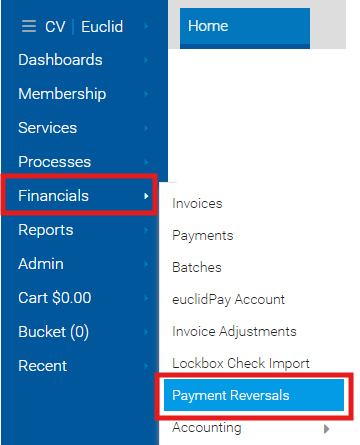
From the main menu, click "Financials" and select "Payment Reversals".
-
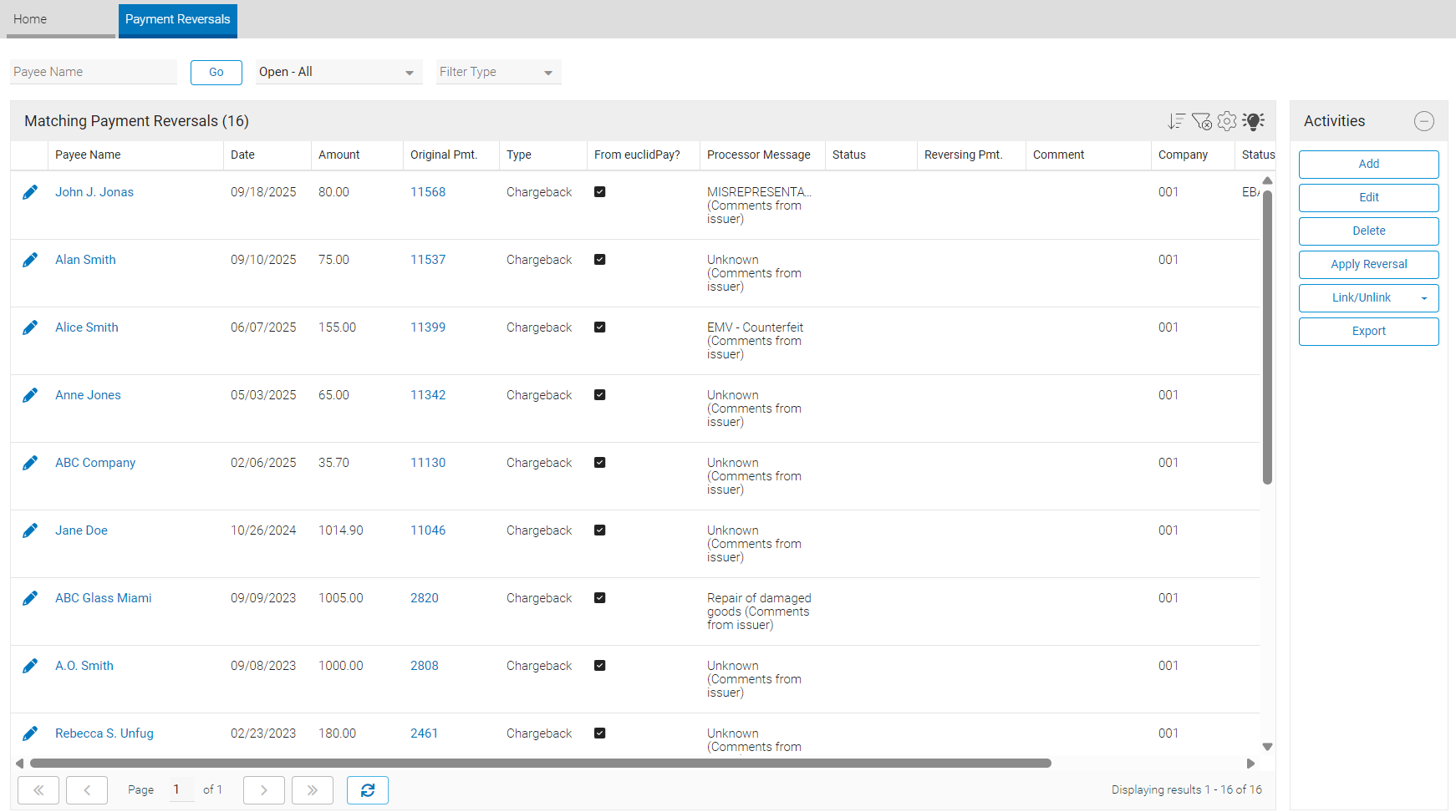
This will open a list of all open payment reversals.
-
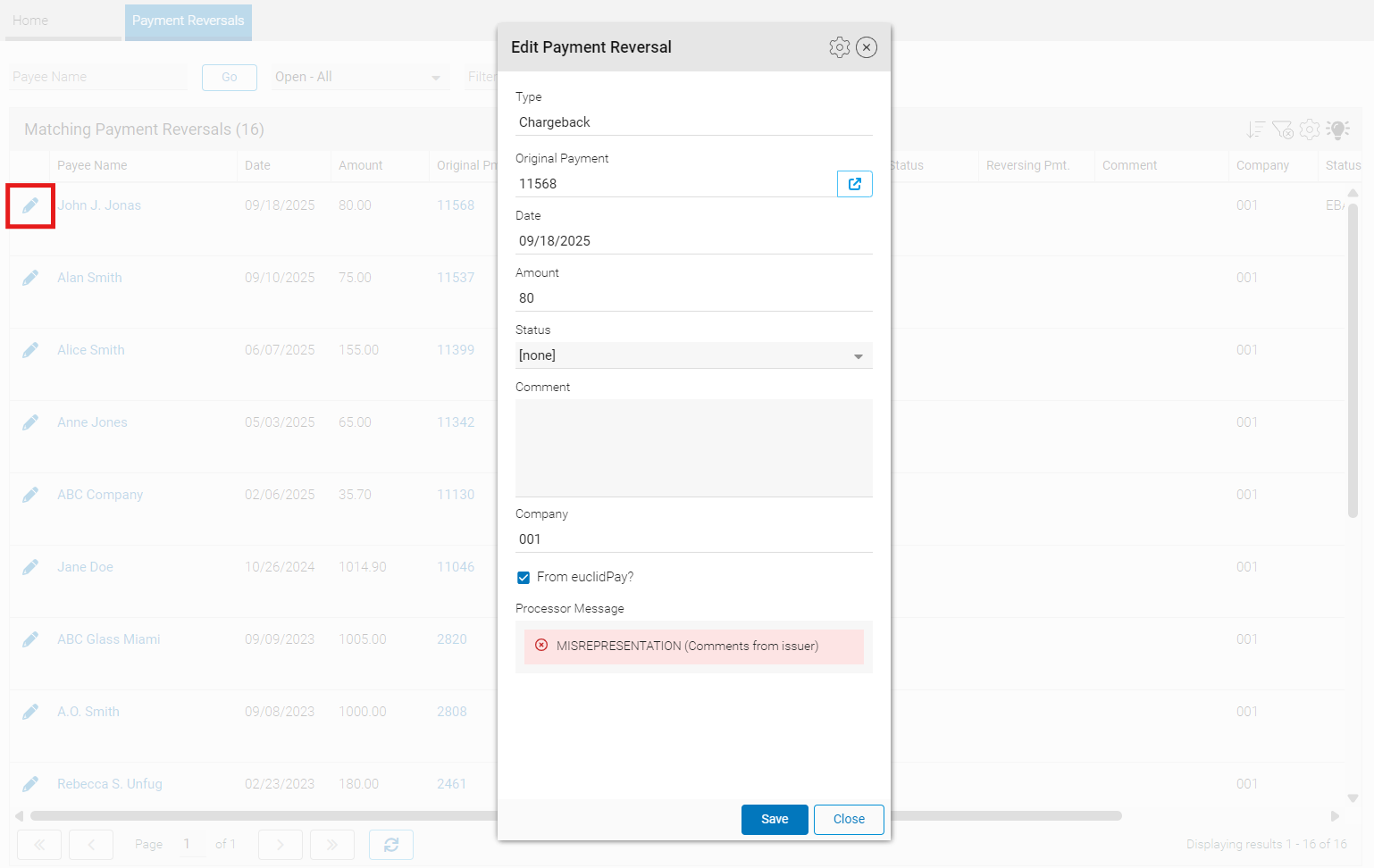
Click into the pencil icon to open a payment reversal record.
Reversal Payment
To see the reversal payment record, the payment reversal must be resolved.
To find a reversal payment record:
-
From the main menu, click "Financials" and select "Payment Reversals".
-
This will open a list of all open payment reversals.
-
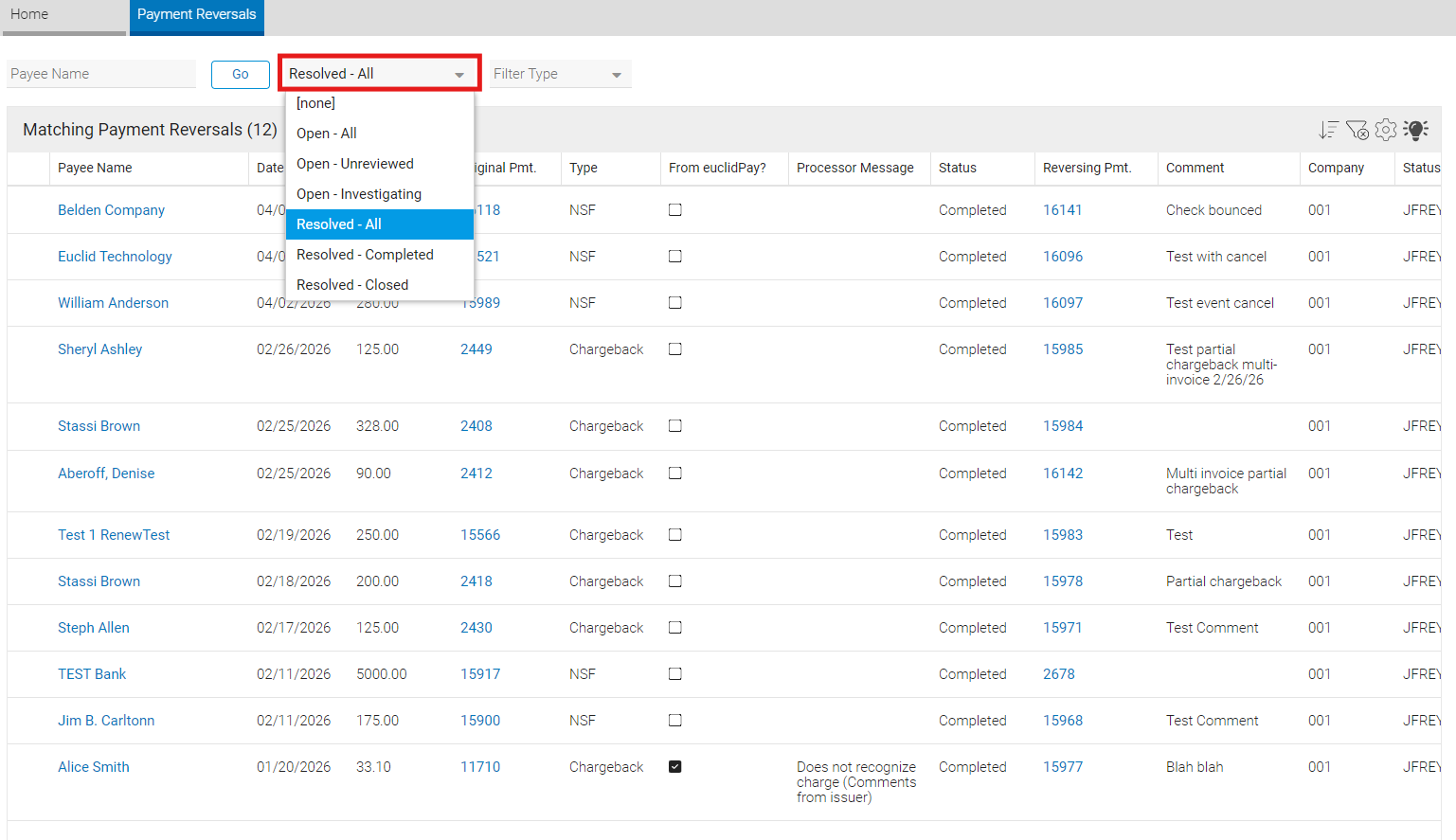
Filter the list to "Resolved - All".
-
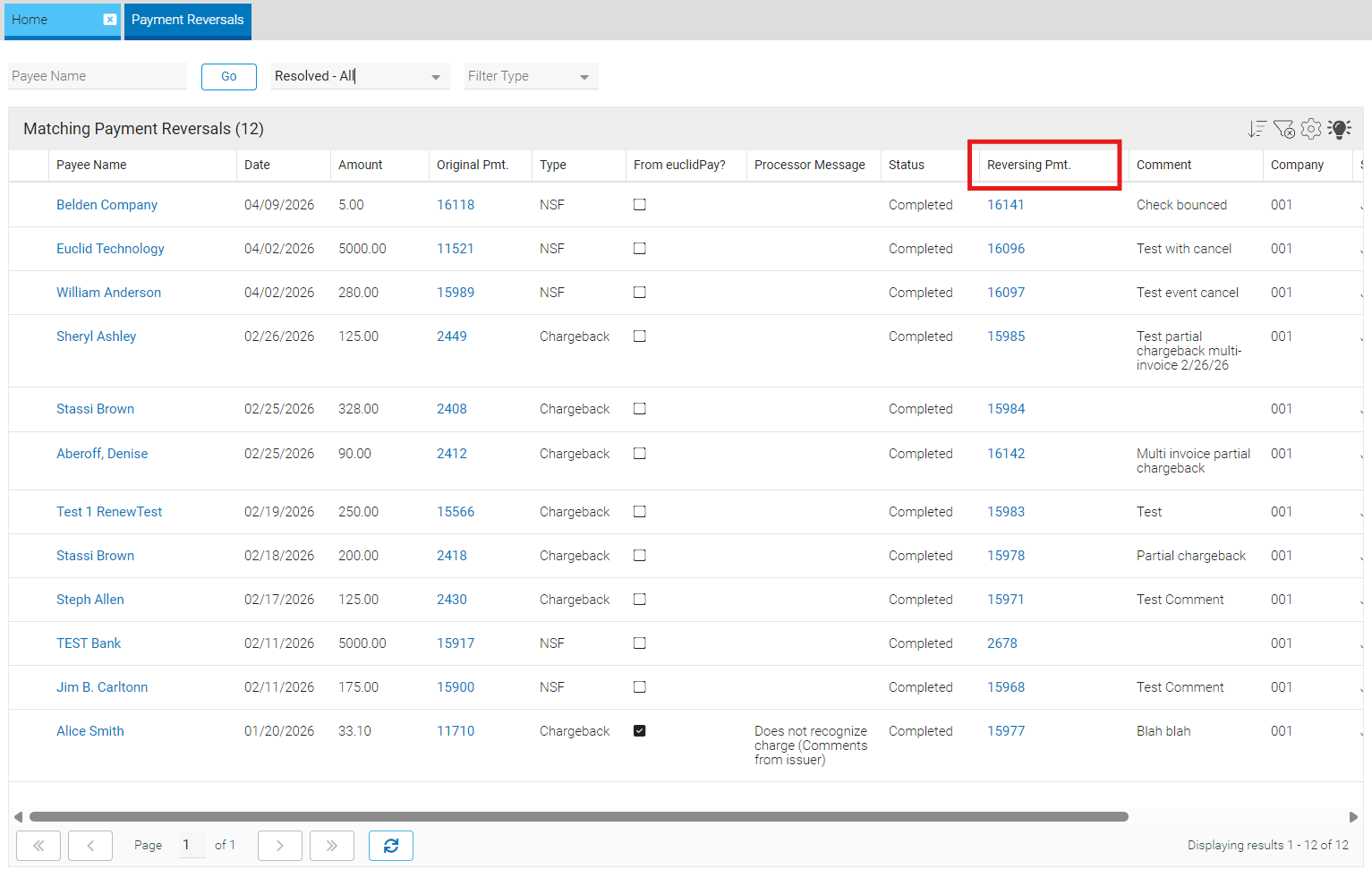
The linked reversal payments will be in the "Reversing Pmt." column.
-
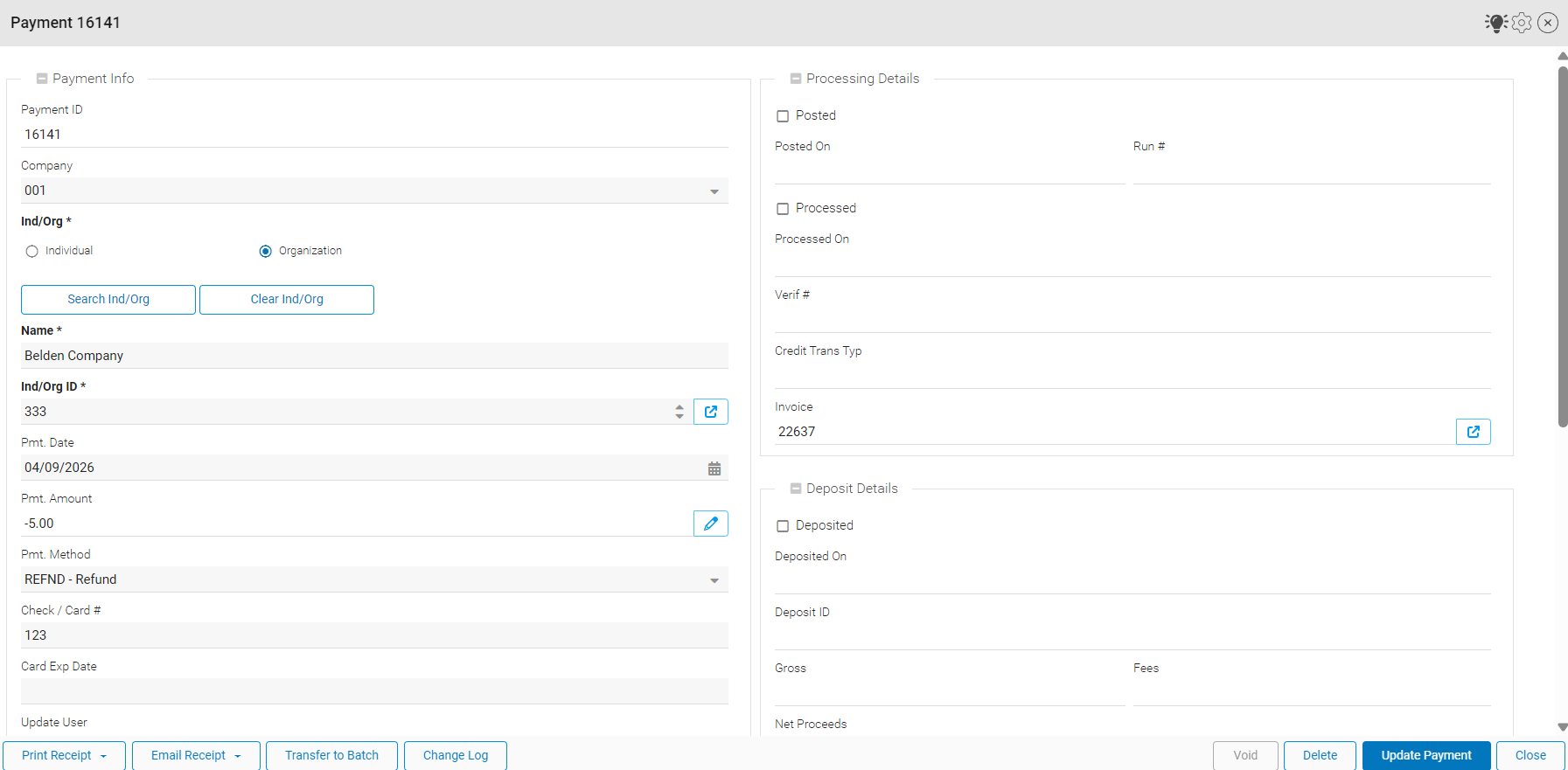
Open the reversal payment record by clicking into one the reversing pmt. links.
Configuring Reversals
Reversals are enabled and controlled by fields in the "Payment Methods" reference table:
-
From the main menu, Click "Admin" and select "Edit Reference Tables".
-
Find the "Payment Methods" reference table.
-
Locate the payment method you wish to enable reversals for.
-
Select the appropriate values from the "REVERSALRULE" and "REVERSALMETHOD" dropdown fields.
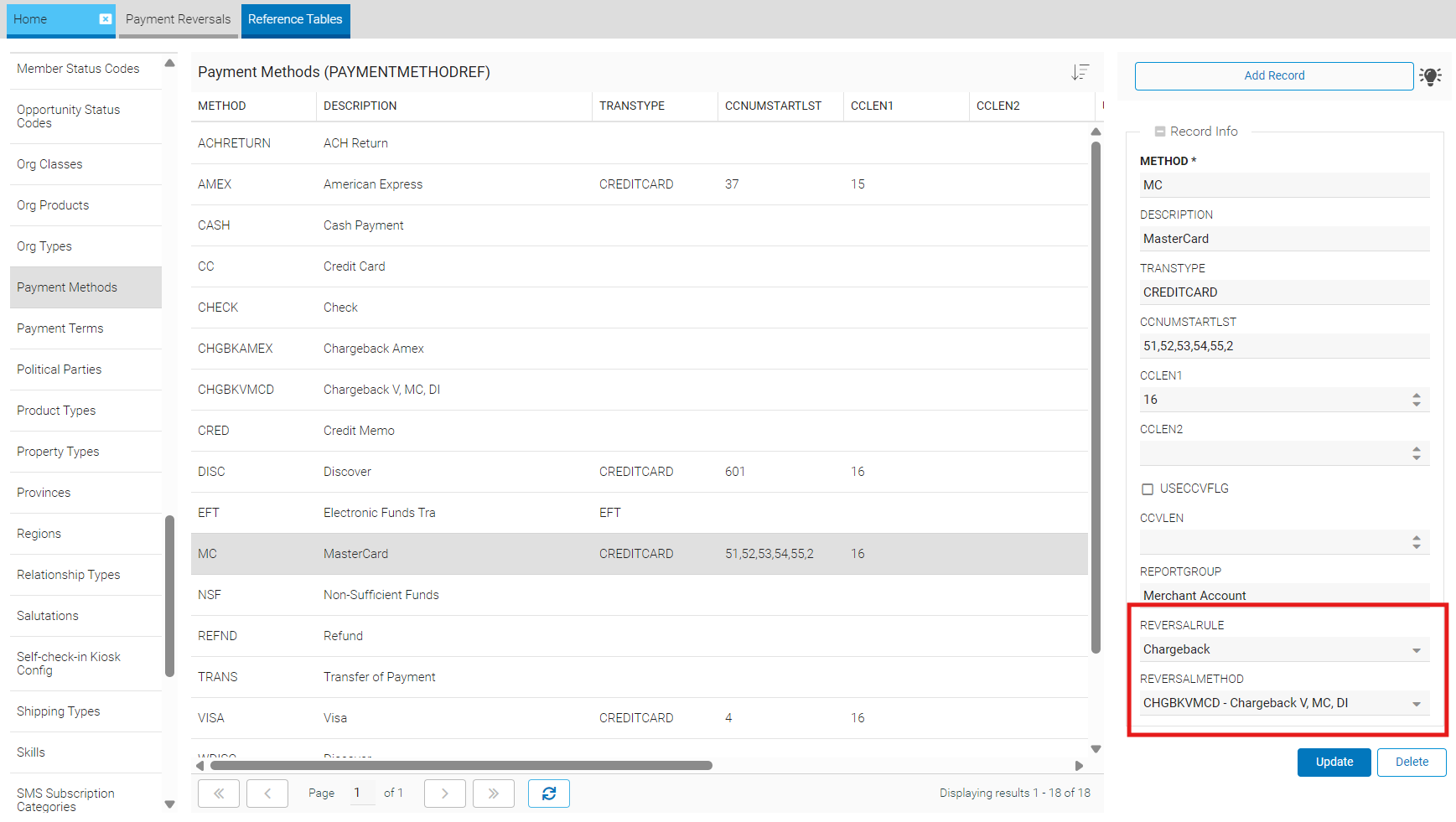
- Reversal Rule: Indicates which types of reversals are allowed for the method (e.g., Chargeback, ACH Return, NSF).
- Reversal Method: The payment method used when the system creates the reversing payment via Apply Reversal. If the intended reversal method does not yet exist, it will need to be added separately first. See the Reversal Methods section below for more information.
For reversing payments to be created correctly, both fields must be configured on the original payment’s method.
-
Click "Update" to save.
Reversal Methods
Reversal payments are mapped to the GL like any other payment method. By default, we provide recommended reversal methods that were automatically mapped to their corresponding payment methods during the rollout of the payment reversals feature.
The default reversal methods include:
-
ACHRETURN: Used for returned ACH payments (only applicable if your system is configured for ACH processing).
-
CHGBKAMEX: Used for chargebacks on American Express transactions.
-
CHGBKVMCD: Used for chargebacks on Discover, Mastercard, and Visa transactions.
-
NSF: Used for bounced paper checks.
For these default reversal methods, cash mappings are derived from the original transaction. For example, ACHRETURN uses the same cash mapping as the original ACH payment method.
Chargebacks are separated by American Express versus Discover/Mastercard/Visa to align with industry standards and brand‑specific chargeback rules and processes. If preferred, clients may update the payment method configuration to combine chargebacks into a single method or split them into more granular methods.
For clients who already had applicable reversal methods configured, those methods were automatically mapped to the corresponding payment methods instead of adding the new default reversal methods listed above.
Viewing or Editing Cash Mappings
Cash mappings associate a payment method with the cash account where its funds are deposited. For reversals, the reversal method should be mapped to the same account as the original payment method to ensure that the funds are withdrawn from the same account they were deposited into.
To view or edit the cash mappings for a payment method:
-
From the main menu, Click "Admin" and select "Edit Reference Tables".
-
Find the "Ledger/Item CD Map" reference table.
-
Set the column header filters to ITEMSOURCE = "R".
Note
Cash mappings are frequently customized to meet client‑specific rules. If you have questions about understanding or modifying these mappings, please contact your Euclid Support Analyst.
Payment Reversals List
To locate the payments reversals list:
-
From the main menu, click "Financials" and select "Payment Reversals".
-
This will open a list of all open payment reversals.
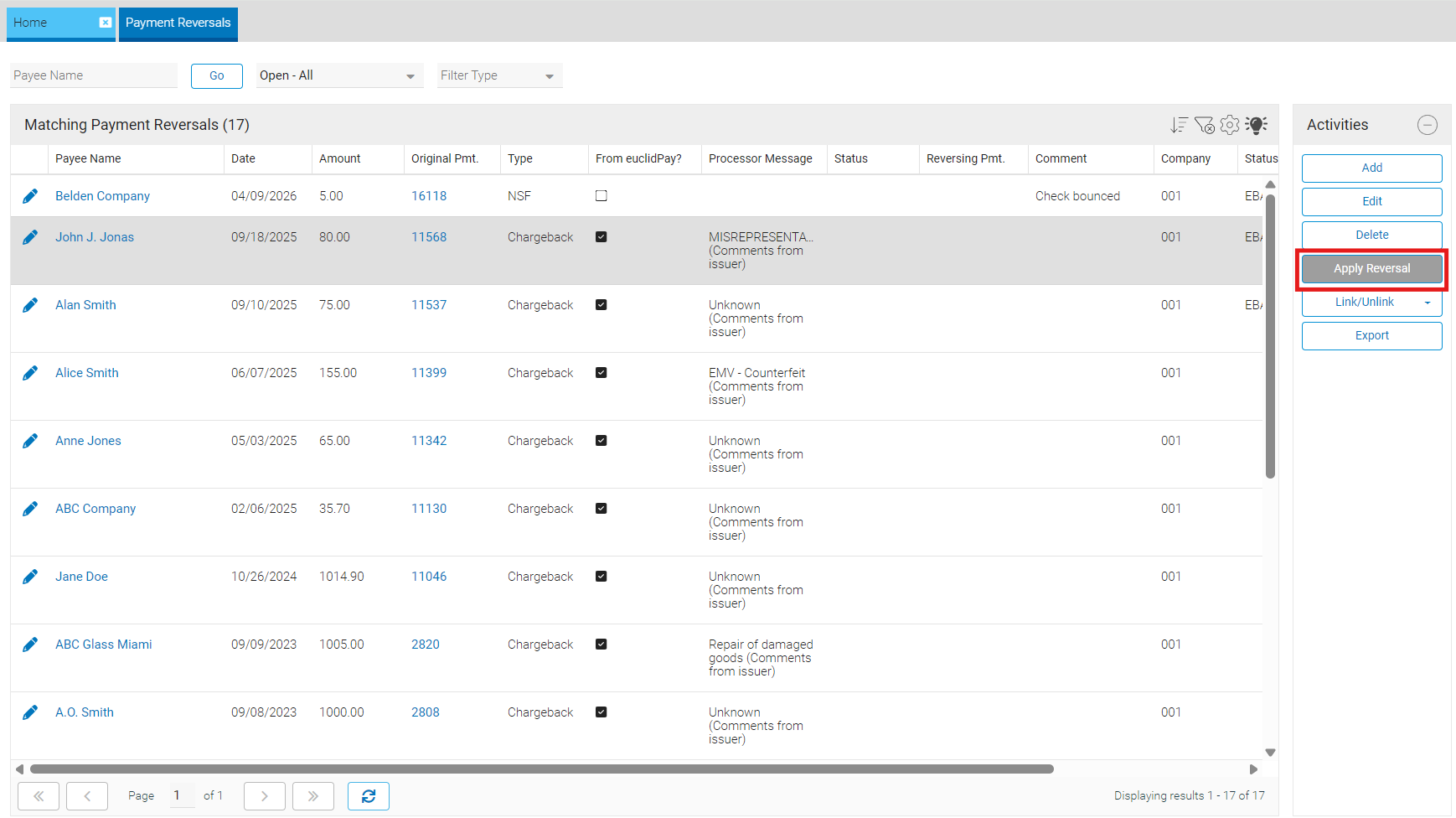
Each column represents a reversal record. The list includes:
- Payee Name: The individual or organization associated with the payment
- Date: Reversal date
- Amount: Reversal amount
- Original Pmt.: The payment that is being reversed
- Type: ACH Return, Chargeback, or NSF
- From euclidPay?: Indicates whether the record originated from euclidPay
- Processor Message: Message from the processor (for euclidPay reversals only)
- Status: Investigating, Completed, or Closed
- Reversing Pmt.: The linked reversing payment (when present)
- Comment: Staff‑entered notes
- Company: The company associated with the transaction
- Status Updated By: User who last changed the status
- Status Updated On: Timestamp of the last status update
Search by Reversal Statuses
At the top of the payment reversals list, you can filter by status.
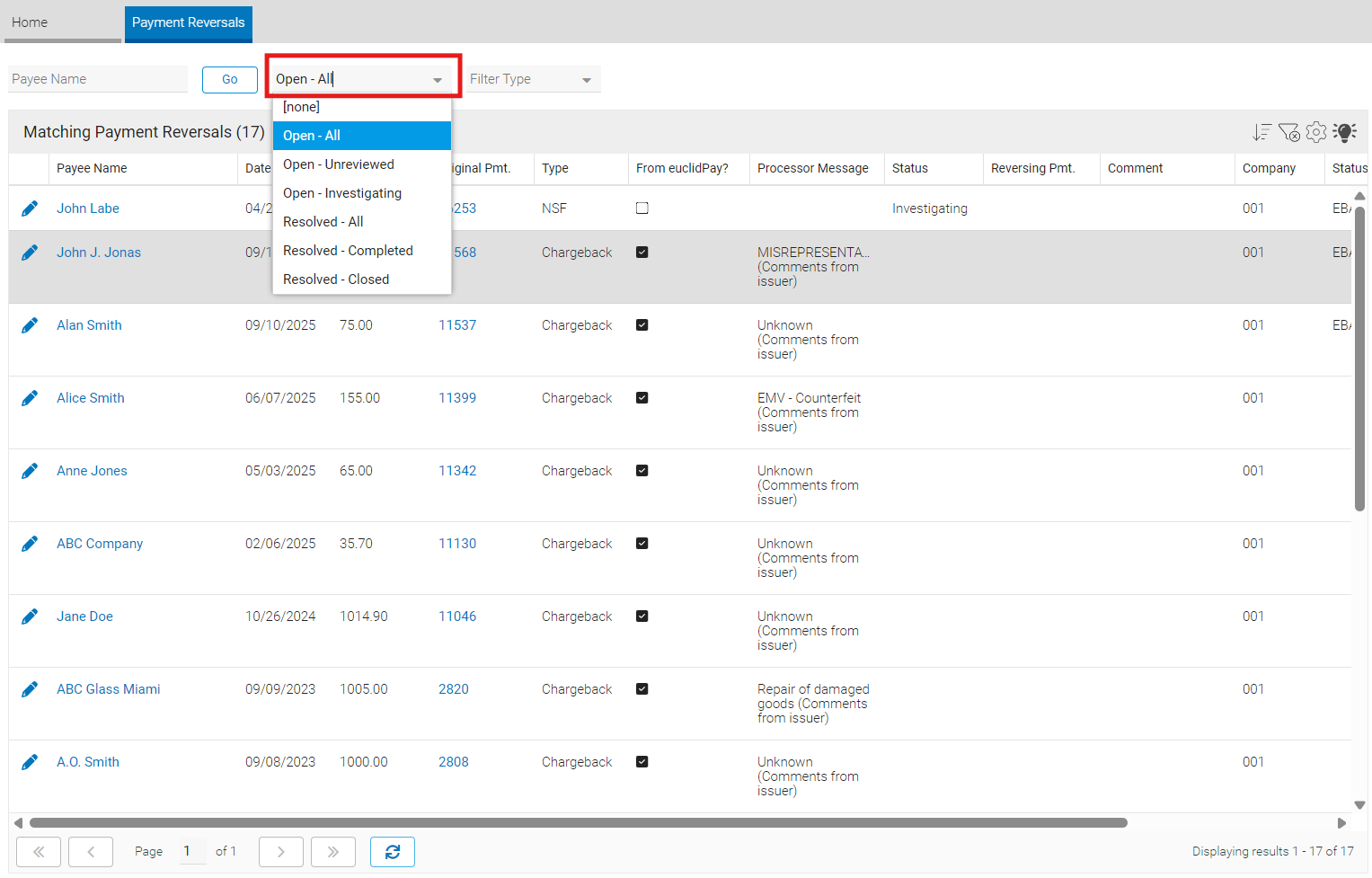
- Open - Unreviewed: Newly created reversal (either euclidPay or manual) with no status. No staff action has been taken yet.
- Open - Investigating: Staff is reviewing (e.g., awaiting processor updates or internal follow‑up).
- Resolved - Completed: A reversing payment exists. The record is locked from further editing and cannot be used to generate or link a reversing payment. If correction is needed, you may Unlink Reversal Payment.
- Resolved - Closed: Reviewed with no reversing payment required (e.g., dispute resolved in your favor). Closed records cannot be used to generate or link a reversing payment.
Search by Reversal Types
At the top of the payment reversals list, you can filter by type.
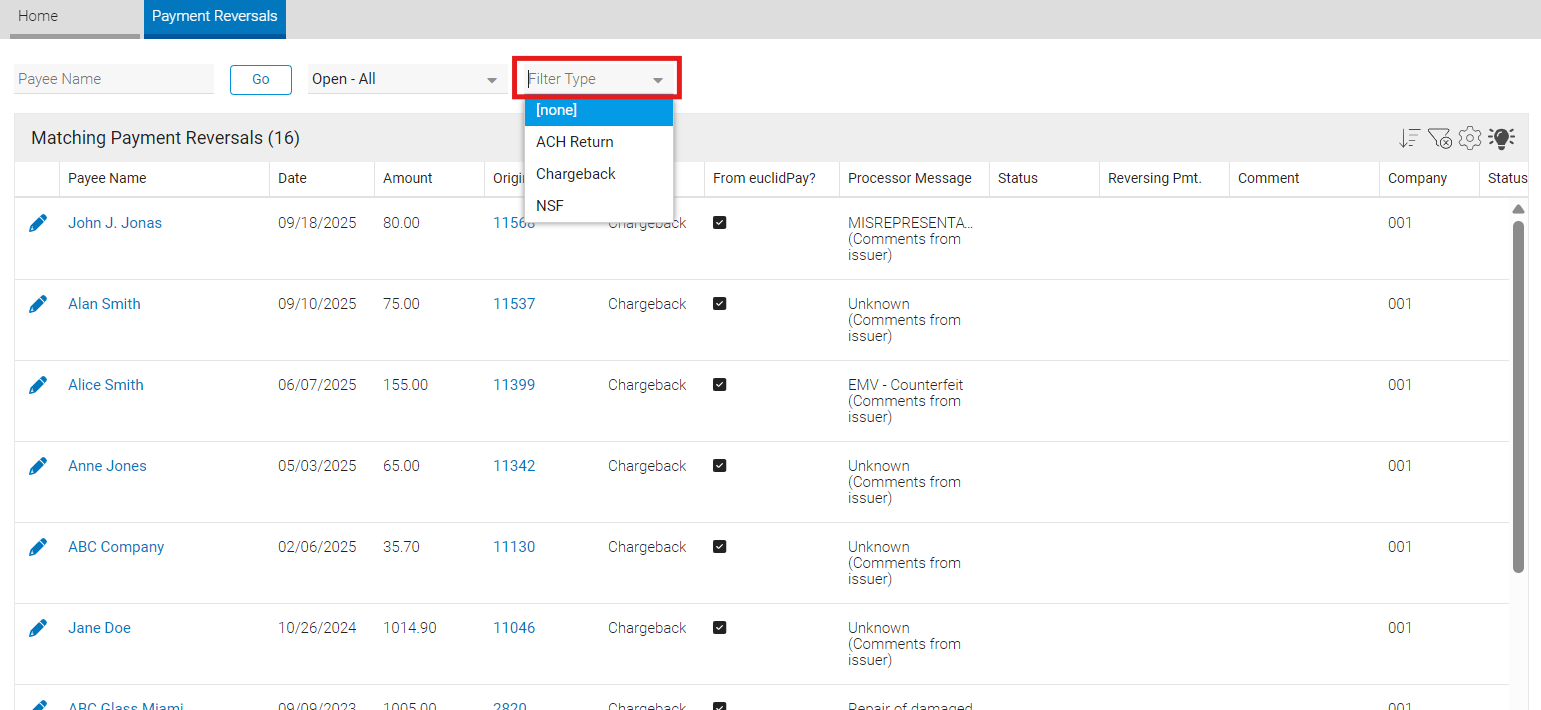
- Chargeback — The cardholder disputes the transaction and the processor withdraws part or all of the original payment.
- ACH Return — The ACH network returns the transaction; no funds are received.
- NSF (Non‑Sufficient Funds) — A paper check fails to clear the bank.
euclidPay Reversals vs. Manual Reversals
euclidPay Reversals
Reversal records will be automatically pulled from the payment processor for clients using euclidPay.
CV Online Setting
EUCLIDPAY_REVERSALS_MIN_DATE sets the earliest Payment Date included for automatically ingested euclidPay Chargebacks and ACH Returns. It defaults to May 5, 2026.
To find all euclidPay Reversals:
-
From the main menu, click "Financials" and select "Payment Reversals".
-
This will open a list of all open payment reversals.
-
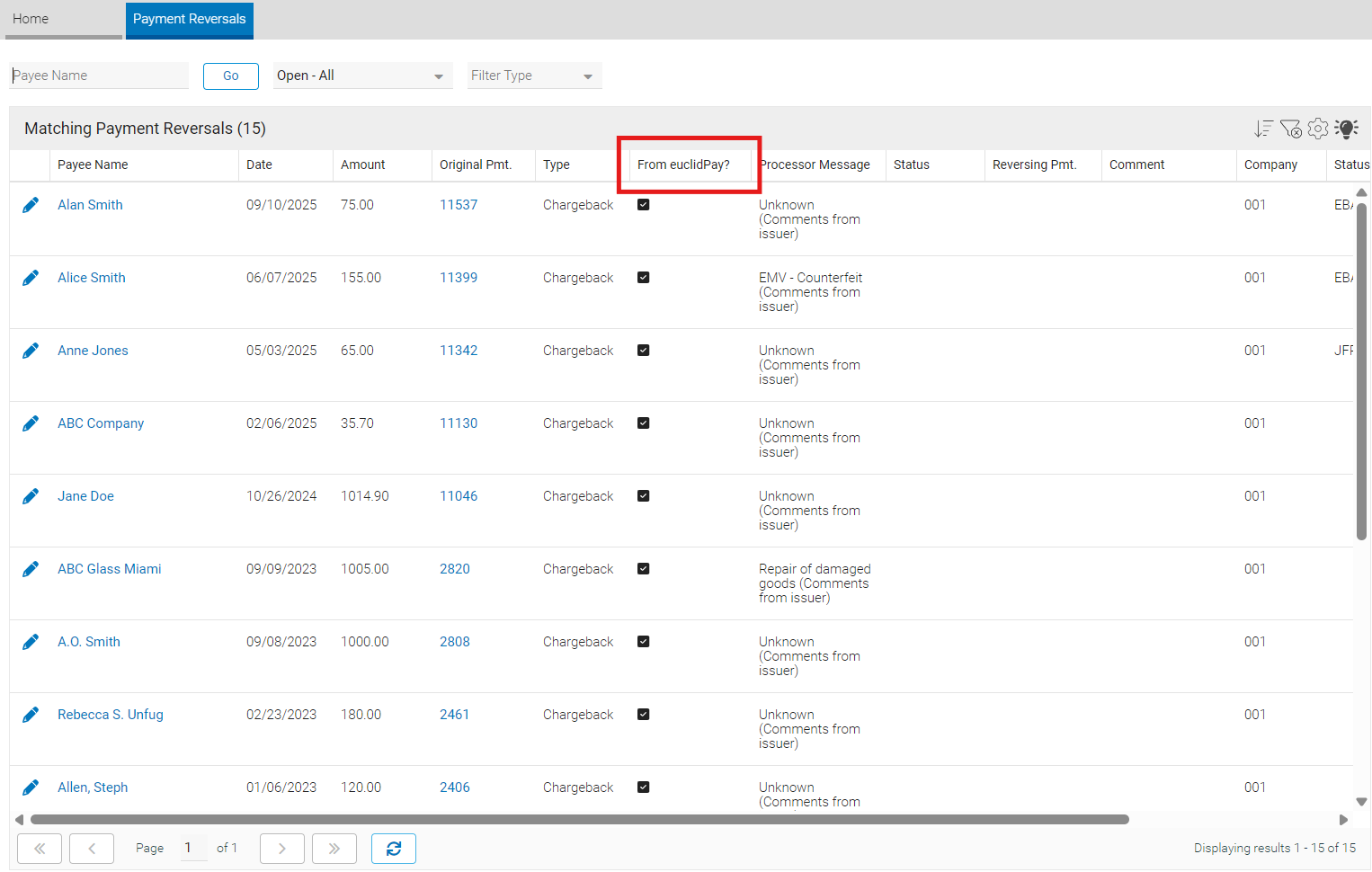
In the payment reversals list, use the “From euclidPay?” column to identify reversals created through euclidPay. A checked box indicates the reversal is from euclidPay; an unchecked box indicates it is not.
Manual Reversals
Create manual reversal records in cases such as:
- NSF check notifications from a bank.
- Reversals processed by a third‑party payment system.
- Other exceptions not sourced from euclidPay.
To create a manual reversal:
-
From the main menu, click "Financials" and select "Payment Reversals".
-
This will open a list of all open payment reversals.
-
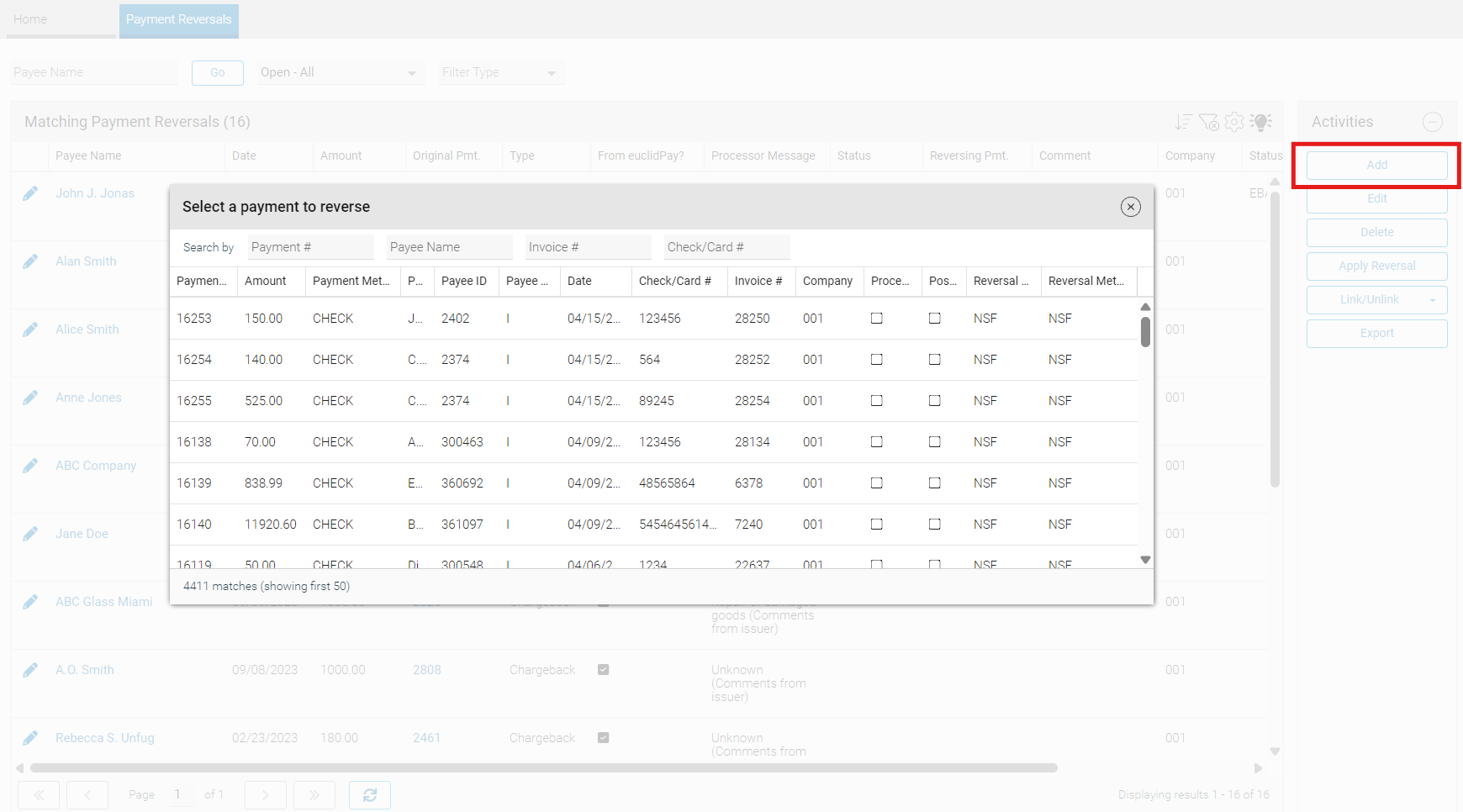
Click "Add" on the right-hand side under the Activity Panel to open a list of payments to reverse.
-
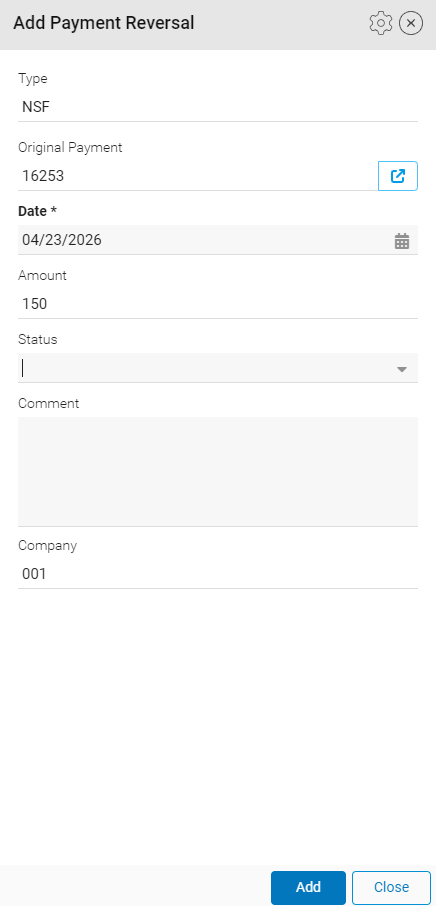
Search for the payment using any of the Search By fields and click on the payment to open "Add Payment Reversal" window.
-
Click "Add" to save and close the new payment reversal.
Manage a Reversal Record
A reversal record is where you can review details, track status, and perform actions.
Edit Reversal Record
To edit a reversal record:
-
From the main menu, click "Financials" and select "Payment Reversals".
-
This will open a list of all open payment reversals.
-
Click into the pencil icon to open a payment reversal record.
- Update "Status" and "Comment" as needed.
- Certain fields are read‑only on euclidPay‑originated records.
-
Click "Save" to save and close the record.
Delete Reversal Record
Deleting reversals is only available for manual reversal records with no reversing payment linked, euclidPay reversals cannot be deleted.
To delete a reversal payment record:
-
From the main menu, click "Financials" and select "Payment Reversals".
-
This will open a list of all open payment reversals.
-
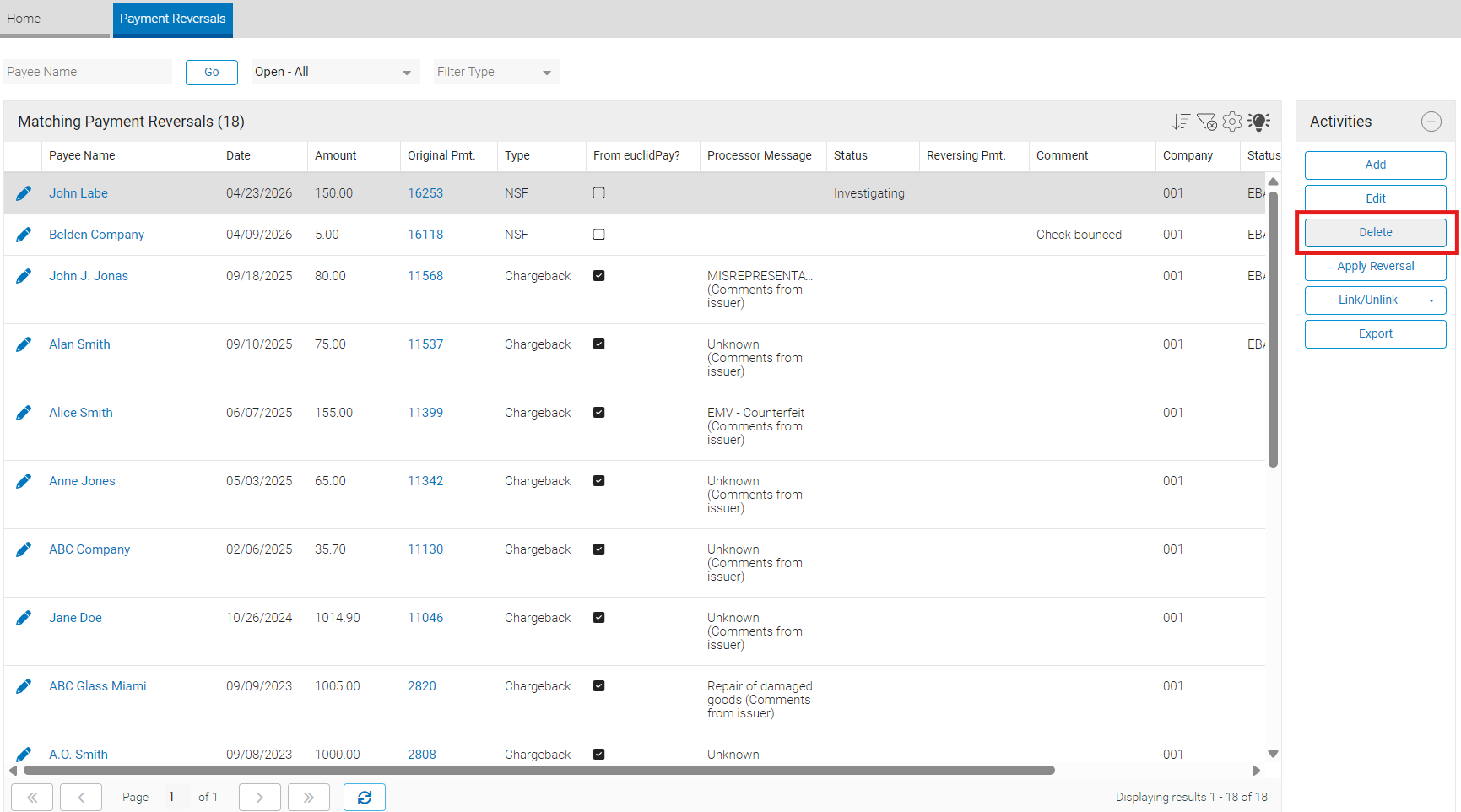
Click into the row of the payment reversal you wish to delete and select "Delete" under the Activity Panel.
-
Select "Yes" in the Confirmation window.
Unlink Reversal Payment
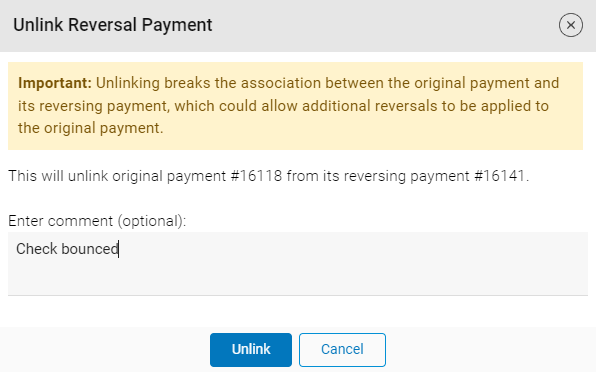
Unlinking a reversal payment removes the association to the reversing payment. Use this when a reversing payment was linked/generated in error and needs to be corrected.
To unlink a reversal payment:
-
From the main menu, click "Financials" and select "Payment Reversals".
-
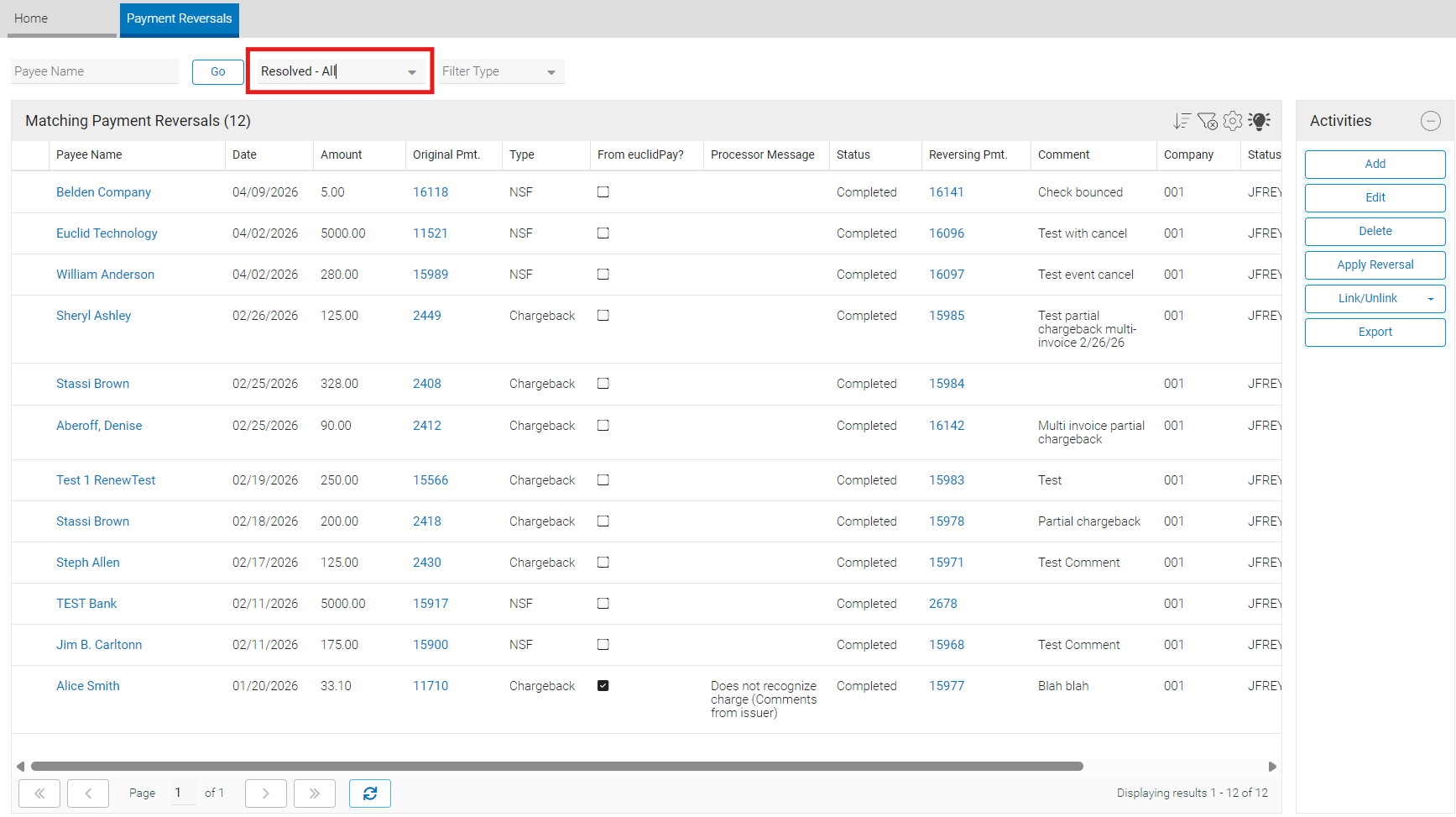
This will open a list of all open payment reversals. Filter the list to resolved payments.
-
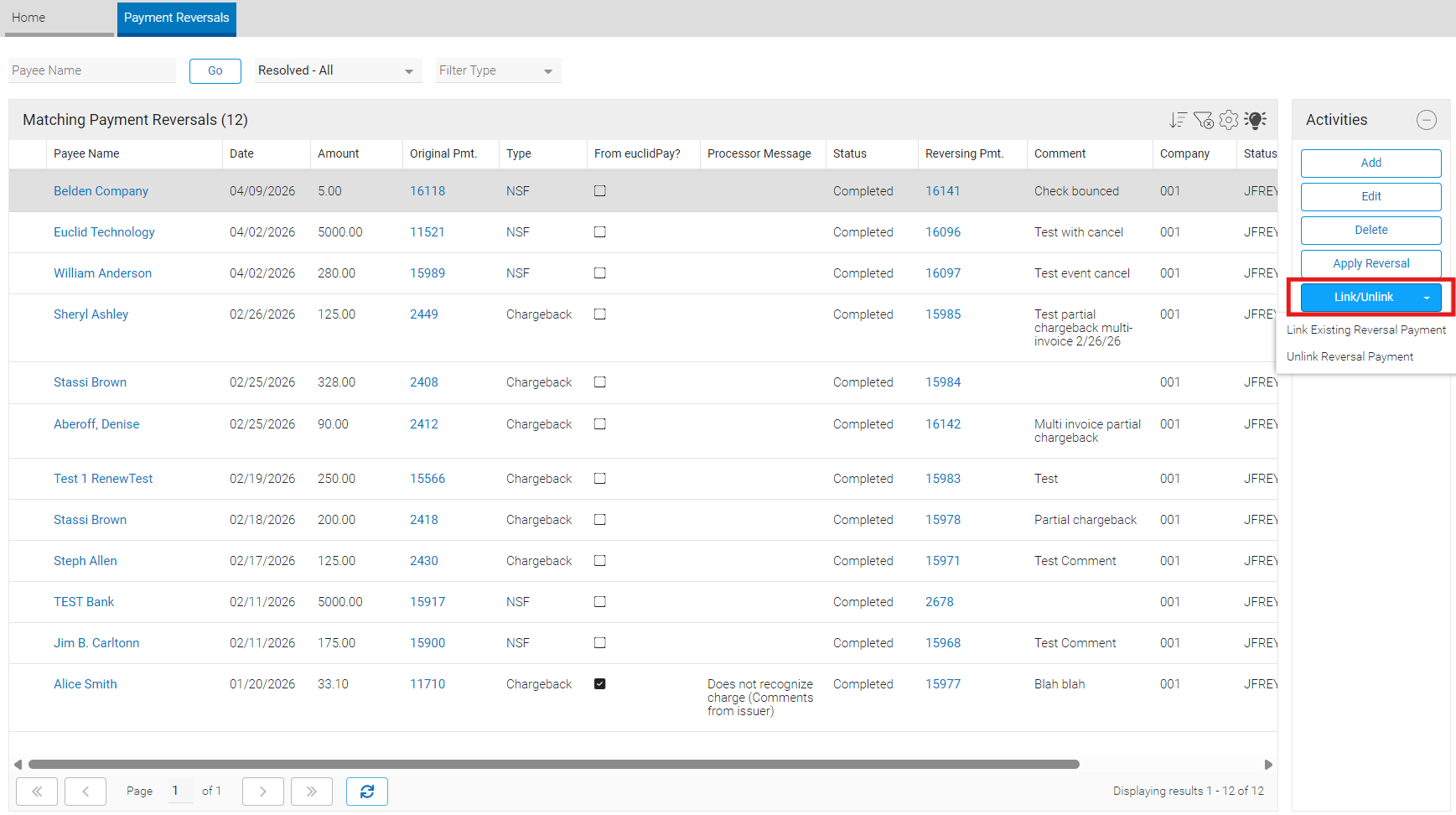
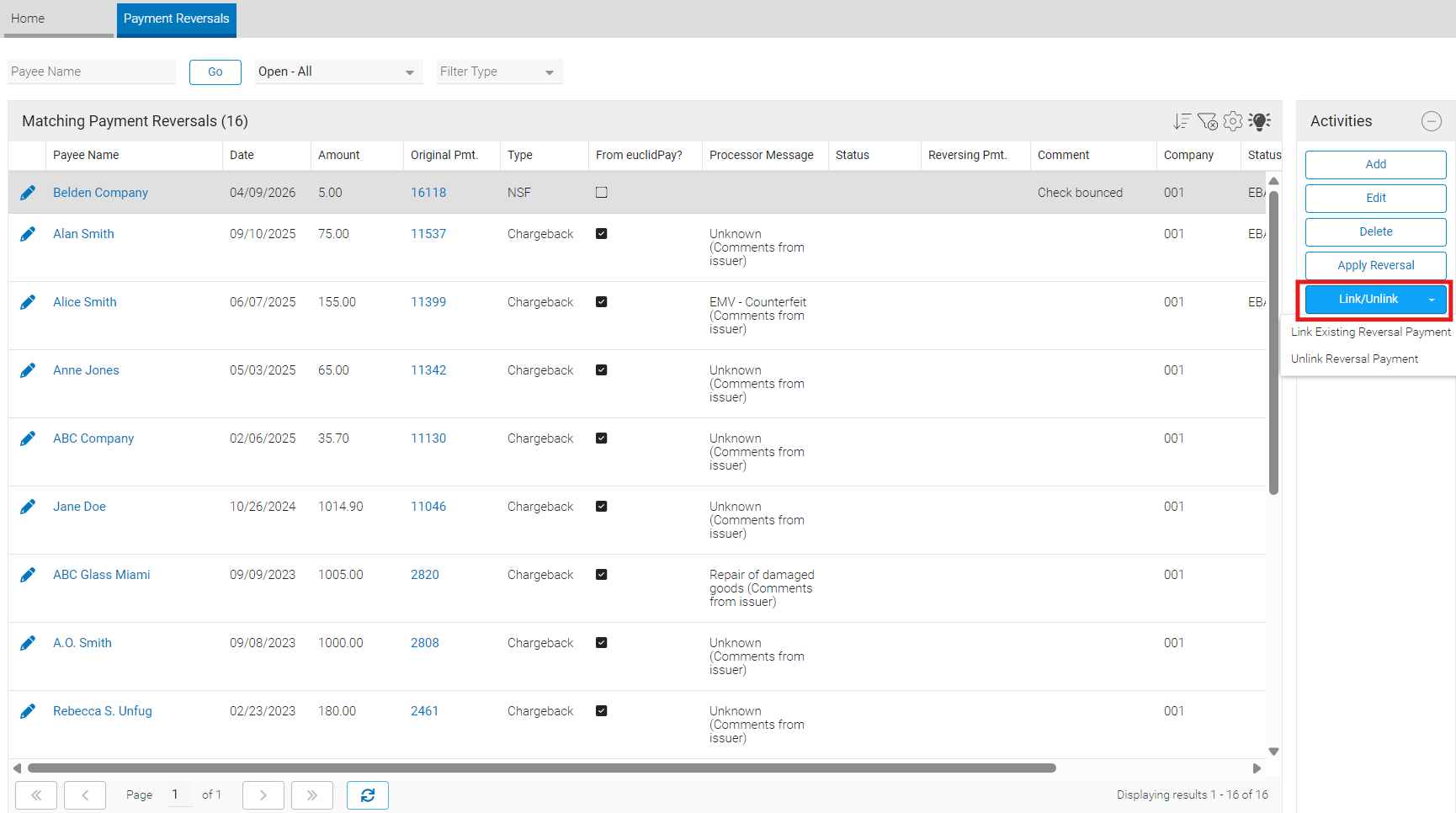
Locate the reversal payment you wish to unlink and click anywhere in the row to highlight the row gray. Click the "Link/Unlink" button under the Activity Panel and select "Unlink Reversal Payment".
-
Add an optional comment in the Unlink Reversal Payment window and click "Unlink" to unlink and close.
Searching for Payments Linked to a Reversal
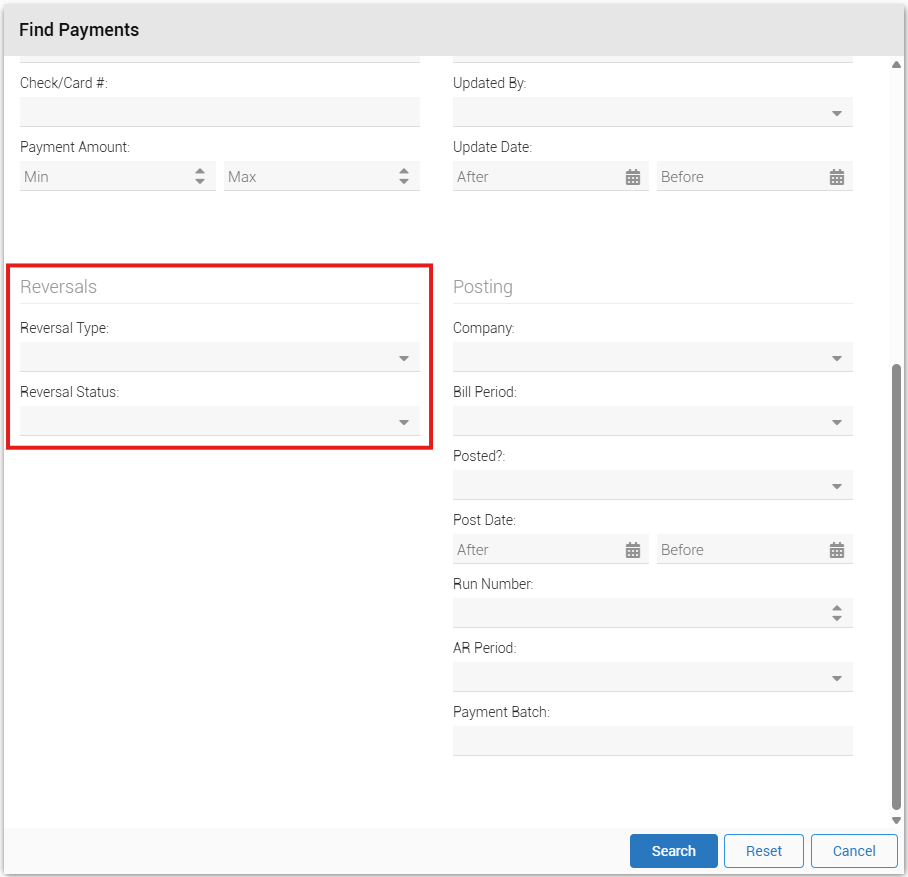
To find reversal payments or payments that have been reversed:
-
From the main menu, click "Financials" and select "Payments".
-
The quick find will open by default.
-
Choose the desired filters under the "Reversals" section and click the "Search" button to see the results.
Completing a Reversal
Complete the reversal by either creating a new reversing payment or linking an existing one.
Completing the reversal does not cancel the original transaction. Any related records must be canceled or adjusted manually. For more on canceling different transaction types, see the Refunds guide.
Apply Reversal
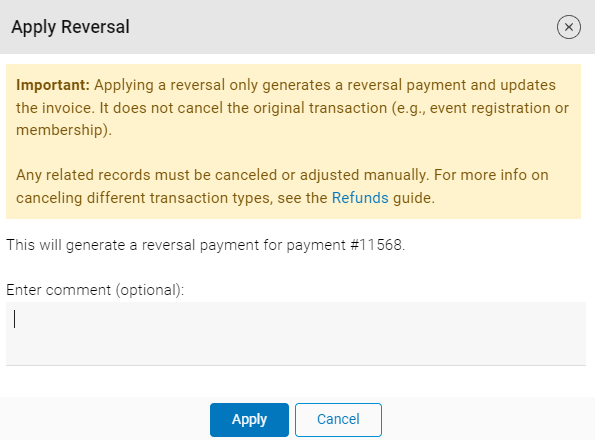
The apply reversal option creates a new reversing payment using the configured reversal method from the original payment. When selected, the system will:
- Generate the reversing payment using the configured method to offset the original payment.
- Update affected invoices and totals.
- Mark the reversal Completed.
To apply reversal:
-
From the main menu, click "Financials" and select "Payment Reversals".
-
This will open a list of all open payment reversals.
-
Click the row of the payment reversal you want to apply, then select "Apply Reversal" in the Activity Panel.
-
Add an optional comment in the Apply Reversal window and click "Apply". If this was a partial chargeback for a payment that was applied to multiple invoices, additional steps are required. For more details, see the Partial Chargebacks on Multi-Invoice Payments section in this guide. Otherwise, a confirmation will appear to indicate that the reversal was completed with the option to navigate to the new reversal payment record.
Partial Chargebacks on Multi‑Invoice Payments
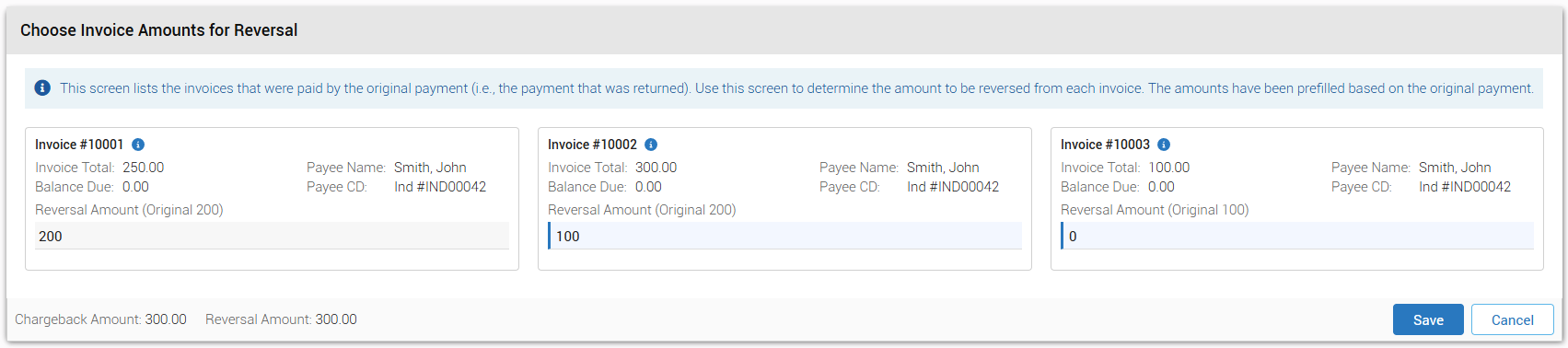
A partial chargeback occurs when the cardholder disputes only part of a credit‑card payment rather than the full amount. If the original payment was applied to multiple invoices, staff must decide how much of the chargeback should be removed from each invoice.
When this happens, ClearVantage will present the invoices that were paid by the original payment and prefill suggested reversal amounts based on how the original payment was distributed. Staff may adjust these amounts as needed before completing the reversal.
Depending on how many invoices were paid by the original payment:
-
25 invoices or fewer: An on‑screen editor appears where each invoice displays its suggested reversal amount and a field where you can update it.
-
More than 25 invoices: A CSV workflow is used. You download a CSV containing the prefilled reversal amounts, update the file in your spreadsheet editor, and upload it back into ClearVantage.
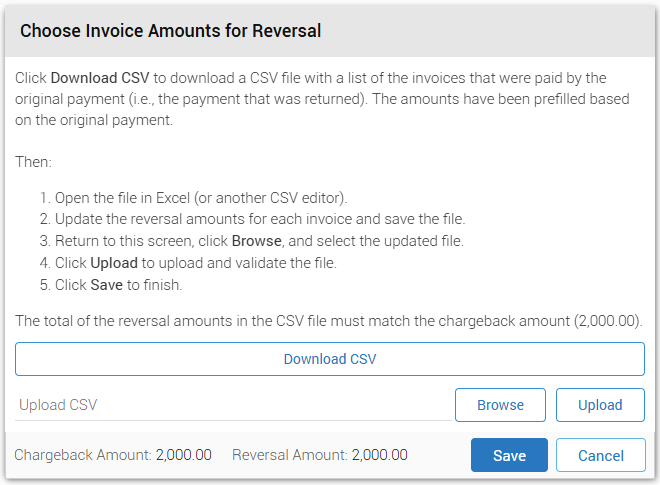
In both cases, the total of the reversal amounts must equal the partial chargeback amount in order to continue with apply reversal.
Most reversals—including ACH Returns, NSF checks, and full chargebacks—do not require this step.
Link Existing Reversal Payment
Linking an existing reversal payment associates a previously created negative payment with the reversal record.
Requirements:
- Same payee: The reversal payment must be for the same payee as the original payment.
- Appropriate amount: the reversal payment must be a negative payment where the absolute value of the payment amount matches the payment amount of the original payment. For example, an original payment of $100 must have a reversal of -$100.
- Appropriate payment method: the reversal payment must use a payment method that matches the reversal method configured on the reference table for the original payment's payment method.
- Not already linked: The reversal payment cannot already be associated with another reversal record.
To link an existing reversal payment:
-
From the main menu, click "Financials" and select "Payment Reversals".
-
This will open a list of all open payment reversals.
-
Click into the row of the reversal payment you wish to link. Click the "Link/Unlink" button under the Activity Panel and select "Link Existing Reversal Payment".
-
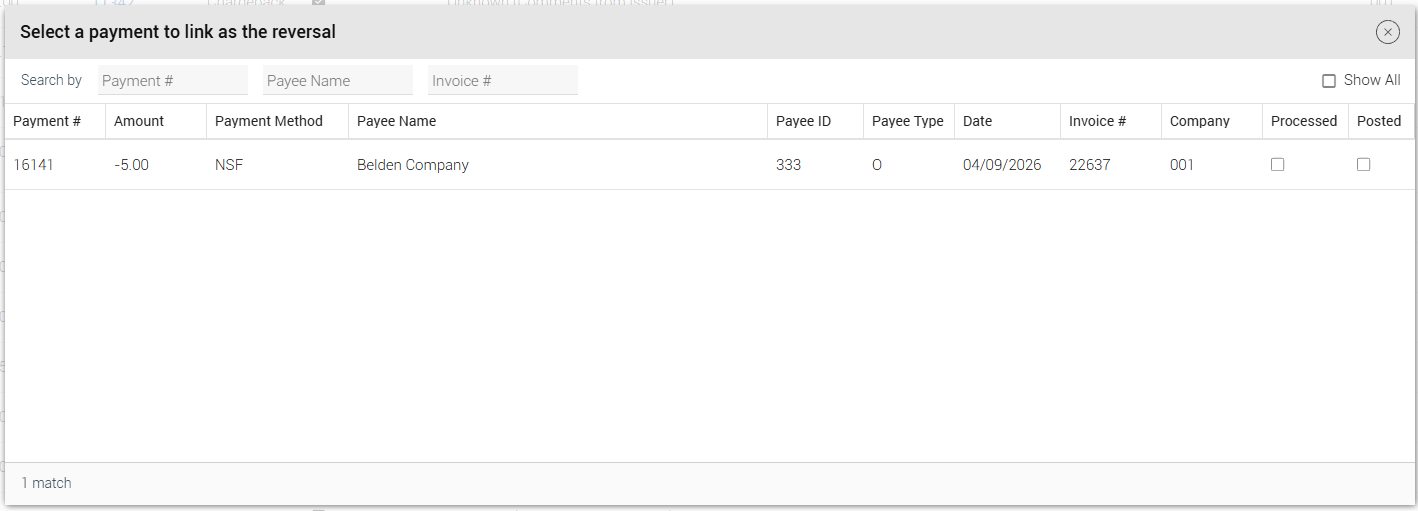
This will open a list of payments that meet the requirements. To bypass the restrictions of the requirements, select the "Show All" checkbox. Click on the payment you want to link as the reversal payment.
-
Add an optional comment in the Link Reversal Payment window and click "Create Link". The reversal gets marked as completed.
Reversal Fee
When a payment is reversed, the payment processor or bank may charge a fee to the party collecting the payment (often referred to as a returned check or reversal fee). In some cases, it may be desirable to pass this fee on to the person who submitted the payment.
To support this, a baseline invoice adjustment is included as part of the payment reversal functionality. Clients can use this adjustment to apply the fee to the invoice associated with a reversal that incurred a fee.
Note that the baseline invoice adjustment applies only to company 001. For clients collecting payments under multiple companies, additional invoice adjustments must be created for each company to collect the reversal fee and ensure that GL account mappings are correct.
For more information, see Invoice Adjustments under the Invoices guide.
Accounting Impact
When a reversal is completed:
- The system creates a reversing payment (negative amount) that offsets the original payment.
- Each affected invoice receives a corresponding reversal row in items and payments (negative applied amount).
- Invoice totals recalculate to reflect the reversal (e.g., amount paid, balance due, and paid/overpaid logic).
- Internal change logs are updated to record the allocation and payment updates.
- The payment reversals list and related Payment/Invoice notebooks reflect the updated links and statuses.
Dashboard Gadgets
Requires euclidPay
This is only applicable to clients enrolled in euclidPay.
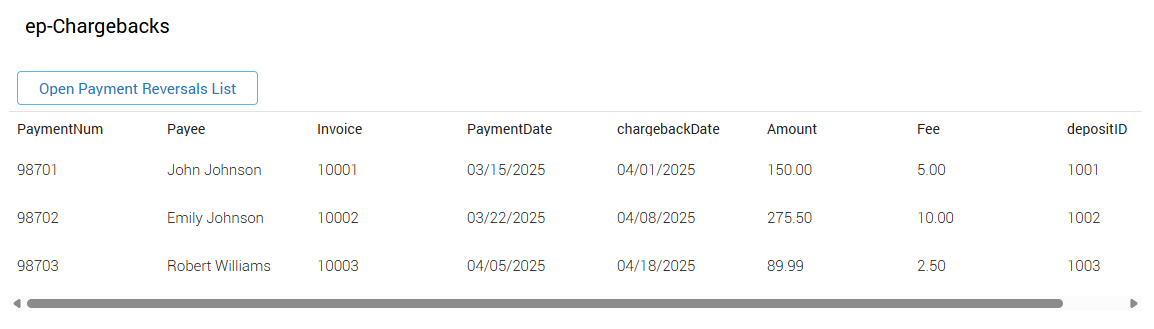
Clients using euclidPay may also monitor reversal activity on the euclidPay Dashboard using the ep‑Chargebacks and ep‑ACH Returns gadgets. An Open Payment Reversals List button on these gadgets links directly back to the Payment Reversals list for detailed review and action.