Reference Tables
Reference tables contain information to help populate and manage the data inside ClearVantage (e.g., dropdown lists, Committee Types, member Types, Interest Codes and Skill codes, etc.).
System Administrators have permission to modify Reference Tables. Other users must ask an administrator for any necessary changes.
Edit Information in a Reference Table
You are free to edit information in reference tables. It is recommended that Reference Table values used in existing records not be deleted or modified. Notebooks and Reports may display the values in historical data and removing values from the Reference Tables may impact those Notebooks and Reports.
-
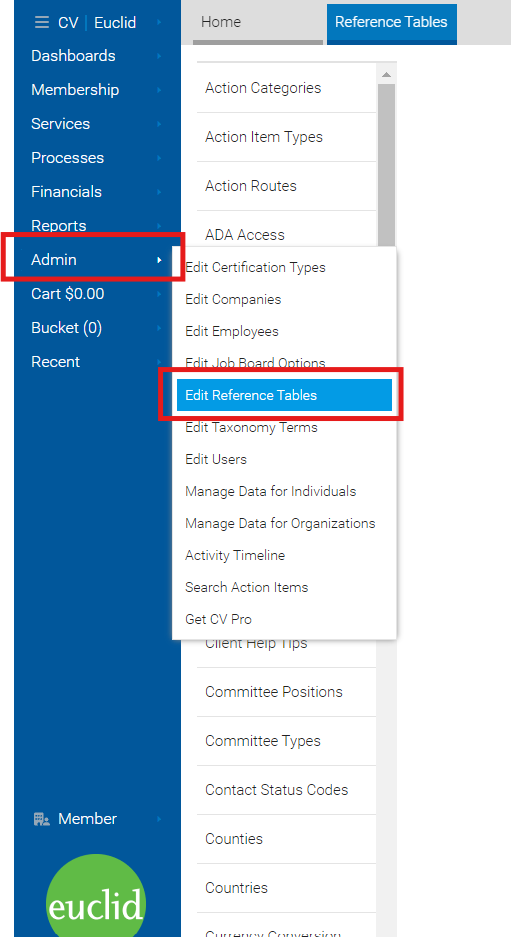
From the main menu, click "Admin" and select "Edit Reference Tables".
-
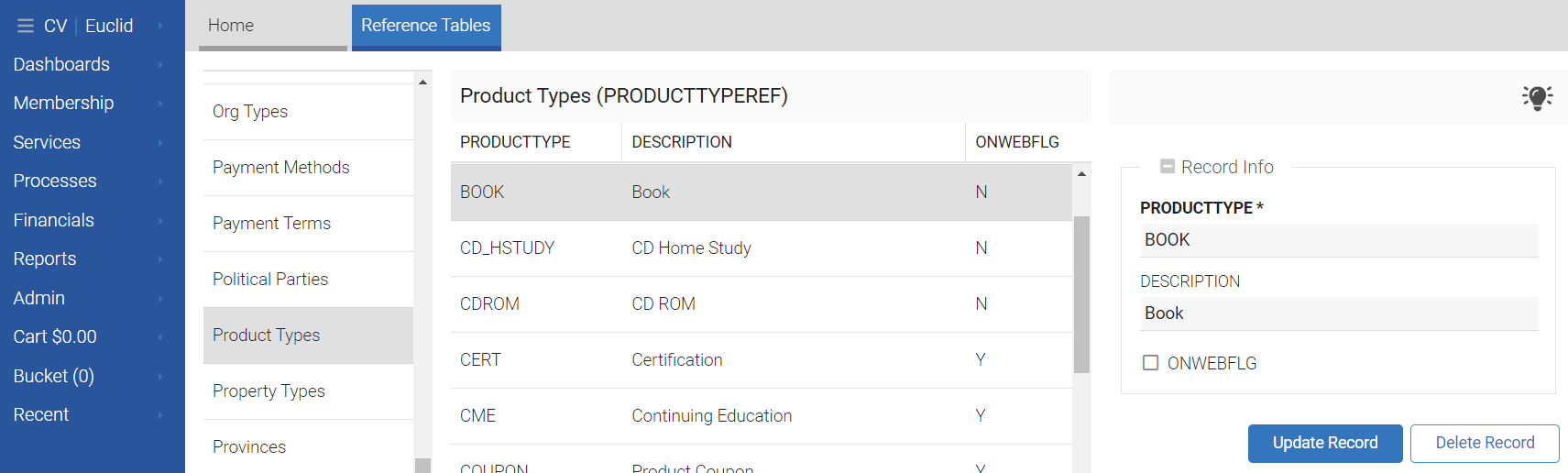
Choose the table you want to edit from the list of reference tables.
-
To edit an existing record, select the record and use the form on the right-hand side to make changes. To save the changes, click the "Update" button.
-
Click on the "Add Record" button, on the top right-hand side, to insert a new record into the table. Click the "Save" button to save the new record.
Note
After editing reference tables, you will need to reload CV before you see your changes reflected.
Column Filtering
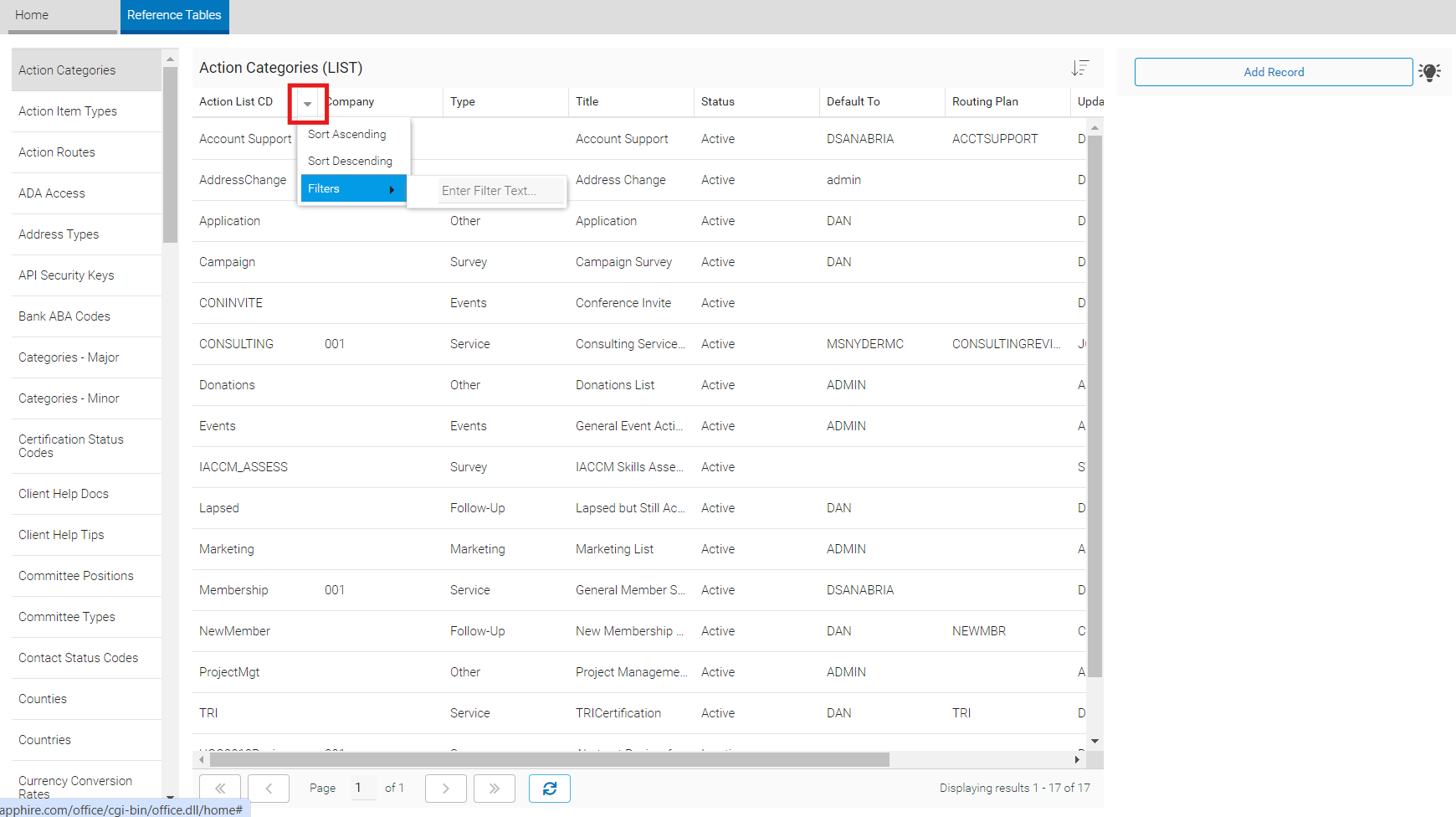
All of the reference tables have column filtering. The example below filters the "Countries" reference table by "COUNTRYNAME".
-
From the main menu, click "Admin" and select "Edit Reference Tables".
-
Select the "Countries" table.
-
Click the down arrow on the column header of the field you want to filter by and select "Filters".
Key Reference Tables
This is a list of most of the reference tables in ClearVantage. From the main menu, click "Admin" and select "Edit Reference Tables".
-
Abstract Topics: Abstract topics available for submissions in the Abstract Management module. Topics are sub-categories of a given Group.
-
Action Item Types: Action Item type (e.g., Email, Call, Follow-up). Usually used to note what type of communication the entry is tracking. Values can be added to this reference table by basic users from the Action Item Screen as well, if allowed, based on a System Setting.
-
Action Routes: The names and codes of the predefined routes for action items. These can be assigned in the "Action Item Types" reference table.
-
ADA Access: Controls the available ADA Access options available in the event registration notebook.
-
Address Type: Types of addresses available (e.g., home, other, and work).
-
API security keys: The security keys for any external API being used with CV Online.
Requires Support
This feature requires support setup. For more information, please contact your Euclid Support Analyst.
-
Bank ABA Codes: List of banks and corresponding routing numbers for EFT transfer payments.
-
Categories - Major: Options for the "Major Cat" field in the products notebook.
-
Categories - Minor: Options for the "Minor Cat" field in the products notebook.
-
Certification Status Codes: Status used for Master Certification tracking of compliance periods (e.g., Required, Exempt, Retired) (CERTYPE=M).
-
Client Help Docs: Custom documents that can be used to an guide internal process. For more information, see the Custom Documentation guide.
-
Client Help Tips: Custom tooltips that can be used to guide an internal process. For more information, see the Custom Documentation guide.
-
Committee Positions: Positions available to committee members.
-
Committee Types: Used to group, report, and search on committee information.
-
Contact Status Codes: Preferred contact method for Individual or Organization. (e.g. Email, Mail, All, Do Not Contact)
-
Counties: County names.
-
Countries: Country codes and names. Proper codes are important for FedEx and UPS integration.
-
Currency Conversion Rates: Currency conversion rates to create multi-currency invoices.
-
Data Snapshot Setup: Define data points to track over time, and automatically capture them on a nightly/monthly basis for reporting purposes.
Requires Support
This feature requires support setup. For more information, please contact your Euclid Support Analyst.
-
Designations: Populates the list options in the designation drop-down including designating organization.
-
Dietary Needs: Controls the Dietary Needs options available in the event registration notebook.
-
Document Type: Tracks both Document Type and Document Class (REFTYPE=T for Types, REFTYPE=C for Classifications).
-
Donor Classes: Classification of donors.
-
Due Payment Category: Used for grouping similar dues billing items (e.g., LOCAL, NATIONAL).
-
Dues Billing Groups: Special categories used to group dues offerings into specific billing groups. These groups are used while running renewals.
-
Dues Calculate Rules: Contains rules for dues calculation when calculated dues have been configured. Click on the tool tips next to each field in this reference table to see your custom set up.
-
Education Levels: Contains education degrees available. Type field allows certain types of degrees to be grouped and searched on.
-
Email History Retention Keywords: The keywords that will flag important emails for the cleanup algorithm to avoid. See the Data Retention and Storage guide.
-
Ethnicities: List of values available in the ethnicity field on the Individual Notebook.
-
Industries: Industry types available in organization and individual records. (e.g. Athletic, Banking, Education, etc.)
-
Interests: Areas of interest available for tracking in organization and individual records.
-
Ledger Reference Codes: List of GL accounts used for mapping of revenue. For each GL, a DEBITLEDGERCD (AR account), DEFLEDGERCD (deferred revenue account), and COMPANYCD (company) can be specified.
-
Ledger/Item CD Map: Listing of mappings to GL accounts from various revenue generating items. The map is automatically updated when a new dues offering, event, product is mapped to an Accounting Code in the Notebook.
-
Lookups: Contains miscellaneous reference table information for some fields in ClearVantage. It can also be used for creating custom dropdown menus based on your configuration.
-
Membership Options: Contains information on member options for individuals and organizations as well as options for Dues/Donations/Subscriptions (OPTIONTYPE=M for Ind/Org, OPTIONTYPE=S for Dues/Sub/Don).
-
Membership Status Codes: Member status used in both individual and organization records. This list can be customized, but some default entries do have system functionality.
-
Org Products: Products available for tracking within organizations. Usually used to track the products/services provided by (or your products used by) an Organization.
-
Org Types: Types of organizations.
-
Payment Methods: Methods of payments (e.g., Amex, Cash, Check, Visa, and Refund).
-
Payment Terms: Terms for payment (e.g., Net30, By Due Date).
-
Political Parties: Lists political parties available for tracking in individual records.
-
Product Type: Types of products sold.
-
Regions: Regions that can be selected in the Chapter Notebook to group chapters into larger regions.
-
Relationship Types: Types of relationships used to track connections between individuals-individuals, organizations-organizations, and individuals-organizations.
-
Salutations: Prefixes available in individual and organization records.
-
Self-check-in Kiosk Config: To manage the kiosk defaults for a certain event or for all events. For more information, see the Self-check-in Kiosk guide.
-
Shipping Types: Shipping vendors for use when shipping product orders.
-
Skills: Skills available in individual and organization records.
-
States: Abbreviations for all U.S. States and Canadian Provinces.
-
Tax Rate: Taxes for a specific zip code or state (TAXCD). Tax percentages can be broken into multiple categories: State, City, Local County.
-
Tax Rules: Stores client-specific taxation rules.
-
Tax Rules: Canada: Stores client-specific taxation rules for Canada.
-
Translation Strings: Allows you to track the translation of certain words or phrases in multiple languages.
-
User Roles: User roles for database logins. Determines the categorization of users and important in customization of screens for user groups.
-
Ward: Political ward information used in individual records.
Lookups Reference Table
Many of the available values in ClearVantage dropdown menus can be customized within Reference Tables. Some dropdown menu values within ClearVantage are not housed in unique Reference Tables, but rather are housed in the larger Lookups Reference Table. You can modify dropdown values or add values to a dropdown menu by adding a row to the Lookups Reference Table. Category values are listed below. Depending on your configuration, the Lookups table can also be used to store reference values for User Defined Fields.
Create and Edit the Lookups Reference
From the Administration Main Menu Dropdown:
-
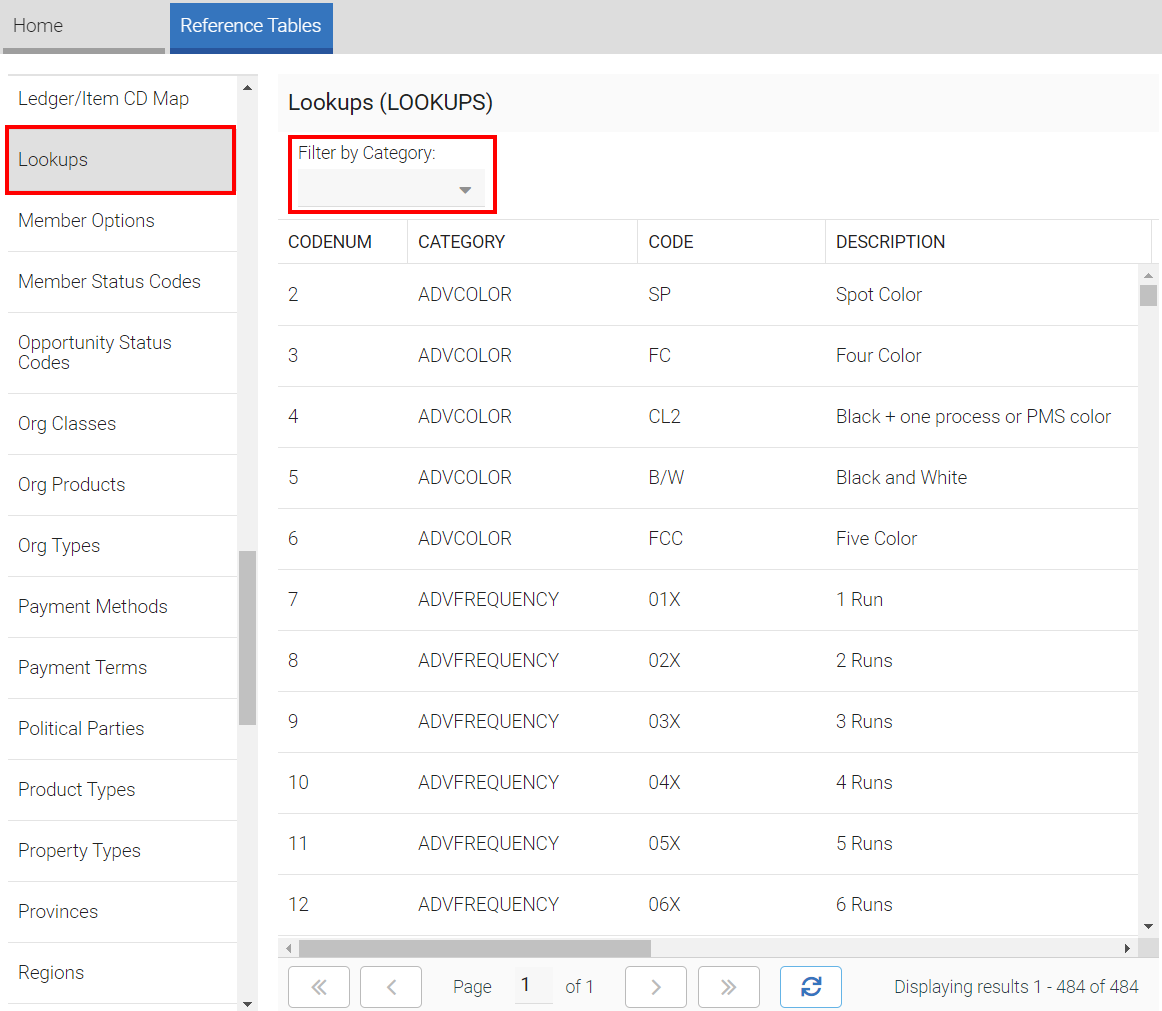
Select Reference Tables and Lookups from the list of reference tables to open the Lookups Reference Table. There is a “Filter by Category” dropdown that is available to filter the list by category.
-
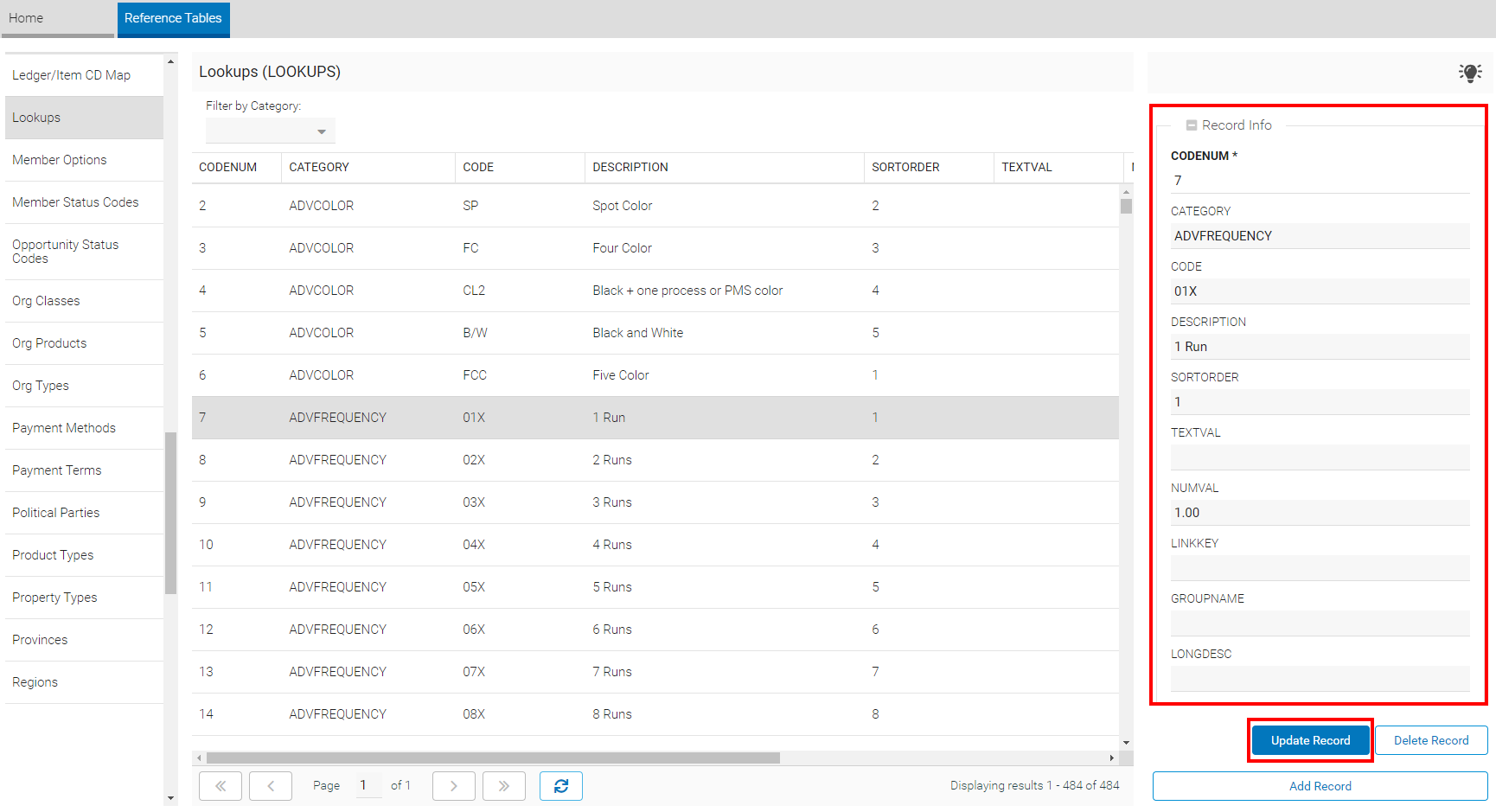
To edit an existing dropdown value, highlight the row you wish to edit and use the Edit Record section of the window to update the DESCRIPTION field. Editing the CODE field prevents you from searching for records with the original CODE. Click the Update Record button to save any changes.
-
To enter a new dropdown value:
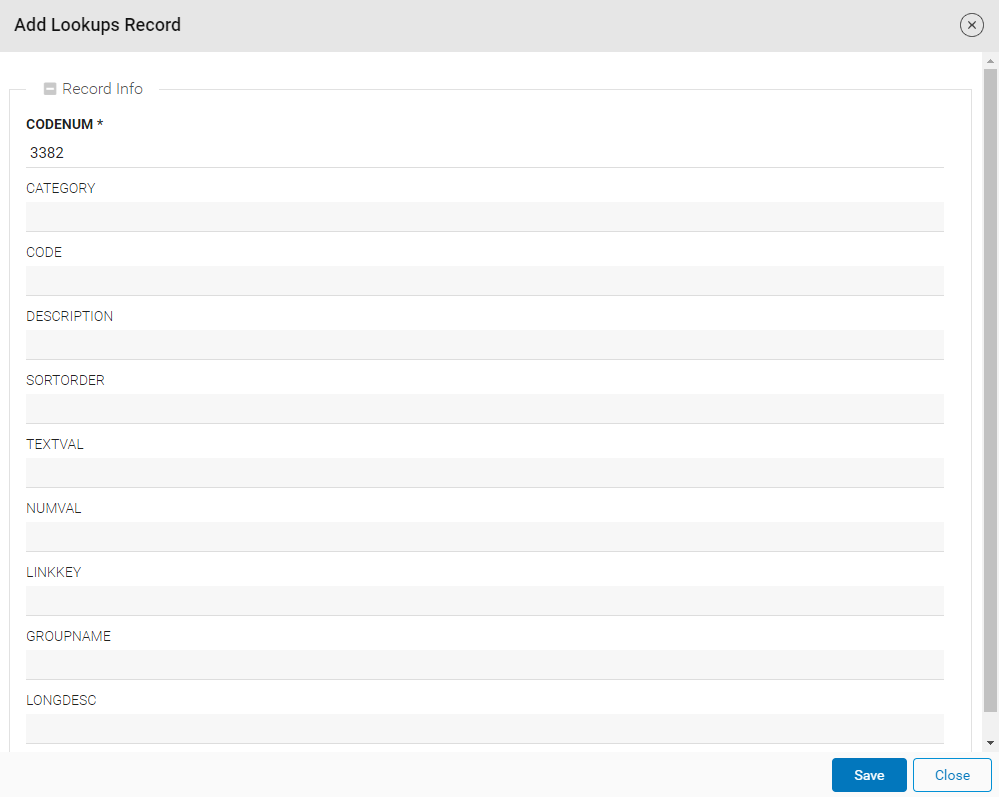
- Click on the Add Record button to enter a new row into the Reference Table. An Add Lookups Record window opens.
-
Enter the appropriate CATEGORY from the list below or based on your system’s configuration.
-
Enter a unique identifier in the CODE field. The code should not have spaces or special characters and should be in all capital letters.
-
Enter a description for the new value. This field can contain spaces and special characters.
-
You can specify the order of the values within each Category by entering a number in the SORTORDER column.
-
Click the Save button to save the new dropdown value.
-
Create a separate entry for each dropdown value that you wish to have available.
-
When you have finished editing and entering new dropdown values, you may need to log out and log back into ClearVantage for the new dropdown values to become available in ClearVantage.
Lookups Reference Table Category Values
| Category | Sample Descriptions | ClearVantage Module | Dropdown Menu |
|---|---|---|---|
| ABSTRACTSTATUS | Selected Not Selected Alternate |
Abstracts | "Abs. Status" dropdown in abstract notebook |
| ACTIONSUBJECT | Marketing Communications Accounting |
Action Items | Action Subject in the Action Item |
| ADDRESSREASON | Seasonal Temporary Permanent Snowbird |
More Addresses | Reason in the Addresses Tab in Individual notebooks |
| ADVAPPROVALSTT | Approved Pending |
Job Board | "Approval Status" in job board posting notebook |
ADVCOLOR (The codes for this category should not exceed 7 characters.) |
Black and White Color Four Color Five Color Spot Color |
Advertising | Click Rate Card in Publication notebook Color in Insertion Order |
| ADVFREQUENCY | 1 Run 3 Runs 6 Runs 12 Runs |
Advertising | Place in Publication notebook |
| ADVSIZE | Full Page Quarter Page Back Cover Inside Cover Full Page |
Advertising | Size in Publication notebook Size/Position in Insertion Order |
| APPEALMEMBERSTATUS | Planning Execution Complete Cancelled |
Campaigns & Appeals | Status in the Appeal Member notebook |
| APPEALTYPE | Donations Renewals Events Products |
Campaigns & Appeals | Category in the Appeal notebook |
| AWARDTYPECD | Nomination-based award Application-based award |
Awards | "Award Type" dropdown in award notebook (not baseline but in available fields) |
| CAMPAIGNTYPE | Donation Sponsorship Policy-Section Policy-Global |
Campaigns & Appeals | Category in the Campaign notebook |
| CERTCLASSSTT | Board Certification General State License Other |
Certifications | Classification in the Certification Record |
| CERTGRADE | PASS FAIL |
Certifications | "Test Grade" dropdown on certification notebook (Test/Credit section, tied to TESTPASSSTT) |
| CERTRELATIONSHIP | APP_POINTS APP_REQS BOARD_MORE |
Certifications | "Relationship" dropdown on prerequisites tab of cert type notebook |
| CERTSTATUSSTT | Pending Rejected Approved Hold |
Certifications | "Status" dropdown on cert notebook (Tracking and Routing (cont) section) |
| CERTTESTSTATUS | Current Old |
Certifications | "Test Status" dropdown on cert notebook (Test/Credit section, tied to TESTSTT) |
| CHAPTERROLE | Chapter alumni Graduate with Honors Inductee Pending Induction Applicant |
Chapters | "Role" dropdown on individual chapter history notebook |
| CHAPTERSTATUS | Active Closed Pending |
Chapters | "Status" dropdown on chapter notebook |
| CHAPTERTYPE | Secondary Chapter Junior Chapter Collegiate Chapter |
Chapters | "Type" dropdown on chapter notebook |
| COMMOPTION | Newsletter Daily Update Upcoming Events Security Alerts |
Individuals | Edit Usage Permissions/Communications Preference checkboxes in the Individual Notebook |
| CONTACTTYPE | Primary Marketing Billing |
Individuals | Contact Type in the Individual Notebook |
| DONORSTT | Active Former Lapsed Prospect |
Individuals/ Organization |
"Donor Status" dropdown on individual and organization notebooks |
| FUNCTIONLEVEL | Beginner Intermediate Advanced |
Functions | Level in Function notebook |
| FUNCTIONTYPE | Meals Concurrent Sessions Keynotes |
Functions | Type in Function notebook |
| GENDER | Male Female Non-Binary Other |
Individuals | "Gender" dropdown (appears when LOOKUPS data is available in place of old binary options) |
| GOALTYPECD | Build Awareness Build Knowledge Build Liking Build Preference |
Campaigns & Appeals | Goal Type in the Campaign and Appeal notebooks |
| GROUPTYPE | Small Donors Medium Donors Large Donors |
Campaigns & Appeals | Group Type in the Appeal notebook |
| INDIVIDUALROLE | Project Manager Logistics Marketing Designer |
Projects | Role in Individual screen | Team Members tab in Project notebook |
| JOBBOARDMAJCAT | Job Board Major Cat | Job Board | "Major Cat" dropdown on job board posting notebook |
| JOBBOARDMINCAT | Job Board Minor Cat | Job Board | "Minor Cat" dropdown on job board posting notebook |
| LANGUAGEREF | English French Spanish Mandarin |
Company Information | Language field in the Country Reference Table |
| PREFPRONOUNS | he/him/his she/her/hers they/them/theirs ze/zir/zirs she/they/theirs he/they/theirs Ask Me |
Individuals | "Preferred Pronouns" dropdown on individual notebook |
| PROGRAMCAT | Hotel Food Travel Speaker Fee Other Honorarium |
Events | Category in the Notes/Materials Tab of the Event notebook |
| PROJECTSTATUS | Active Project Closed Project | Events | Status in the Project List Project Status in the Project Notebook |
| QCATEGORY | Financial-related question Goals-related question |
Surveys | "Question Category" dropdown on survey question notebook |
| SPEAKERTYPE | Moderator Panelist Trainer |
Speakers/ Trainers |
Type in the Speaker notebook |
| TEAMROLE | Project Manager Analyst Tech Analyst |
Projects | Role in Employee screen | Team Members tab in Project notebook |
| THEME | Career Altruism Networking Appreciation |
Campaigns & Appeals | Theme in the Campaign and Appeal notebooks |
| TRAFFIC | Direct Mail Call Seminar Multiple |
Campaigns & Appeals | Deliver by in the Campaign and Appeal notebooks |
| TZNAME | Mountain Daylight Savings Time Mountain Standard Time Pacific Daylight Savings Time Pacific Standard Time |
Events | "Time Zone" dropdown on event notebook |