Data Retention and Storage
Email History Data Retention Policy
To ensure optimal performance and manage storage growth, message bodies will be retained until the storage limit is reached. Keywords can be specified to identify emails to be retained the longest. When the limit is reached, older message bodies will be removed. The email record will remain visible, but view/download options may be unavailable for some messages. For marketing emails, the original template will be displayed when possible.
-
Minimum Retention: All email message bodies are kept for at least 10 days after sending.
-
Storage Management: If email history exceeds the allowed storage size, older message bodies may be removed. The email record (date, subject, recipients) will remain visible, but the View and Download options may no longer be available.
-
Marketing Emails: For marketing campaigns, when message bodies are removed, the original email template is displayed as a fallback. This template will not include personalized merge data.
-
Removal Priority: Removal will start with the oldest records and prioritize marketing-type messages first.
-
Retention Preference: Keywords can be specified to flag important emails. Our cleanup algorithm will avoid removing flagged messages whenever possible.
-
Monitoring: Three dashboard gadgets are available for monitoring email history storage: a pie chart for "Email History Storage Summary," and two table views, "Email History Retention Status" and "Email History Keywords". See the Dashboards guide to learn how to add a dashboard gadget to a dashboard.
Set Keywords
As mentioned above, keywords can be specified to flag important emails for the cleanup algorithm to avoid. To set the keywords:
-
From the main menu, click "Admin" and select "Edit Reference Tables".
-
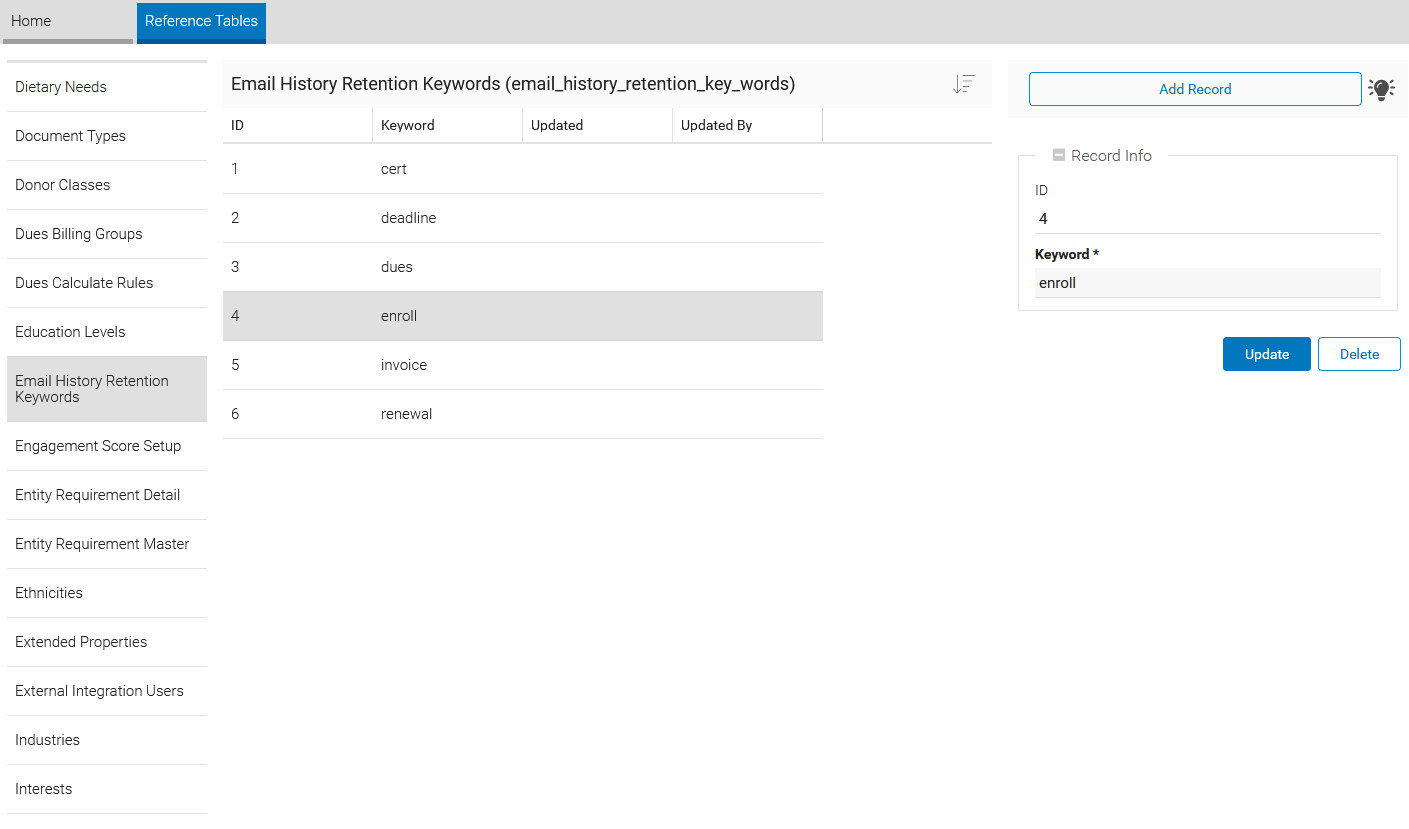
Select the "Email History Retention Keywords" table.
-
To add a new keyword, click on the "Add Record" button on the top right-hand side of the keyword list.
-
To update or delete a keyword, select the keyword to update and use the form on the right-hand side to make changes.
-
Click on the "Update" button to save the changes or the "Delete" button to delete the selected record.