Online Registration
ClearVantage provides a lot of flexibility in the function and options available for event registration. In order to provide that flexibility, there are a variety of controls that are necessary to enable an event to appear online and to take registrations through that online presence.
-
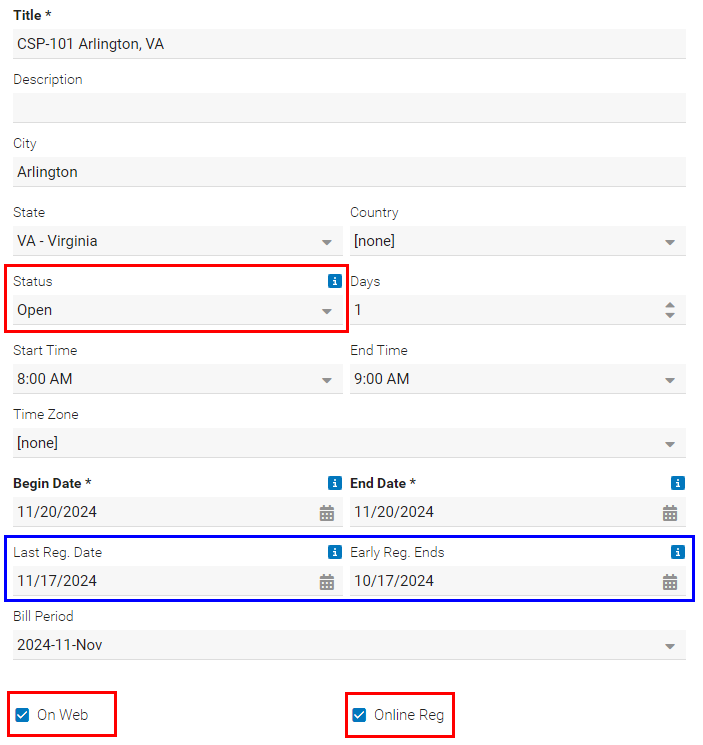
On Web: Designates that this event should have an online presence. Without this checkbox, there will not be a page to provide information for the event on your website.
-
Online Reg: Enables the registration button. This is still limited by the date ranges defined above (in blue).
-
Last Reg. Date: The date on which registration closes. When this field is set, registration automatically closes at 12:00 AM on the selected date. To specify a different closing time on that date, add the "Last Reg. Time" field to the event notebook using the notebook editor, then set the desired registration close time. For more on how to edit notebooks and add tabs, see the Notebook Editor guide.
-
Early Reg. Ends: This is the date where early registration fees will switch to standard registration fees. The switch will happen at 12:00 AM on the selected date.
-
-
Status: This field provides the ability to open or close registration with the update of this single field. In order to accept registrations, this field must be set to OPEN.
Online Tickets
Enabling online registration is not the only required step. Once the above settings are selected, the site only provides access to tickets whose settings match the dates for the early/standard/late registration dates as set. In order to access your prices, click the Prices tab from the Event Notebook. Select Add Price to create a new entry, or click on an existing entry and click Edit Price.
-
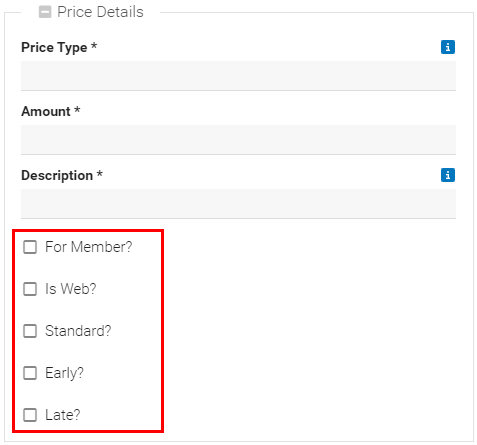
For Member?: If this box is checked, this ticket type only appears to members who are logged in and whose membership is current and active. If this box is unchecked, this ticket type appears only to non-members or to logged out members.
Please note: If a particular price point is available to members and non-members, two price records must be created, one with this box checked, and one without.
-
Is Web?: Checking this box determines if a price-type shows on the event page as a registration option. Not all price types may be available for online purchase and this checkbox provides control over this.
-
Standard?: Determines if the price-type is shown after the early registration date passes.
-
Early?: Determines if the price-type is shown during the early registration period.
-
Late?: Determines if the price-type is is available to purchase on behalf of members.
Please note: This price type will not be available on the registration form that the members see. This is for staff only.
The interplay of these options means that if you have an eary, standard, and late registration price available to members and non-members you must create six separate price types.
Additional restrictions are possible via Membership Type or Committee Membership.