Reference Tables
CVPro
This guide is only applicable to enterprise clients using CVPro or CV9.
The reference tables contain information to help populate and manage the data inside ClearVantage (e.g., dropdown lists, Committee Types, member Types, Interest Codes and Skill codes, etc.).
System Administrators have permission to modify Reference Tables. Other users must ask an administrator for any necessary changes.
See the Reference Tables guide for how to manage reference tables in CV Online.
Edit Information in a Reference Table
You are free to edit information in reference tables. It is recommended that Reference Table values used in existing records not be deleted or modified. Notebooks and Reports may display the values in historical data and removing values from the Reference Tables may impact those Notebooks and Reports.
-
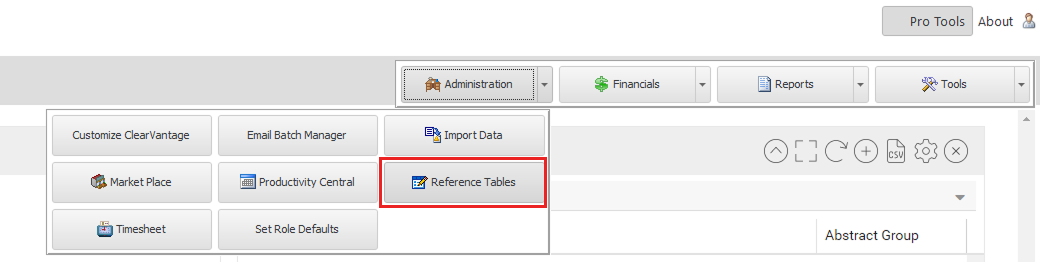
From the Pro Tools menu, click "Administration" and select "Edit Reference Tables".
-
Choose the table you want to edit from the list of reference tables.
-
To edit an existing value, double click on the column to update to enable the cell editor. This will allow text to be entered in the cell.
-
Click the "Delete" button, on the right-hand side, to delete a record from a table. It is recommended that values used in existing records not be deleted or modified.
-
Click the "New" button, on the right-hand side, to insert a new record into the table.
Reference List
-
Account Company Map: Mapping of accounts for cross-company accounting transactions.
-
Action Item Auto Create: Allows you to control what emails are automatically sent or what action items are automatically created. Using this table requires configuration based on your business rules.
-
Address Label Setup: Controls available label formats (margins, spacing, etc.) used when printing labels from an Individual or Organization list.
-
Appeals: Available marketing efforts. Also accessed from Campaign Notebook.
-
AutoID: Stores last used auto-generated number for each key system table. Do NOT edit entries or delete from this table. This ID number is referenced when making new entries to the associated tables.
-
Bill Period Numbers: List of numbers used to signify months (01 to 12).
-
Bill Periods: Billing periods used to track accounting periods (months). These should be updated by Accounting, or a System Administrator as needed.
-
Campaigns: List of marketing campaigns. Also available from Campaign List screen.
-
Chapter Types: Allows for sub-categorization of chapters. Also accessed from Chapter List within the system.
-
Family Roles: List of values available in the family role field on the Individual Notebook.
-
Key Word Dictionary: List of key word used for further categorization of Product offerings.
-
Mail Label Fields: Dictates fields used in labels printed from Individual and Organization lists. The Label Type is "I" for Individual, "O" for Organization, and "R" for Registration.
-
Member Class (individuals): A list of member classes. Used to sub-categorize members.
-
Member Type (individuals): A list of the member types available for individuals. User can also specify if the type includes specific member options (comma delimited codes) or includes the journal (JOURNALFLG=Y).
-
Membership Class (organization): A list of member classes available for organizations.
-
Member Type (organization): Member types available for organizations.
-
Notified By/Marketing Campaign: How a member or customer heard about organization (e.g., Web, Mail, Friend).
-
Occupation Codes: Occupation values for individual records. Used to group types of professions (e.g., CFO, CEO, COUNSEL).
-
Opportunity Setup: Used in configuration of the steps or phases of opportunity management.
-
Out of Rotation Codes: Codes used in the Lawyer Referral Service module to indicate the reason an Attorney is out of the referral rotation.
-
Panelist Fee Range: Tracks the payment range of the attorney as part of the Lawyer Referral Service module.
-
Panelist Payment Methods: Tracks the payment methods accepted by the attorney as part of the Lawyer Referral Service module.
-
Product Classification: Allows you to create the classification options that can be linked to brands in the Inventory Classification tab on the Organization notebook.
-
Product Major Category: Categories for products that are also used for categorization in other areas of system including Events, Subscriptions, and Calendar. Useful for searching and reporting.
-
Product Manufacturer: List of manufacturers of product offerings.
-
Product Minor Category: Categories for products that are also used for categorization in other areas of system including Events, Subscriptions, and Calendar. Useful for searching and reporting.
-
Referral Activities: Tracks activity options in the Lawyer Referral Service module.
-
Referral Area Codes: Tracks telephone area code options in the Lawyer Referral Service module.
-
Referral AutoID: Maintains the auto-numbering for referrals in the Lawyer Referral Service module.
-
Referral Categories: Categories that can be selected for referrals in the Lawyer Referral Service module.
-
Referral Geographical Locations: Maintain the location options in the Lawyer Referral Service module.
-
Referral Programs: Maintain the types of programs such as Modest Means that are available in the Lawyer Referral Service module.
-
Referral Source: Track referral source options in the Lawyer Referral Service module.
-
Referral Status: Maintain status options in the Lawyer Referral Service module.
-
Representing: Entities that committee members can represent.
-
Shared Lists: Used in the configuration of reports and charts on the ClearVantage Dashboard as well as predefined lists.
-
System Field Labels: Lists fields re-labeled within key ClearVantage Notebooks. Changes to this table should be made using the Customize ClearVantage function from the Administration Main Menu Dropdown.
-
System License: License code needed for assigning particular modules to ClearVantage. Do NOT delete or edit any entries in this table!
-
System Role Settings: Contains the settings for all user roles. This table should not be modified as it will modify your user roles.
-
System Settings: Contains key system settings that dictate system behaviors and business rule application. Changes may impact how ClearVantage functions and processes data.
Contact Support
Please contact Euclid Technology to discuss modifications to your system settings.
-
Zip To Chapter: Allows user to specify information related to a specific zip code range including Chapter, county, region codes, city, and state. When properly configured, this information is updated in individual records when zip code is changed.