SMS Messaging
ClearVantage provides robust SMS Messaging capability and allows staff to communicate with members via text message in two distinct ways:
SMS Blast Notifications: Send a message to a filtered list of opted-in members at once, useful for event reminders, announcements, and renewal nudges.
SMS Conversation Replies: Read and reply to individual members directly from their Individual or Event Registration notebook, with the full inbound/outbound thread visible in one place.
Both workflows are powered by Twilio, while ClearVantage delivers comprehensive opt-in management, message templates, and integrated web forms to support efficient adoption and effective use.
Getting Started Checklist
Use this checklist to get started with ClearVantage SMS capabilities. The remainder of this guide provides details for these steps as well as much more information about SMS in ClearVantage.
Preparation
-
Understand SMS compliance in ClearVantage
-
Ensure the website has a published privacy policy
-
Decide the opt-in categories and terms/conditions in CVO
-
Make a plan for obtaining member opt-ins
-
Ensure valid and unique mobile numbers
Twilio Account
-
Obtain Twilio account and complete Twilio account verification
-
Provide Twilio API information to Euclid
-
Enable the Twilio webhook
Understanding SMS Compliance
Legal Disclaimer
The information below is intended to help staff understand why SMS compliance workflows exist in ClearVantage. It is not legal advice. Consult legal counsel and applicable laws/regulations to ensure the SMS program meets applicable requirements.
Text messaging is governed by federal law and industry rules that carry real financial exposure. For example, violations of the TCPA (Telephone Consumer Protection Act) can result in statutory damages of $500– $1,500 per message. Additionally, integrators and carriers (eg Twilio, Verizon, etc.) are stringent in protecting customers, so violations of rules or high rates of opt-outs can trigger increased filtering or even suspension of messaging. The opt-in and opt-out processes in ClearVantage are designed to support compliance with SMS messaging requirements and help maintain effective communication practices.
The Core Principles
Get consent before sending text messages
There must be prior express written consent before sending any marketing or promotional SMS messages. For informational messages such as appointment reminders or transactional notices, the standard is somewhat lower, but prior express written consent is always the safest position.
To support this requirement, ClearVantage provides a dedicated web form for recipients to opt in to or opt out of SMS communications. In addition, when staff record an opt-in on a recipient's behalf within ClearVantage, they are prompted to document how consent was obtained. This information is retained within the opt-in audit log and serves as verifiable evidence should consent ever be questioned.
Let members control what they receive
Blanket opt-ins are not aligned with recommended best practices. To support a more compliant and member-centric approach, ClearVantage provides opt-in categories that allow members to select their preferred communication types, reducing opt-out rates and demonstrating respect for recipient preferences.
Always honor opt-outs immediately
When a member opts out of a category or chooses to stop receiving SMS communications entirely, it is imperative that this preference is applied immediately. ClearVantage's integration with Twilio automatically processes inbound commands such as STOP, OFF, and category-specific opt-outs to ensure timely enforcement. All outbound messages are consistently governed by each member's current opt-in and opt-out selections.
Identify yourself
Regulations and carrier guidelines require that recipients be clearly informed of the sender's identity and the purpose of the communication. Include the organization's name in the initial message of any new conversation or broadcast and clearly state the reason for the message along with instructions for opting out. ClearVantage automatically incorporates standard opt-out language into every outgoing SMS broadcast draft to support compliance with these requirements.
What ClearVantage Tracks
To support compliance requirements, ClearVantage automatically captures and maintains the following data:
| Compliance Requirement | Data Tracked by ClearVantage SMS Preferences History |
|---|---|
| Documented consent | Every change to a recipient's consent, whether entered by the recipient, staff, or via the Twilio integration, is tracked as a new record in the history table. |
| Method of obtaining consent | The individual who made the update (staff or recipient), the method used (staff entry, recipient self-service, legacy system consent import, etc.), and the associated IP address and login session, when applicable. |
| When consent was obtained | The date and time when consent was provided. |
| Purpose of consent | The opt-in category or categories that the recipient has enabled. |
| Network opt-outs | If the recipient sends a network command, such as STOP, ClearVantage processes and records the request. See the section Understanding Commands for more information. |
Privacy Policy and Terms & Conditions
Legal Disclaimer
This section provides information to support the implementation and use of SMS capabilities. It does not constitute legal advice. Consult legal counsel and applicable laws/regulations to ensure the SMS program meets applicable requirements.
Maintaining a clear and accessible website privacy policy is both an industry best practice and a requirement for Twilio's campaign registration process. If a privacy policy is already in place, it may be expanded to address SMS communications, or a separate policy may be created and published specifically for the SMS program. The policy should address the following areas:
-
Public Accessibility: The policy must be live and publicly accessible on the organization's website. It must not be restricted behind a member login or firewall.
-
Collection and Usage: The policy should clearly describe the personal information collected, such as mobile phone numbers, and how that information will be used for communication purposes.
-
Third-Party Sharing Restrictions: To meet telecommunications industry compliance standards, the policy must include explicit language stating that mobile phone numbers and SMS opt-in consent will not be shared with or sold to third parties or affiliates for marketing or promotional purposes.
In addition, the general Terms and Conditions applicable to the SMS program must be published, including statements such as "Message and data rates may apply" and "Reply STOP to opt out". To support successful passage through Twilio's vetting process, this baseline Terms and Conditions content should be included on the same dedicated webpage as the Privacy Policy.
Because Terms and Conditions may vary by category of communication, ClearVantage supports the publication of category-specific Terms and Conditions through the SMS Opt-ins reference table. Each opt-in category includes a field for the applicable Terms and Conditions. This information is displayed on the web forms where individuals can opt in and manage their preferences, including Create Account, Member App, and SMS Preferences.
CV Online Setting
SMS_PRIVACYLINK can be used to enter the URL of the website privacy policy. The link is displayed on CV web forms used for opt-ins, providing privacy policy visibility to members and supporting completion of Twilio verification processes.
Twilio Account
ClearVantage SMS capabilities integrate with Twilio to support message delivery, receipt, and automated command processing. A Twilio account is required to enable ClearVantage SMS.
Legal Disclaimer
The information in this section is provided to guide staff in preparing for the Twilio vetting processes, based on research into these processes at the time of writing. Refer to Twilio requirements and support docs for complete and current information.
Obtain Twilio Account and Phone Number
Obtain a Twilio account and phone number as follows:
-
Standard "Twilio SMS Messaging Account".
-
Register a phone number to text from. Euclid recommends a toll-free number.
- There are three kinds of phone numbers. Long codes, also known as 10DLC or local numbers, can feel more personal as they have a local area code, however, typically do not provide good support for mass campaigns. Short codes provide the highest throughput but require significant cost and upfront time to complete registration. Toll-free numbers require a vetting process but are not as extensive as short codes, and provide a good blend of throughput and support for two-way messaging.
Sending Rate
By default, toll-free numbers provide a sending rate of 3 messages per second. This equates to about 1 hour to send a blast to 10,000 recipients, or 3 hours for 30,000 recipients. For larger recipient lists, Euclid strongly recommends contacting Twilio to upgrade to a higher sending rate. If the sending rate is upgraded through Twilio, Euclid Support must also be notified so the sending rate can be increased for ClearVantage.
To use a Twilio account and phone number, Twilio's vetting process must be completed. This process consists of two steps. The first is account verification, which confirms the identity of the organization. The second is campaign registration, which reviews and approves the types of communications that will be sent.
Below is the information required for each step and includes ClearVantage resources to support successful completion of the vetting process.
Account Verification
Twilio verifies the organization, a process also referred to as brand registration or customer profile setup. The following information is required to complete the web-based enrollment:
-
Legal Business Name
-
Business Registration Number (BRN), typically the EIN
-
Corporate Website URL
-
Physical Address
-
Authorized Contact: The name, email address, and phone number of the staff member responsible for managing the application. Use a corporate email and avoid using personal email accounts.
Note
This information is vetted against public sources like IRS information. Ensure accurate legal information is provided.
Campaign Registration
Twilio reviews planned messaging and ensures compliance with applicable rules and regulations. The Getting Started Checklist section provides helpful preparation for this process. When submitting a campaign registration to Twilio, ensure all required supporting materials are prepared, including:
-
URL of the Privacy Policy
-
URL or screenshot of the opt-ins form: Typically, the Create Account form, where the SMS Preferences are published and users can opt in to receive SMS messages.
-
Opt-in description: Written explanation of how users will opt-in.
-
Estimated monthly messaging volume
-
Use cases: Purposes of the SMS program, such as customer service, account notifications, promotions, etc.
-
Message samples: Samples must include opt-out language like "Reply STOP to cancel".
United States and Canada Phone Numbers
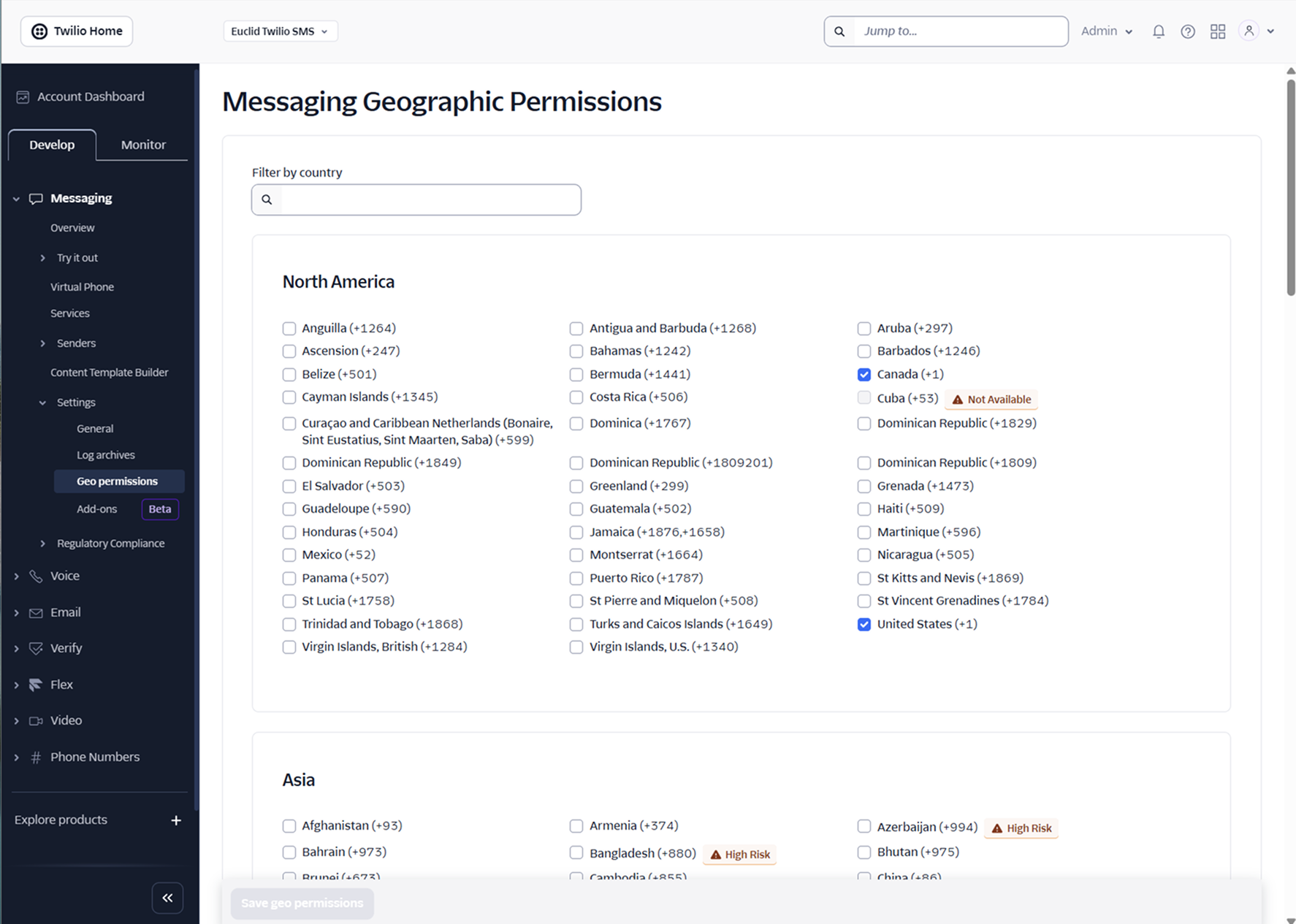
Sending and receiving SMS for mobile phones in the United States and Canada is supported. Verify that the Twilio account's "Messaging Geographic Permissions" are configured to include both the United States and Canada.
International Phone Numbers
Sending and receiving SMS messages is supported only for mobile numbers within the United States and Canada. This restriction is due to differences in telecommunications infrastructure, message processing requirements, and regulatory frameworks across other regions and countries.
Although Twilio account settings allow Messaging Geographic Permissions to be expanded to include international destinations, this configuration is not supported by ClearVantage. International messaging introduces significant variability in compliance obligations, delivery reliability, and security considerations, which may increase operational risk.
Twilio Usage Alerts
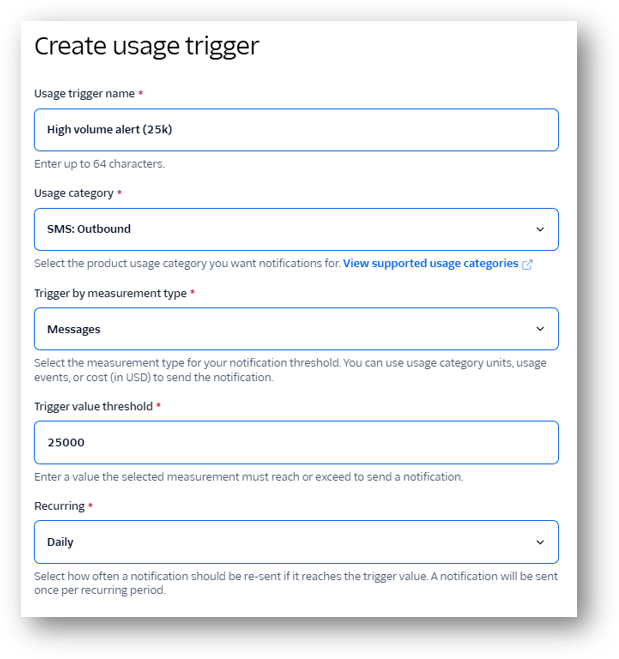
To help monitor message volume and prevent unexpected costs, Euclid recommends configuring a usage alert in the Twilio account. Usage alerts are available under "Account Usage" > "Usage Triggers" and can be configured to send a notification when a specified threshold is reached, such as 25,000 messages sent in a single day.
Integration Configuration
Requires Support
This feature requires support setup. For more information, please contact your Euclid Support Analyst.
Euclid will enable the Twilio integration for the system. The following credentials must be provided to enable the integration:
-
Account SID
-
Auth Token
-
Phone number to text from
Twilio Webhook
A Twilio webhook must be configured to enable inbound SMS messages to be received and processed by ClearVantage. Configuration instructions will be provided by a Euclid Support analyst.
Alternatively, Euclid Support can configure the webhook on behalf of the organization. To grant access, navigate to "Settings" > "Organization Settings" > "Users" in the Twilio account and select "Invite Users".
External Integration Users
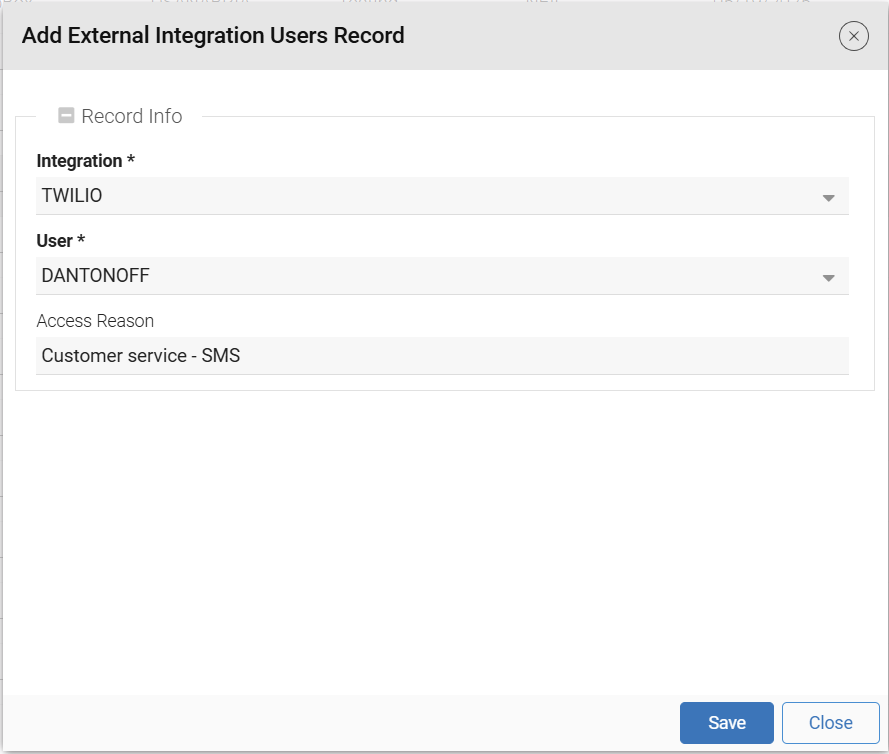
Once the system is configured, user records for staff who will send SMS messages must be added to the External Integration Users reference table.
-
From the main menu, click "Admin" and select "Reference Tables".
-
Scroll down to the "External Integration Users" table and select it.
-
Click "Add Record", at the top right corner of the list.
-
Enter the user information:
-
Integration: Select Twilio from the dropdown.
-
User: Select the applicable user.
-
Access reason: A brief note explaining why they have access.
-
-
Click "Save" to add the record.
User Permissions
Two dedicated user permissions determine the actions available to each staff member. These permissions operate independently of email permissions; therefore, restrictions on email access do not impact SMS functionality. A user may be assigned one, both, or neither permission.
| Permission Flag | What it allows |
|---|---|
| Send SMS Blasts | Send blast (bulk) SMS messages to a filtered list of recipients who have opted in. |
| Send SMS Messages | Send individual replies from the conversation view within the individual or registration record. |
Additionally, the following SMS actions are tied to permissions as noted in the table below.
| Action | Required Permission |
|---|---|
| View SMS conversation history (read only) | No special permission is required. SMS must be enabled for ClearVantage. |
| View SMS Response Management list | No special permission is required to view sent and received messages. Users without SMS sending permissions will not be able to reply. |
| Manage SMS templates | The user must have the system administrator permission or the letter administrator permission assigned. |
SMS Opt-in Categories
ClearVantage provides SMS Opt-in Categories so that members can define their preferences for what kinds of SMS communications they want to receive. This ensures that the SMS program respects member preferences, helping retain subscribers and ensure compliance. These categories are stored in the SMS Opt-in Categories reference table. For more information on how to work with reference tables, see the Reference Tables guide.
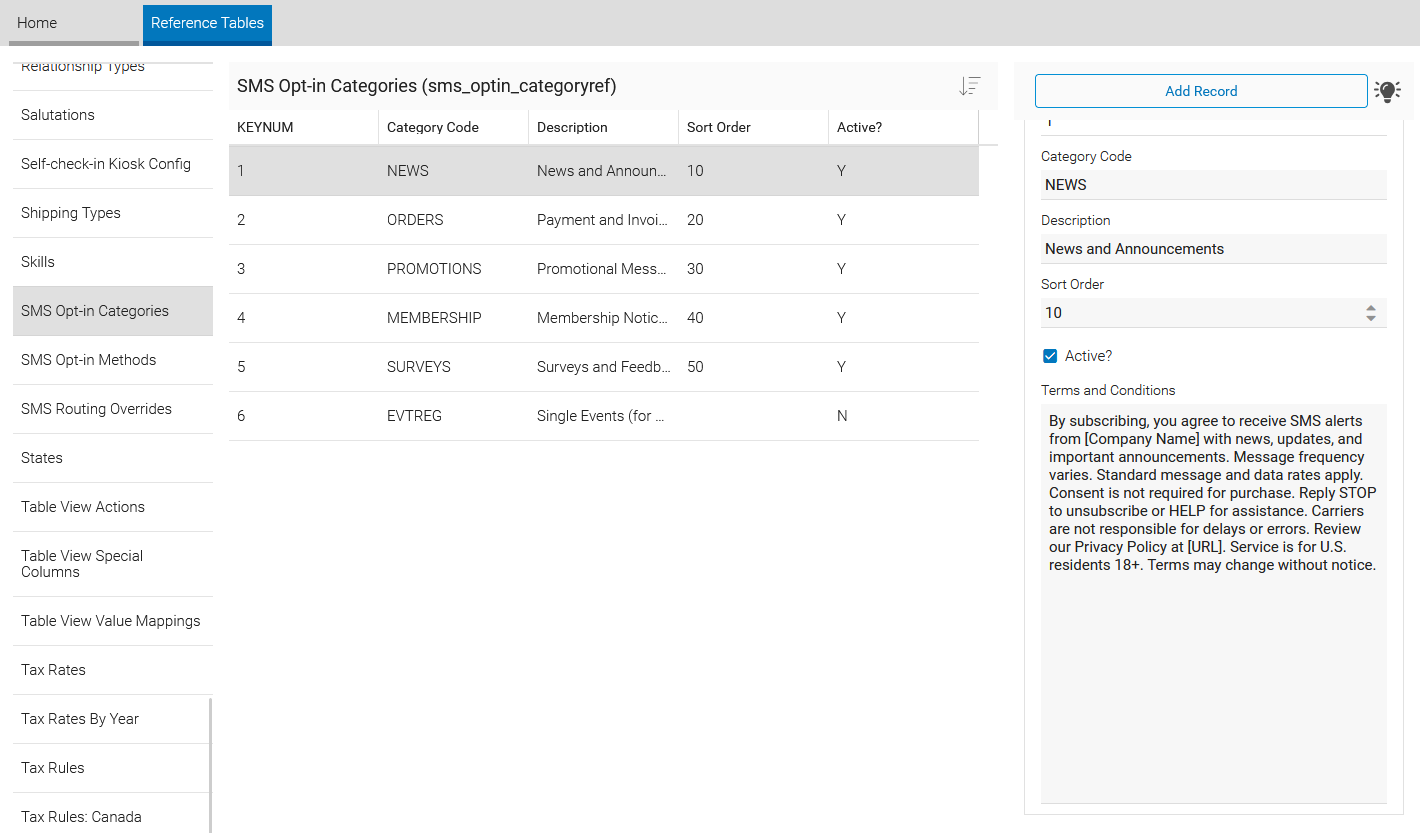
Opt-in categories and target lists serve different purposes. Opt-in categories are used to manage SMS consent and ensure compliance with messaging requirements. Target lists are used to identify the recipients of a specific communication based on business needs. For example, a recipient may be opted in to the "Promotions" category, while a target list might contain student members whose memberships expire within the next six months. The opt-in category determines whether a recipient is eligible to receive the message, while the target list determines who should receive it based on the purpose of the communication.
Default Categories
The following categories are included by default and may be enabled or disabled in alignment with the organization's communications plan. Additional categories may be created as needed.
Note
Decide categories prior to obtaining consent to ensure members have the desired options available when opting in. Categories can be added later, if needed, however members must manually opt in to receive notifications in that category. Plan the category list before going live to ensure a smooth rollout.
Default categories:
-
News and Announcements
-
Payment and Invoice Notices
-
Marketing and Promotional Messages
-
Membership Renewals and Updates
-
Surveys and Feedback Requests
-
Single Events (for Terms and Conditions only): This category manages the terms and conditions shown when a member subscribes to event-specific SMS notifications. It should remain inactive so it does not appear as a general option for members on the public website.
Add or Edit Categories
Each category has the following fields available to edit:
-
Category Code: A command identifier for the category. This must be a single word without spaces or special characters. Members can text this code to opt in or out of the category, and ClearVantage will process their request accordingly.
-
Description: Free-text title for this category, displayed on the web forms where members can opt in or edit their existing opt-ins.
-
Sort Order: Enter a numeric value to determine the display order on the web form.
-
Active?: Turns the category on or off for use in the web forms and SMS Blast feature.
-
Terms and Conditions: The policy of terms and conditions for this category. This is shown on the SMS Preferences web form. At a minimum, this should address:
-
Purpose of opting in
-
Expected frequency of messaging
-
Indicate that standard message and data rates may apply
-
Indicate that consent is not required for purchase
-
Respect for network commands like STOP
-
Link to full Privacy Policy
-
Obtain and Manage Consent
Members must explicitly opt in before they can receive SMS messages. Opt-in status is tracked per individual and per event registration, with a full audit trail of every change.
Following the determination of the opt-in categories to be offered, and the integration configuration, the next step is to obtain consent for sending SMS communications to both members and non-member recipients.
The following strategies are available:
-
One-time import of consent records from another system.
-
Send the SMS Preferences link via email blast or SMS blast.
-
Publicize and solicit consent via the web forms.
Note
System wide updates to opt in members to receive SMS are not allowed.
One-time Import
If an existing SMS platform is in use, perform a one-time import of consent records through ClearVantage as part of enabling ClearVantage SMS functionality. To complete this process, the following requirements must be met:
Opt-in Records
Provide a spreadsheet file (.csv or .xlsx) containing opt-in data. For each individual record, include:
-
Mobile phone number (must be unique).
-
Opt-in categories (e.g., promotions, membership notices).
-
Timestamp of the opt-in.
-
Method of opt-in, if available (e.g., web form, staff override).
Opt-out Records (Suppressions)
Provide a spreadsheet file (.csv or .xlsx) containing opt-out data. These records represent individuals who have withdrawn consent, by replying with a STOP command or through other explicit opt-out mechanisms. For each individual record, include:
-
Mobile phone number (must be unique).
-
Timestamp of the opt-out.
-
Method of opt-out, if available (e.g., web form, staff override).
During import processing, ClearVantage applies SMS subscription opt-ins only to mobile phone numbers that uniquely match existing records in ClearVantage. It is important that the records provided meet the conditions below:
-
Exclude duplicate phone numbers within the submitted spreadsheet.
-
Ensure phone numbers are unique within ClearVantage.
-
Include only phone numbers already present in ClearVantage.
Note
Records that do not meet these conditions will not be processed. New individuals or new phone numbers will not be created in ClearVantage through this import process.
Send the SMS Preferences Link via Email Blast
Use ClearVantage Email Blast to send a dynamically merged link that enables individuals to opt in and manage SMS preferences without having them login. Incorporate the SMS Preferences link into routine email communications in addition to dedicated program announcements.
-
Include the link as a postscript (P.S.) to reinforce prior communications
-
Add the link to the footer or bottom section of recurring email blasts
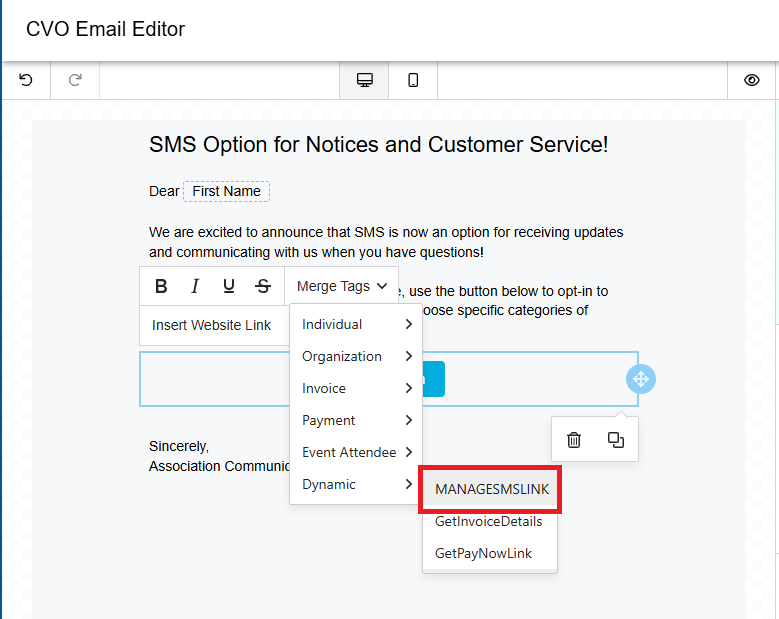
To add the dynamic SMS Preferences link to an email template:
-
Select the text or button to edit.
-
Click on the "Merge Tags" dropdown in the editing
-
Select the "Dynamic" option and then select the "MANAGESMSLINK" option to add the dynamic SMS Preferences link to the email template.
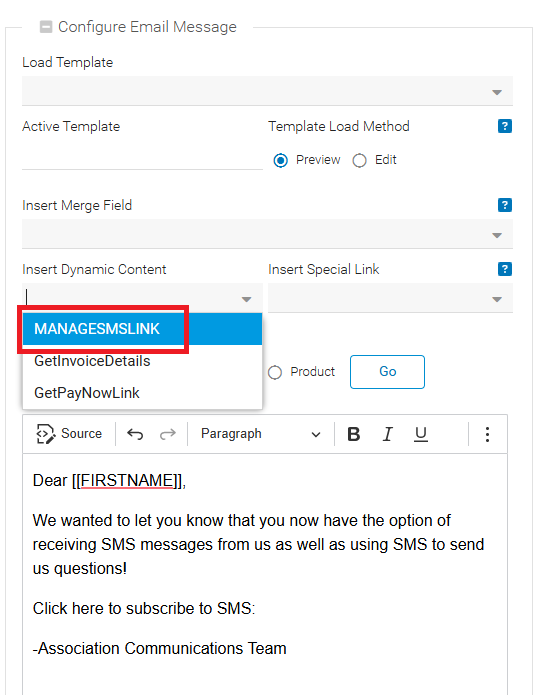
To add the dynamic SMS Preferences link to an email blast:
-
Once in the Email Blast form, position the cursor at the desired insertion point.
-
Click the "Insert Dynamic Content" dropdown.
-
Select the "MANAGESMSLINK" option to add the dynamic SMS Preferences link to the email blast content.
Third-party Email Platforms
Dynamic merged links that bypass login are not supported when sending emails through third-party email platforms. Instead, include a direct link to the SMS Preferences form and note that members must log in to access the form. To obtain the SMS Preferences form link, open the corresponding web form in the member portal and copy the URL from the browser's address bar.
Send the SMS Preferences Link via SMS Blast
Note
This method is available only for recipients who have already opted in to receive SMS messages. Recipients without an SMS opt-in will not receive the SMS blast.
ClearVantage SMS includes the ability to send the SMS Preferences link to opted-in individuals via SMS. This will generate a dynamic, unique link that does not require login, allowing the person to easily edit their SMS preferences through their mobile browser.
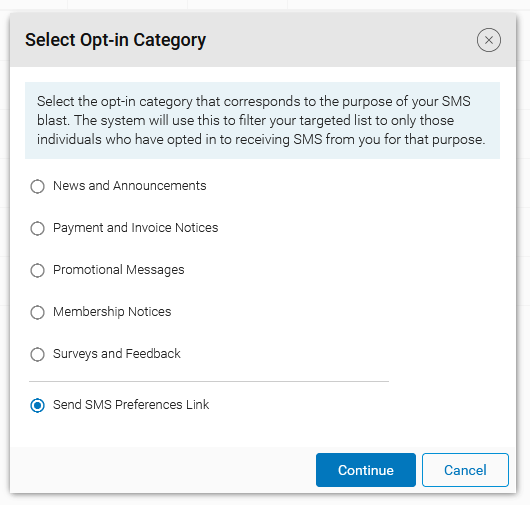
To send the SMS Preferences link via SMS:
-
Open the Individual List and search for the individuals who should receive the SMS Preferences link.
-
Click "Send SMS Blast" in the list's Activities panel.
-
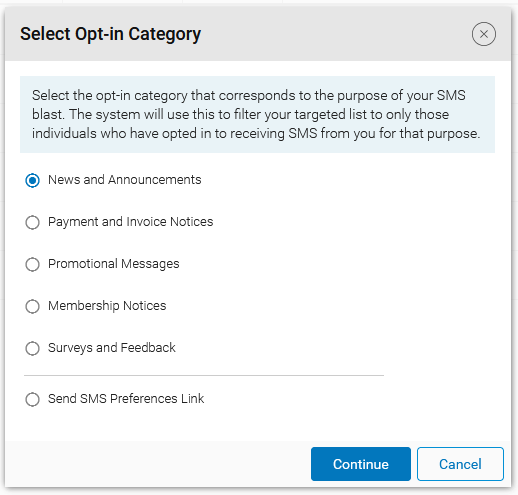
In the "Select Opt-in Category" window, select "Send SMS Preferences Link" option and click "Continue".
Note
Only individuals who have a mobile phone number and opted in to at least one category will be listed and will receive the SMS message.
-
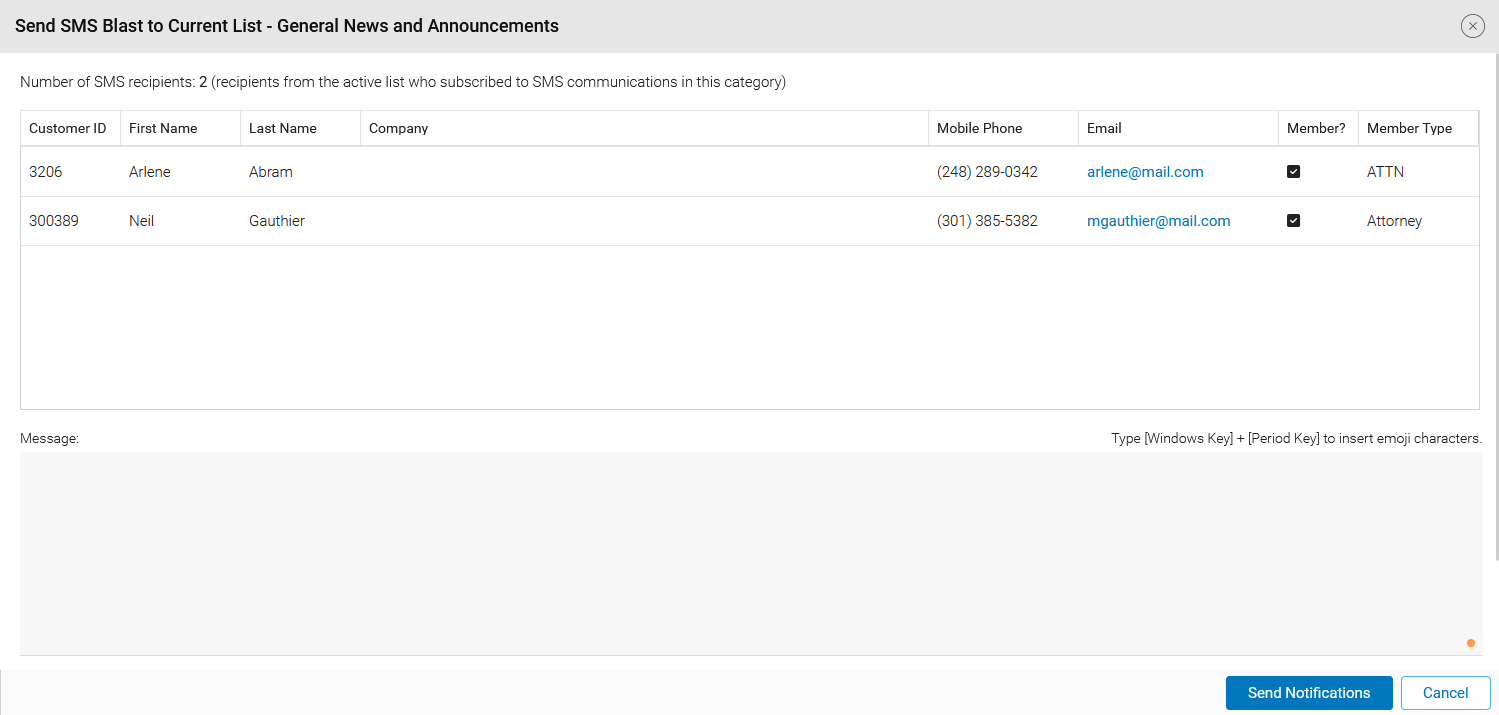
A window will open and display all the individuals who will be receiving the SMS preference link and a read-only message, with the SMS preferences link, that will be sent.
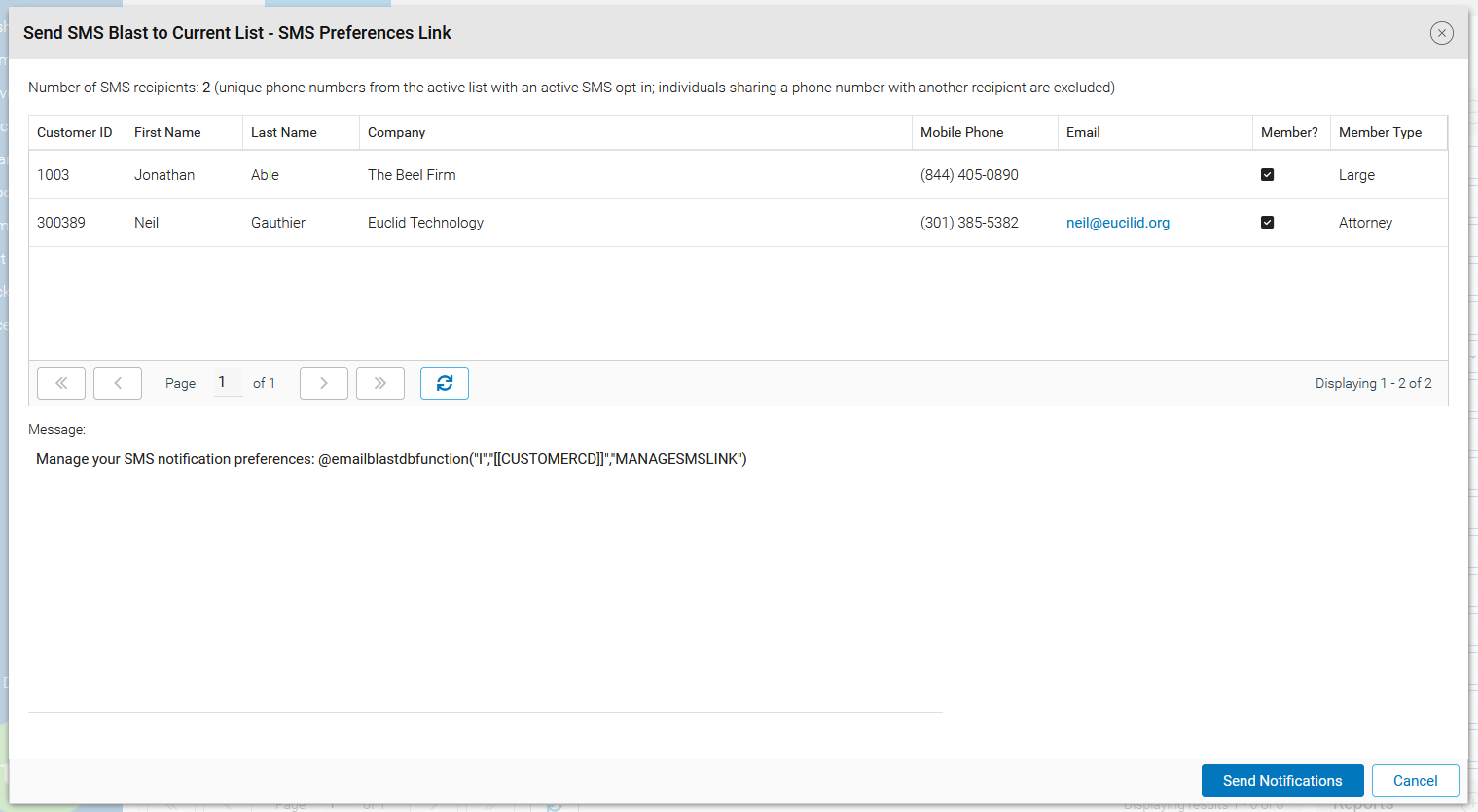
CV Online Setting
SMS_PREFS_LINK_MSG allows configuration of a default message for the SMS Preferences link. Use this setting to update the content of the read-only message that is sent to individuals.
-
Click "Send Notification" to send the SMS blast.
Web Form for SMS Preferences
Baseline web forms include a SMS Preferences form that enables individuals to opt in to SMS communications and manage their SMS preferences.
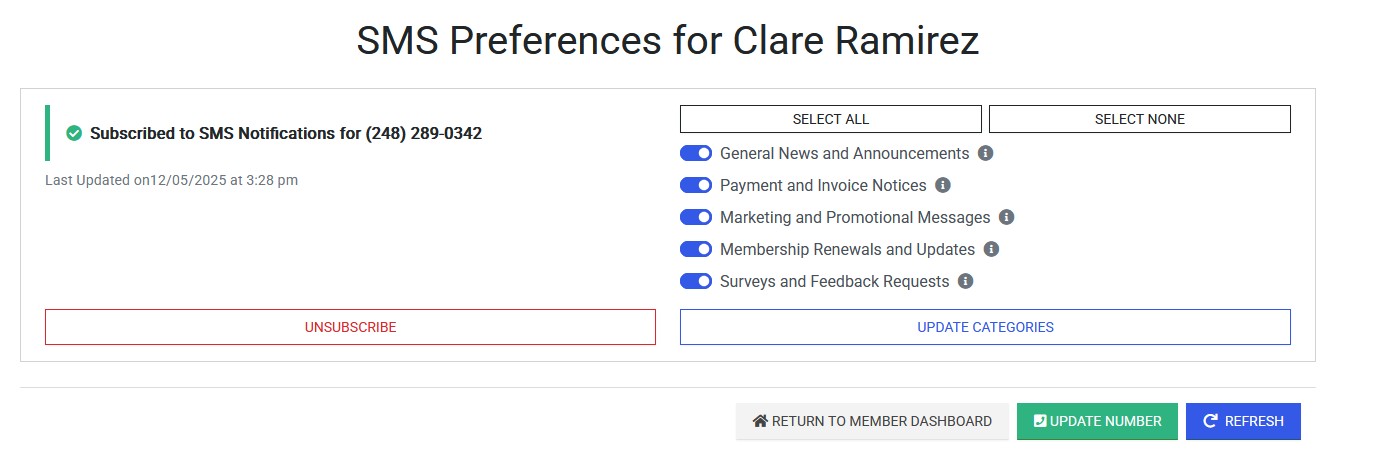
When the individual opts in or edits their preferences, they will receive a confirmation email of their changes.
This SMS Preferences form is available in the following locations:
-
Update Profile: Available in the "SMS Preferences" tab.
-
Create Account
-
Individual Member Application
-
Dashboard Alerts: Allowing a user to opt-in to SMS notifications if they have never opted in or if they opted out more than 3 months ago.
Requires Support
If this web form is not available, please contact your Euclid Support Analyst.
SMS Notification Preferences on ClearVantage
ClearVantage supports two types of SMS notification preferences that staff can view and manage. Individual notification preferences apply to general SMS communications, while event registration notification preferences are specific to a single event. Staff can manage both types of preferences directly from the respective notebooks to accommodate member requests or update opt-in status upon a request from the individual.
Individual Notebook
The Individual Notebook provides a "SMS Notification Preferences" section to view and manage an individual's SMS opt-in categories.
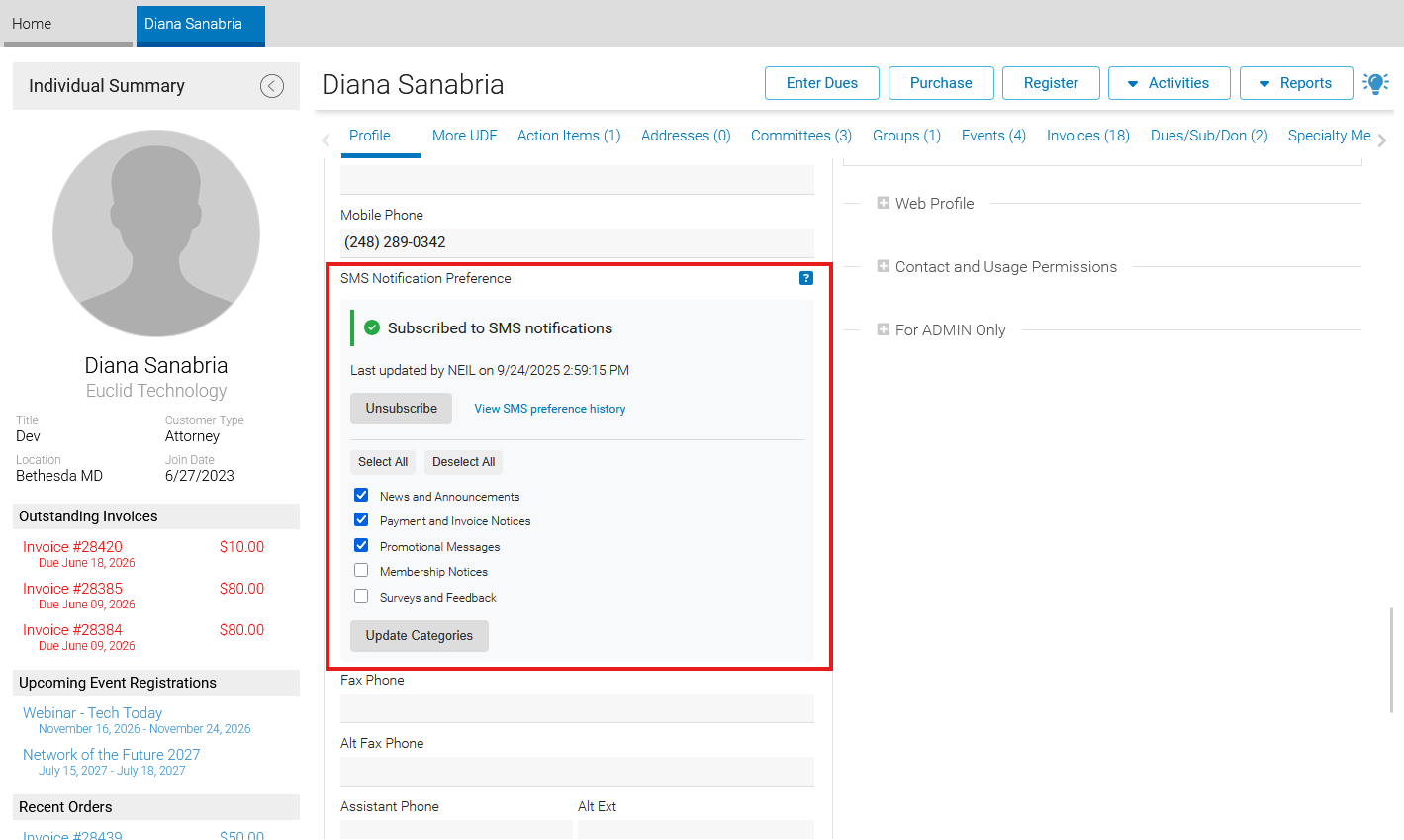
If the "SMS Notification Preference" section is not available in the Individual Notebook, it can be added by using the "Edit Layout" activity button.
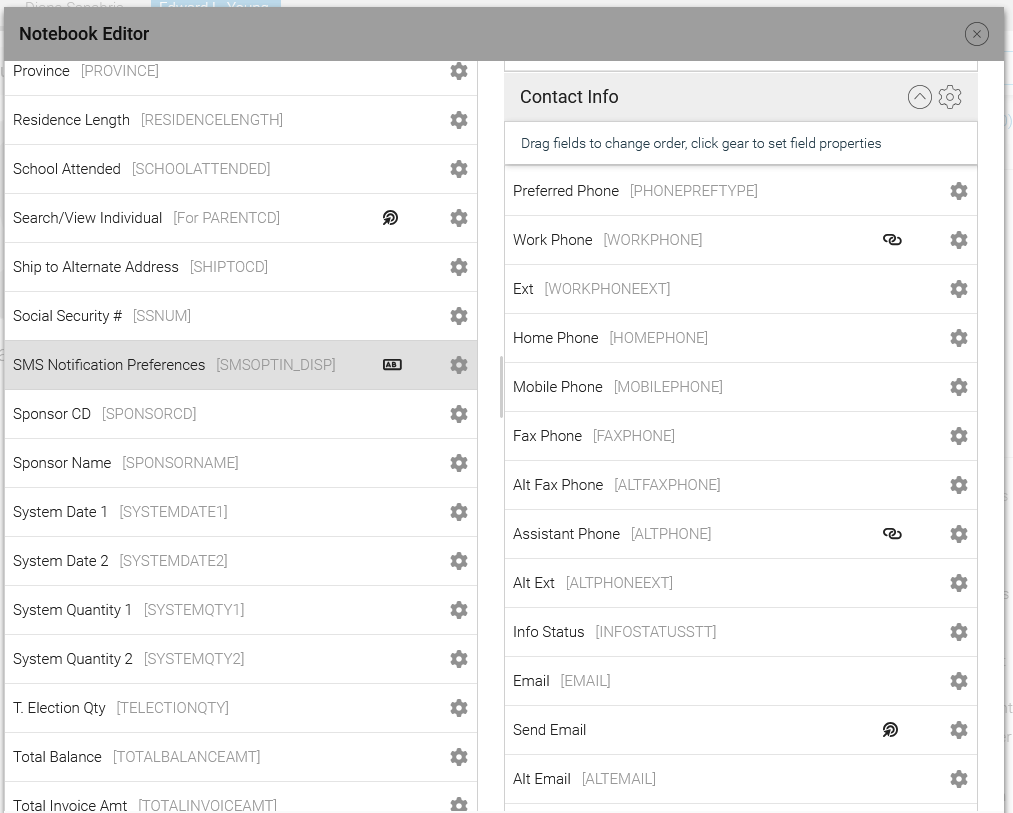
For more information on how to edit notebooks and add tabs, see the Notebook Editor guide.
When an individual has never opted in or has decided to opt out, the SMS notification status will show "Not subscribed to SMS notifications".
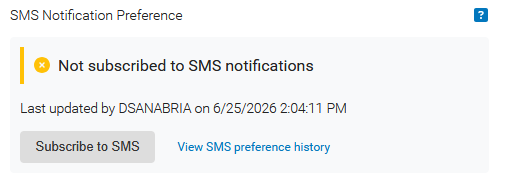
Staff can manually opt in the individual by using the "Subscribe to SMS" button.
Prior Approval Needed
Manual updates to an individual's SMS preferences are not recommended. Perform manual changes only when the individual has explicitly requested the update or provided prior approval.
To process a manual opt-in:
-
Click the "Subscribe to SMS" button.
-
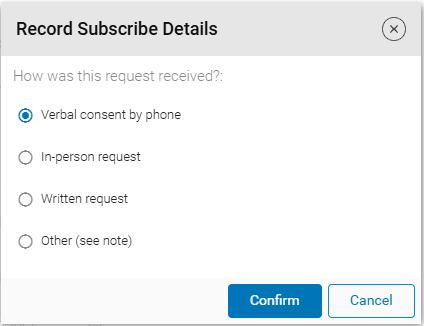
Select how the request was received.
-
Click "Confirm" to save the change. The individual will receive a confirmation text notifying them of the update.
The SMS notification section will be updated and will now show that the individual is opted in to receive SMS messages.
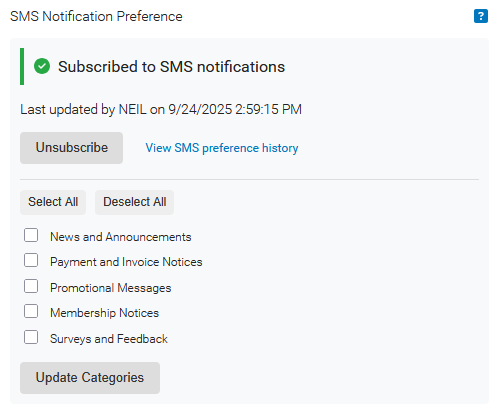
The SMS notification section displays opt-in categories when an individual is opted in. Clear unwanted categories or select categories as needed, then click "Update Categories" to update the individual's SMS preferences.
Note
When an individual is opted in or opts to receive SMS notifications through the web forms, the individual will receive an email and text message confirmation of the change.
Use the "View SMS preference history" to see a timestamped log of all changes to the individual's opt-in preferences, including which staff user made each change and the documented consent method. To opt the user out of receiving SMS messages, click the "Unsubscribe" button.
Registration Notebook
Individuals will be able to opt in to receive SMS notifications for the event while registering for an event.
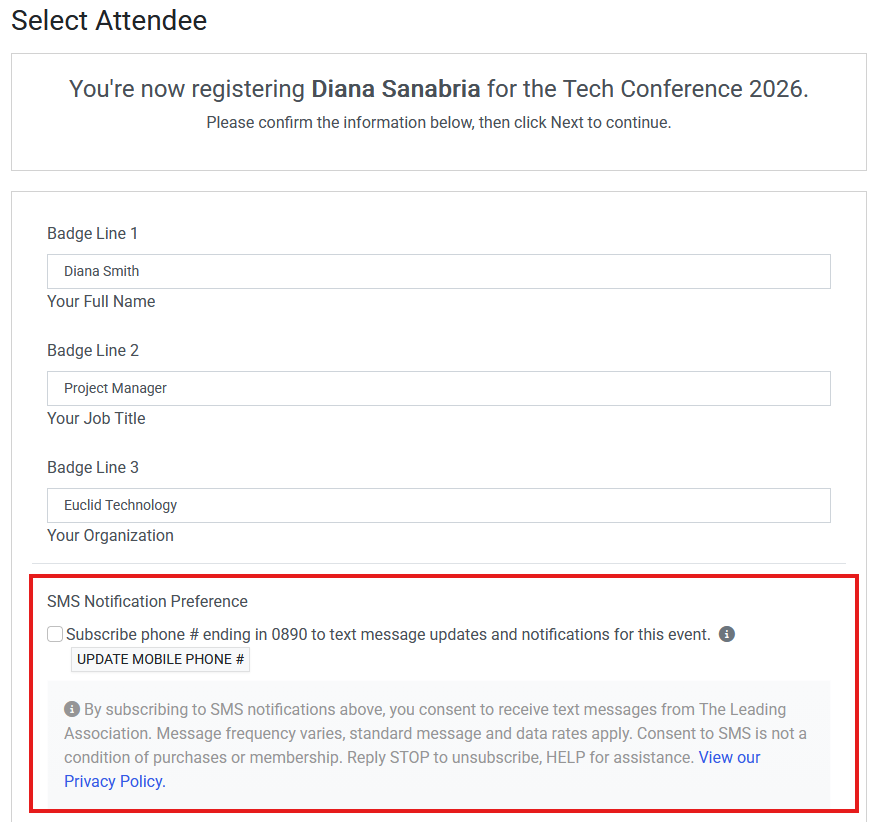
To view the SMS notification preferences for a registration:
-
Once in the Event Notebook, click on the "Registrations" tab.
-
Open the individual registration by clicking the link on the "Registration #" column.
-
The "SMS Notification Preferences" section will show the opt-in status for the individual's registration. If it is not present, it can be added by using the "Edit Layout" activity button. For more information on how to edit notebooks and add tabs, see the Notebook Editor guide.
If the individual has opted in to receive SMS notifications, the "SMS Notification Preferences" section will show:
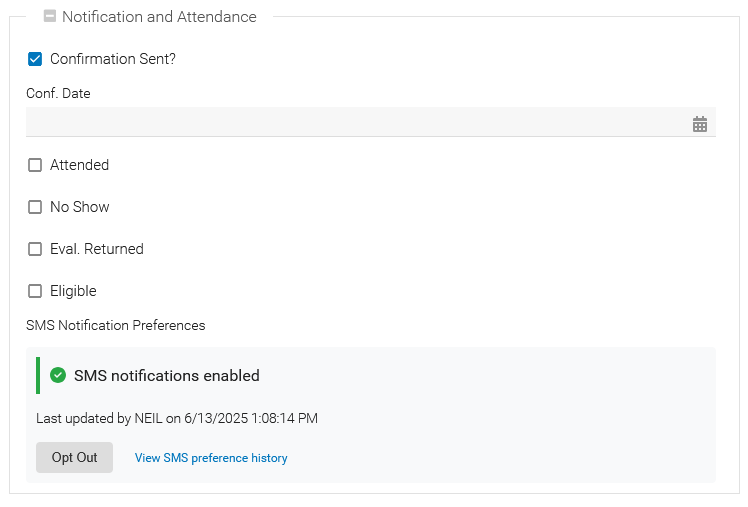
If the individual has not opted in to receive SMS notifications, the "SMS Notification Preferences" section will show:
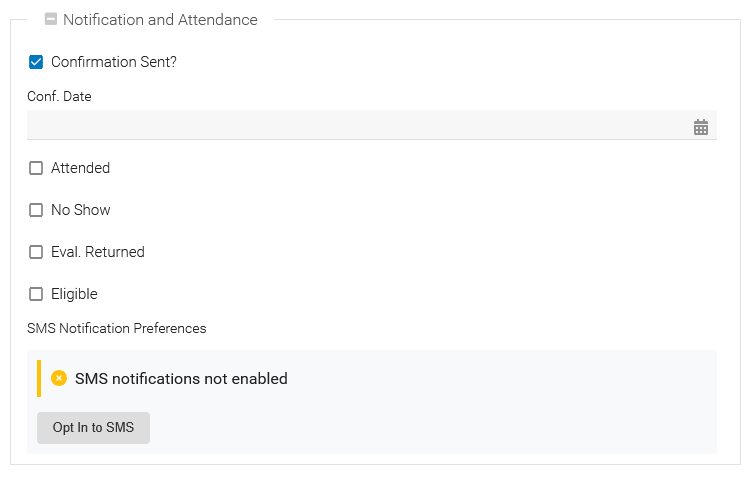
Staff can update the individual's SMS notification preferences for the event registration by clicking the "Opt-In" or "Opt-Out" button. This will open a window where staff can select how the approval for the change was granted, then click "Confirm" to save the changes.
Prior Approval Needed
Manual updates to an individual's SMS preferences are not recommended. Perform manual changes only when the individual has explicitly requested the update or provided prior approval.
Use the "View SMS preference history" to see a timestamped log of all changes to the individual's opt-in preferences for the event registration, including which staff user made each change and the documented consent method.
Sending SMS Blast Notifications
SMS blasts provide an immediate, high-visibility communication channel for engaging both members and non-members. SMS messages can bypass email inbox congestion, making them particularly effective for time-sensitive communications. SMS also supports near real-time, two-way communication for customer service interactions. Because SMS is a highly regulated communication channel, strict compliance with applicable regulations is required. ClearVantage SMS automatically enforces opt-in requirements; however, sending schedules must also be carefully managed. Permitted sending hours vary by jurisdiction, and delivery times for large SMS campaigns are not fully predictable.
Note
Consider sending SMS blasts during allowed hours, which can vary between US and Canada, and even localities within them. Large blasts may take hours to fully send. This information is provided for general guidance only and does not constitute legal advice. Consult legal counsel and applicable laws and regulations before implementing SMS communications.
Some individuals may have opted out of SMS communications, or have not opted-in at all, and will not receive SMS messages. To ensure the broadest possible reach, use SMS as part of a larger communication strategy rather than as the sole communication channel. Messages can be sent to a list of individuals or directly to event attendees from event registration and function attendance lists.
To a List of Individuals
Use SMS Blast Notifications to send a text message to a targeted list of individuals. The target list can be made by using the search fields, by loading a saved list, or by using the Power Query Tool.
Only individuals who have a valid mobile phone number and have opted in to the selected SMS category are eligible to receive the message. The "SMS Opt-ins and Phone#" section in the Power Query tool can be used to further refine the list. For more information, see the Power Query section.
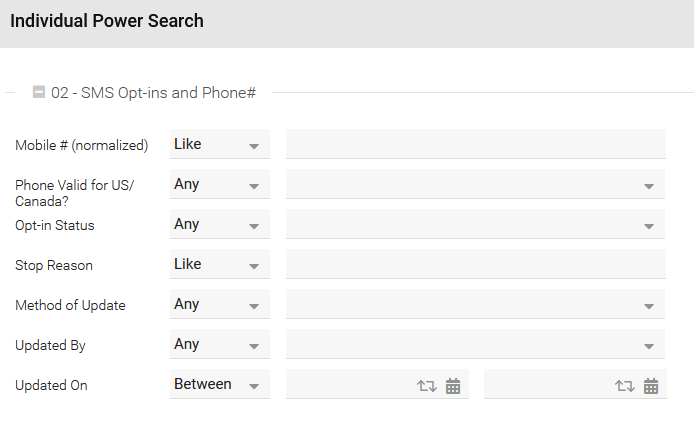
Common uses for SMS blasts include membership renewal reminders, volunteer schedule updates, and targeted communications to specific groups of individuals.
To send an SMS blast to a list of individuals:
-
Build a list of individuals using the search or list tools. For more information on working with lists see the Working with Lists guide.
- Optionally, use the Power Query section for "SMS Opt-ins and Phone#" to further filter the list to individuals who have opted in to the applicable category. This step is optional because ClearVantage automatically enforces SMS opt-in requirements during the SMS blast process. However, it can help identify recipients who are not opted in and that may require communication through another channel.
-
Once the list is ready, click "Send SMS Blast" in the Activities panel.
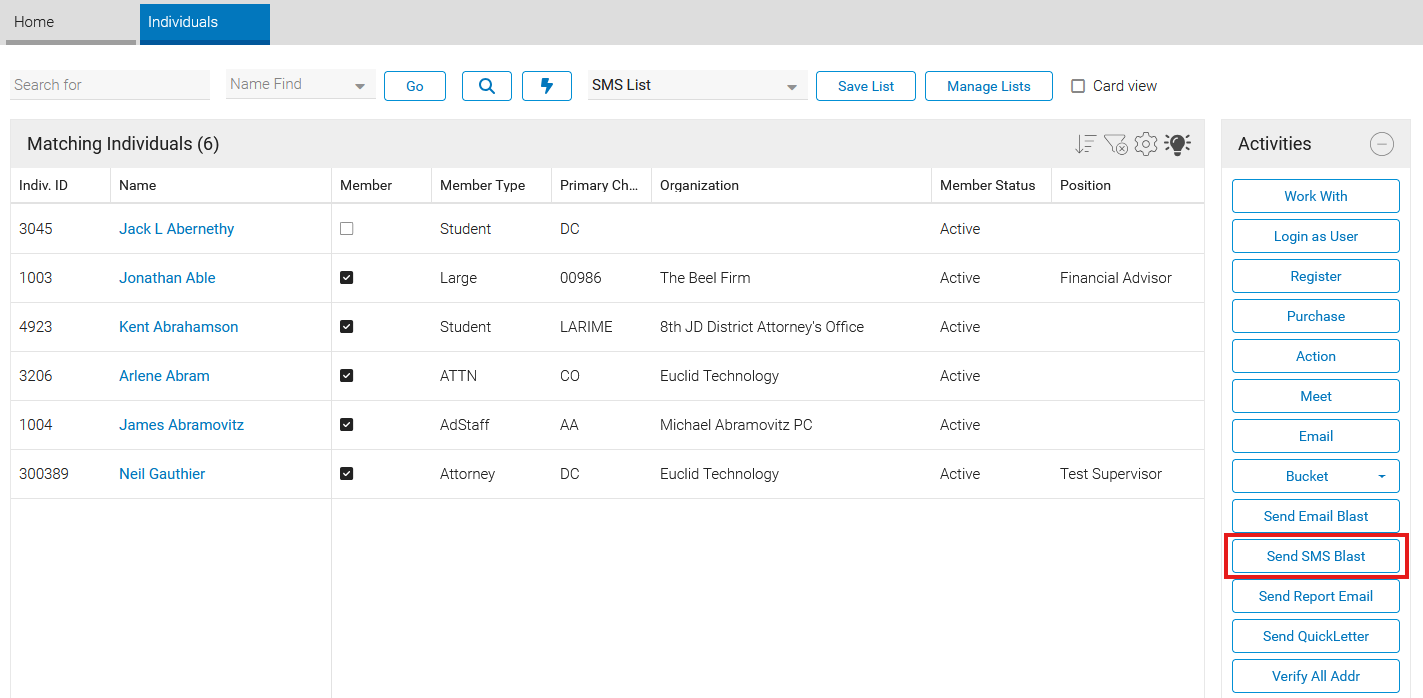
-
Select the opt-in category for the message.
-
Review the recipient list displayed in the blast window.
Note
Only individuals who have a mobile phone number and opted in to the selected category will be listed and will receive the SMS message.
-
Compose the message or load a template. See the Notification Content section for more information about message composition and templates.
-
Click "Send Notification" to send the message.
-
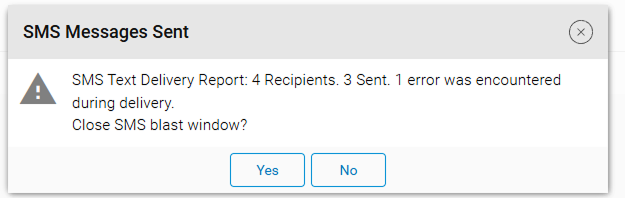
Review the confirmation screen for the count of successful and unsuccessful deliveries.
To Event and Function Attendees
Use SMS Blast Notifications to communicate directly with event attendees. Messages can be sent to attendees from registration lists or function attendance lists, making it easy to share event-related updates with the appropriate audience. Common uses for event SMS blasts include notifying attendees of a room change, providing schedule updates, sharing event reminders, or communicating important information during an event.
To send an SMS blast to a list of event attendees:
-
Open the Event notebook and select the "Registrations" tab.
-
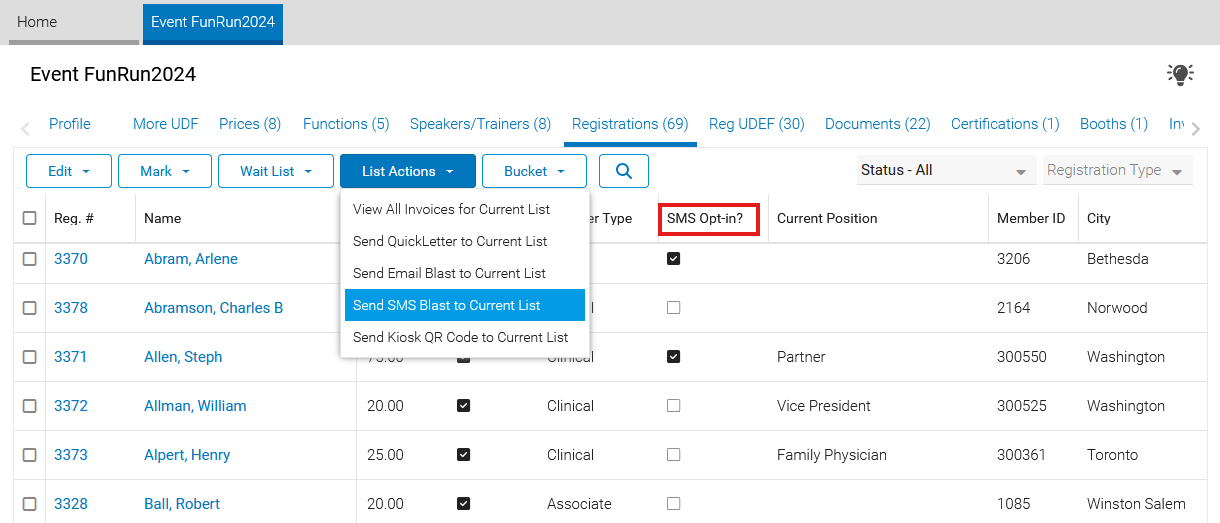
Filter the registration list to include the desired recipients. The "SMS Opt-in" column can be used to filter the list to show only those who have opted in to receive SMS notifications for the event.
-
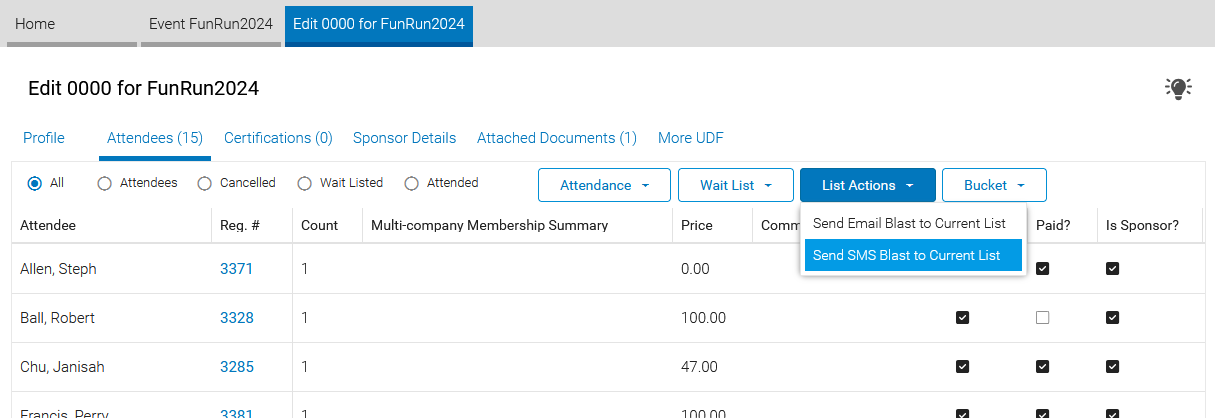
Click "List Actions" and select "Send SMS Blast to Current List".
To send an SMS blast to a list of function attendees:
-
Open the Event notebook and select the "Functions" tab.
-
Open the desired Function notebook.
-
Select the "Attendees" tab.
-
Filter the attendee list as needed.
-
Click "List Actions" and select "Send SMS Blast to Current List".
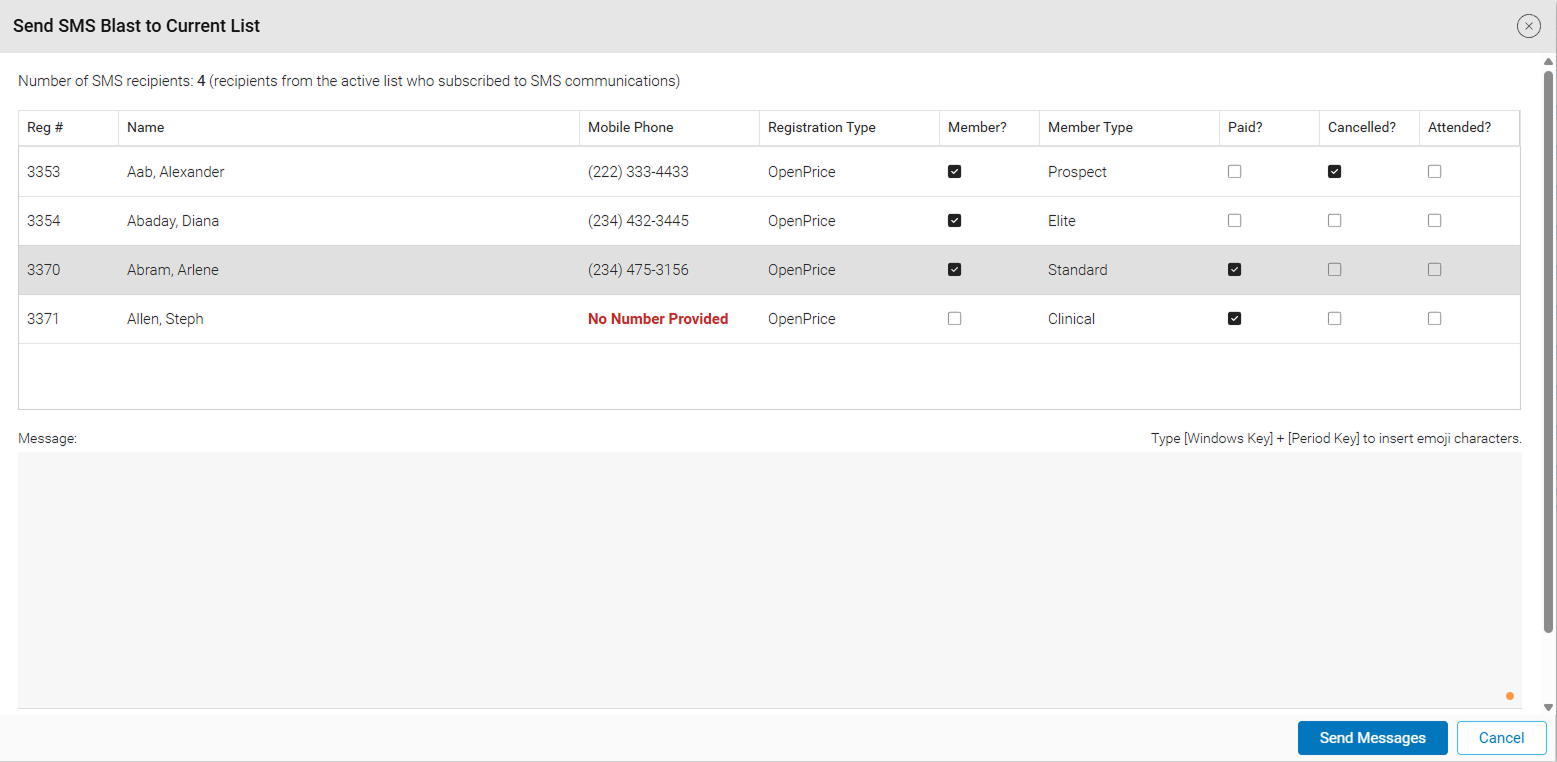
In both locations, the SMS Blast window displays only attendees who are subscribed to receive event SMS notifications. Attendees without a mobile phone number on record are excluded from message delivery.
-
Compose the message and click "Send Notification" to deliver it to all eligible attendees.
Notification Content
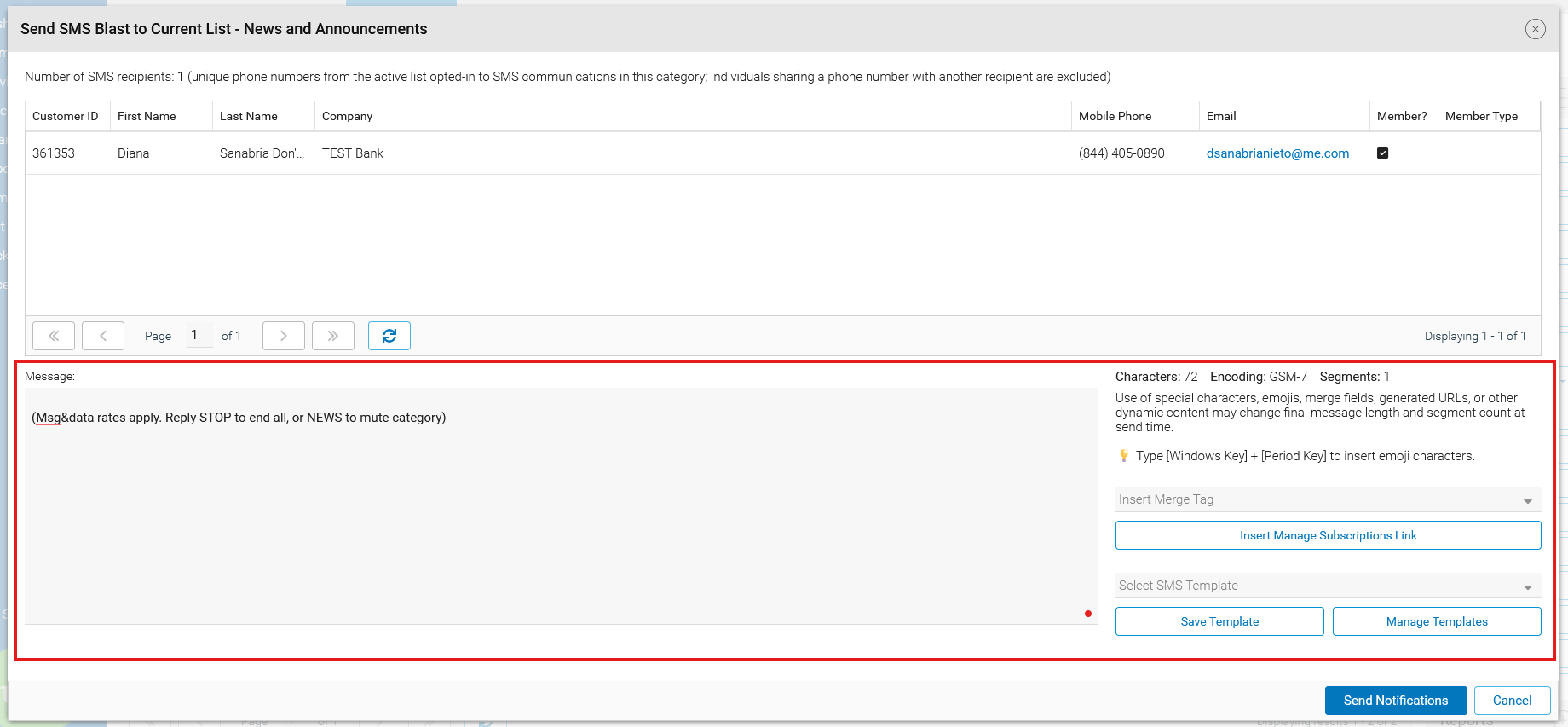
SMS notifications are sent as plain text messages and support standard emojis. To include registration details or data from an individual record, use merge tags to dynamically insert personalized information or links into the message. An SMS disclaimer text, indicating to the individual how to stop receiving messages, will be included by default in the notification content text area.
Character Counter and Segments
When composing a message in the conversation view, a counter below the text field shows how many characters remain before the next segment boundary and how many segments the message will use.
The following rules for character counts apply:
-
When only standard characters are used, the message uses GSM-7 encoding. A segment is defined as 160 characters. When a message exceeds this length, it is broken into multiple segments each defined as 153 characters.
-
When special characters are used (such as emoji or extended accent characters), the message uses Unicode encoding. A segment is defined as 70 characters. When a message exceeds this length, it is broken into multiple segments each defined as 67 characters.
A warning color appears when fewer than 20 characters remain in the current segment.
Charge per Segment
Carriers charge per segment, so keeping blast messages under 160 characters is recommended when possible.
Templates
Notification content can be saved as a template for reuse across SMS blasts. New email templates will be automatically marked as active, while existing templates can be deactivated as needed through the template manager. For more information, see the Manage Templates section.
To save a new template:
-
Enter the message content. Be sure to always include the SMS disclaimer text.

-
Click "Save Template".
-
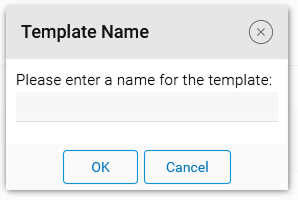
Enter the new template name and click "OK".
To load a template and use it in the message content of an SMS blast:
-
At the bottom of the message section, click the "Select a Template" dropdown.

-
Select the template to load.
To update the loaded template:
-
Edit the message content.
-
Click "Save Template".
-
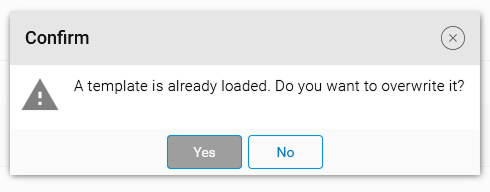
A confirmation dialog asks whether to overwrite the existing template.
-
Click "Yes" to update, or "No" to save a new template with a different name.
Manage Templates
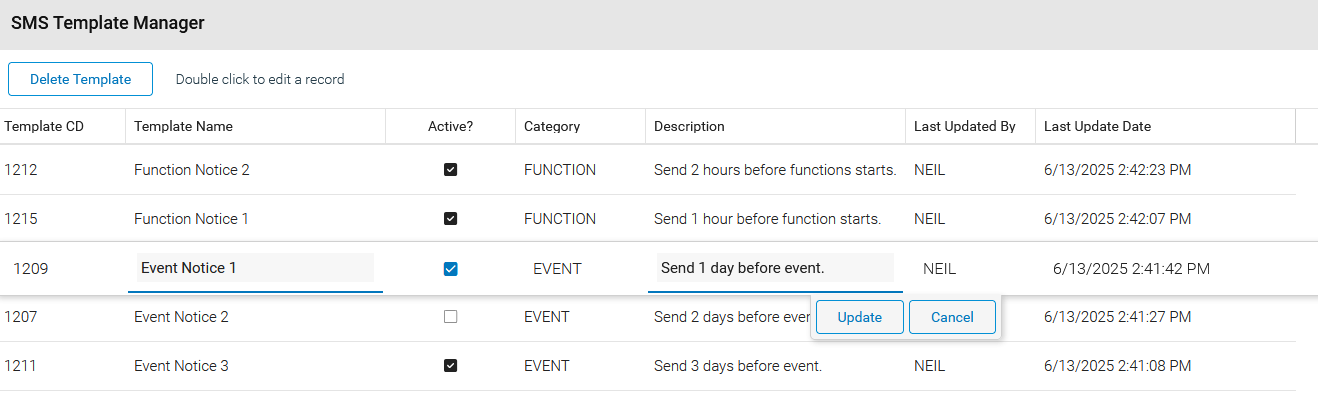
To deactivate, rename, or delete a template, click "Manage Templates" at the bottom of the Send SMS Blast window.

Double-click a row to edit the name, description, or active status, then click "Update". To delete, select the row and click "Delete Template", then confirm.
SMS Conversation View
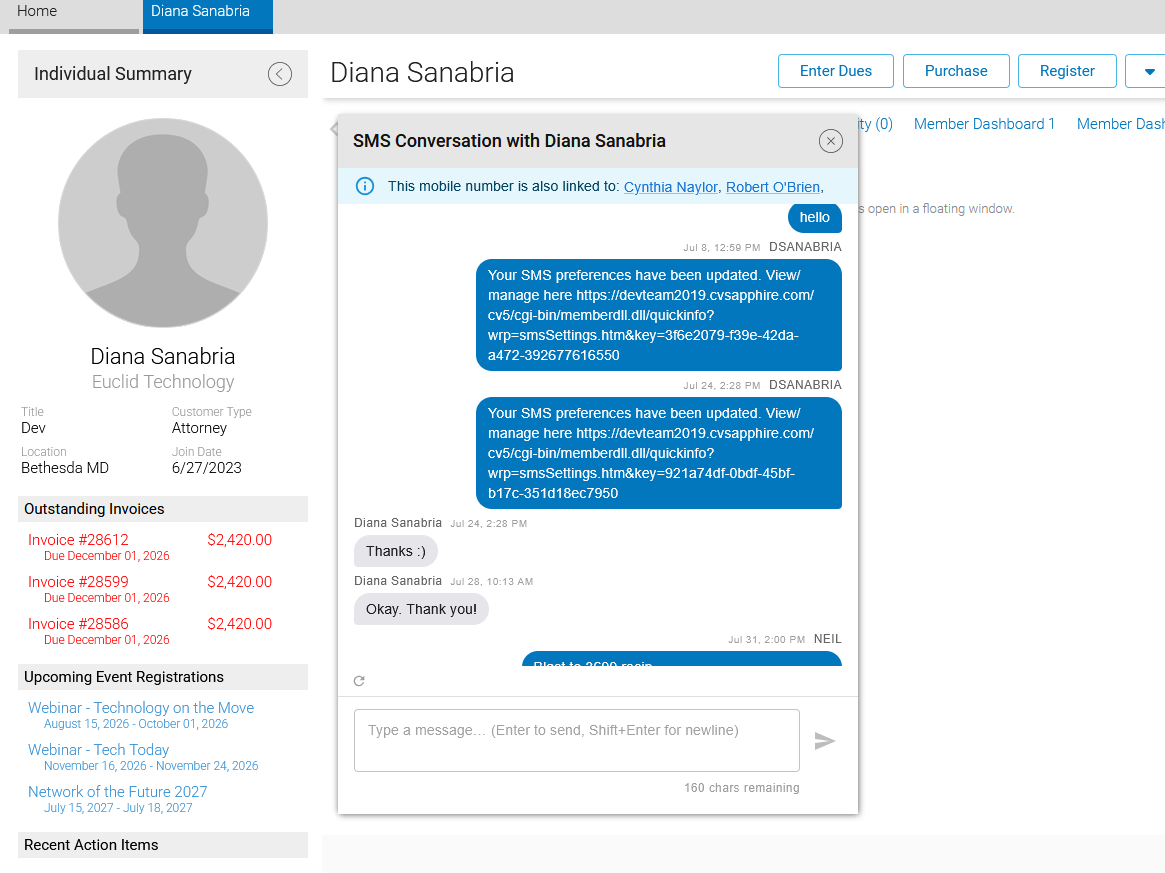
The SMS Conversation View is a history tab in the Individual and Event Registration notebooks. The "SMS" history tab shows the full two-way message history with a member, including inbound texts they sent, outbound replies staff sent, and any automated command responses. Staff can also reply directly without leaving the notebook.
Accessing the Conversation
Open an Individual or Event Registration notebook. The "SMS" tab appears when SMS messaging is enabled for the system. Click the tab to load the conversation thread. If SMS messaging is enabled for the system and the tab is not showing, it can be added to the notebook. For more information on how to edit notebook tabs see the Notebook Editor guide.
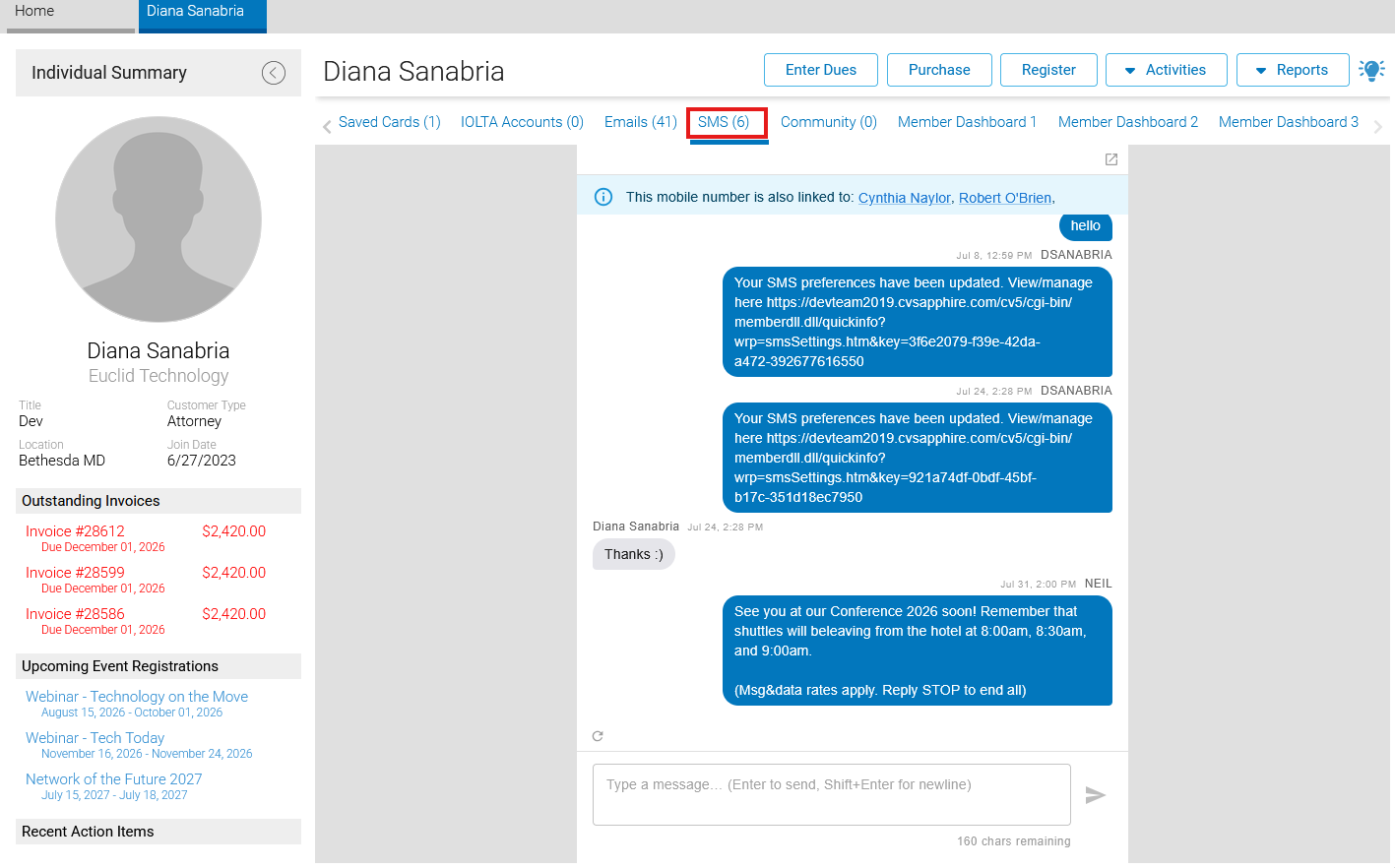
The "SMS" history tab will show the latest messages on load. Use the , at the bottom-left hand corner of the messages list, to pull in any new inbound messages manually. Messages are displayed chronologically, oldest at the top, newest at the bottom.
Inbound Messages
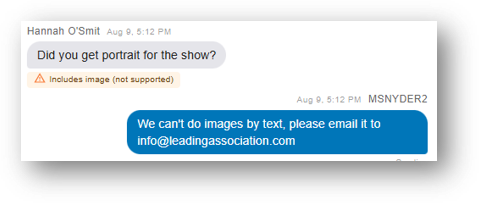
Inbound messages are messages from the individual. These messages will appear in the conversation view as left-aligned messages displayed in gray message bubbles. MMS content, including images and videos, is not currently supported. If a recipient attempts to send an image or video, ClearVantage displays an alert in the conversation view indicating that unsupported content was received. In these cases, request that the recipient submit the file through an alternative channel, such as email.
Outbound Messages
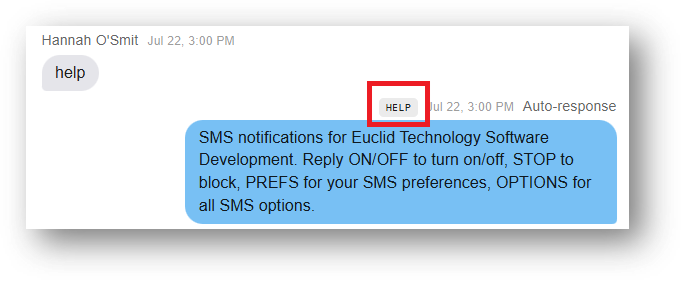
Outbound messages are messages from a staff member through CV Online. These messages will appear in the conversation view as right-aligned message bubbles. Messages sent by staff are displayed in blue, while messages sent automatically by ClearVantage are displayed in a lighter blue accent color. When ClearVantage detects and processes an SMS keyword, the recognized keyword is displayed above the corresponding outbound message, providing additional context for the automated response.
Hyperlinks
Hyperlinks in SMS conversations are displayed as plain text and are not clickable. This design helps reduce the risk of phishing, social engineering, and other malicious activities. When a hyperlink is received, verify that the URL is legitimate before copying and pasting it into a web browser. Open links only from trusted sources and in accordance with organizational security policies.
Pop-out Window
When viewing the SMS tab inside the notebook, a small pop-out icon in the top-right corner opens the conversation in a full standalone window. Use this to keep the conversation visible while working in other tabs or notebooks.
Sending a Reply
The SMS Conversation View allows staff to respond to member text messages directly. Replies are added to the message thread, providing a complete record of the conversation without leaving the application. A common use for this is responding to member inquiries, such as questions about membership renewal dates, event registration details, or other account information.
To reply to a conversation:
-
Type the reply in the text field at the bottom. Press Enter to send, or press Shift + Enter to add a line break within the message box.
-
The message appears immediately as a "Sending…" bubble while delivery is in progress.
-
If delivery cannot be confirmed within about 60 seconds, a warning banner will show the following message: "Message delivery may have failed. Please check with the recipient."
The compose field supports up to 1,600 characters. The character counter below the message box shows remaining characters in the current segment and the total segment count. A warning color appears when fewer than 20 characters remain per segment.
Sending is disabled when:
-
The staff user does not have the "Send SMS Messages" permission.
-
The individual has not opted in to SMS (Individual notebook context).
-
The individual has sent the STOP command to stop receiving messages. For more about commands, see the Understanding Commands section.
-
In the event notebook, if the event registration does not have an active SMS opt-in.
Valid Mobile Numbers
SMS messaging requires valid mobile phone number data. For U.S. and Canadian recipients, valid phone numbers consist of 10 digits (a 3-digit area code and a 7-digit local number). Phone numbers should be unique whenever possible, although ClearVantage supports scenarios in which multiple individuals share the same mobile phone number. For more on how the system handles shared phone numbers, see the Phone Routing section.
ClearVantage provides several tools to help maintain the quality and accuracy of mobile phone data:
-
Monitor phone number quality: Review dashboard reports to identify the number of valid, invalid, blank, and duplicate mobile phone numbers in the database. Refer to the reporting options described in the Reporting and Monitoring section.
-
Identify records requiring attention: Use Power Query to locate members or non-members with valid, invalid, blank, or duplicate mobile phone numbers. Additional duplicate number checks are available through the "Manage Data for Individuals" administrative tool. Refer to the Reporting and Monitoring section for more information.
-
Manage duplicate phone numbers: Configure the system to warn users about duplicate mobile phone numbers or prevent duplicate numbers from being saved. By default, ClearVantage displays a warning when a mobile phone number already exists in the database but allows the record to be saved.
- In some cases, multiple individuals may legitimately share the same mobile phone number, such as spouses sharing a mobile device. For more information on how the system handles shared phone numbers, see the Phone Routing section.
Preventing Duplicate Mobile Numbers
By default, the system will warn users if they attempt to enter a duplicate number. To prevent users from entering duplicate phone numbers, please contact your Euclid Support Analyst.
Phone Routing
When two or more members share the same mobile phone number, the system needs a way to decide which member record owns incoming messages from that number. This is managed through the SMS Routing Override table. Multiple individuals may share the same mobile phone number, such as spouses, family members, or duplicate records created over time. When this occurs, the SMS Conversation View displays informational banners to help staff understand how incoming messages are being routed and which individual is currently associated with the conversation.
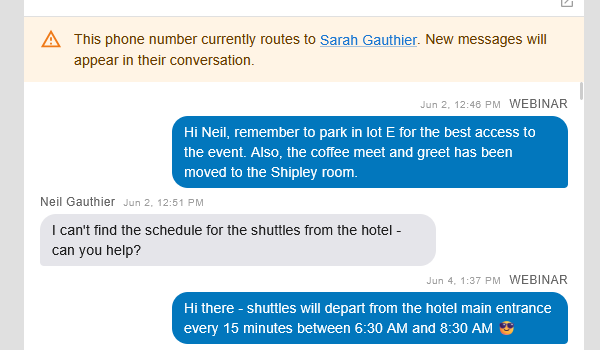
Routing primary alert: Appears when the current member's phone number is configured to route inbound messages to a different member. The banner names the routing target and provides a link to open their notebook.
Example: Jane Smith shares a phone with her husband John. Inbound texts from that number are routed to John's record. When viewing Jane's SMS tab, a warning indicates that new messages will appear in John's conversation, along with a link to open his notebook.
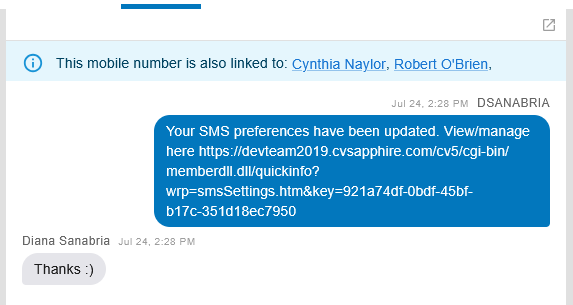
Shared phone info banner: Appears when the phone number is linked to other members but no routing override has been set. The banner lists the other members by name, each as a clickable link to their notebook. This alerts staff that an inbound reply from this number could be from any of the listed contacts.
Example: Two event volunteers registered with the same organization phone. The banner in each record lists the other volunteer, so staff can navigate to the correct record if needed.
How Routing Works
When an inbound message arrives, the system will:
-
Normalize the phone number by stripping formatting and adding the country prefix if needed.
-
Look up all member records with that number.
-
Exactly one match: Will route to that member directly.
-
Multiple matches with a valid routing override: Will route to the member designated in the override table.
-
Multiple matches, no existing override: If multiple individuals match the incoming phone number and no routing override exists, the system automatically selects the best match using the following criteria, in order:
-
Active membership status
-
SMS opt-in status
-
Most recent SMS opt-in date
-
Most recently updated record
-
-
After a match is selected, the system saves the result and uses it for future messages from the same phone number to ensure consistent routing.
Managing Routing Overrides
Staff can view and edit routing overrides in the "SMS Routing Override" reference table. For more information on how to work with reference tables, see the Reference Tables guide.
Each row designates which member owns inbound messages from a given phone number.
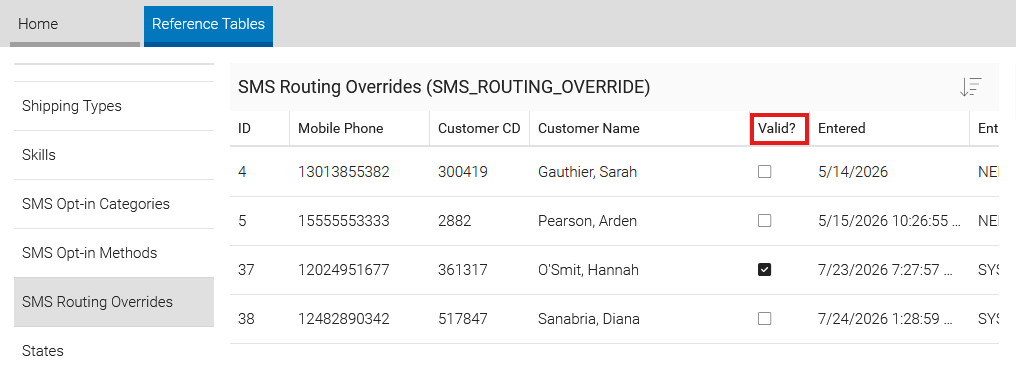
The "Valid" column indicates whether the stored member-and-phone pairing still resolves to an active record. Entries marked as invalid, because the member was deleted or their phone number changed, are automatically skipped by the routing engine but remain visible so staff can review and clean them up.
Periodic Housekeeping
Review the routing override table periodically and remove or correct any invalid records. Stale overrides do not cause routing errors, but a tidy table makes it easier to audit routing decisions.
SMS Response Management
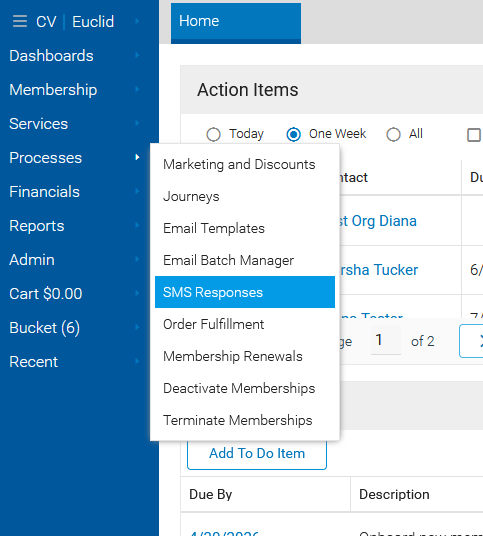
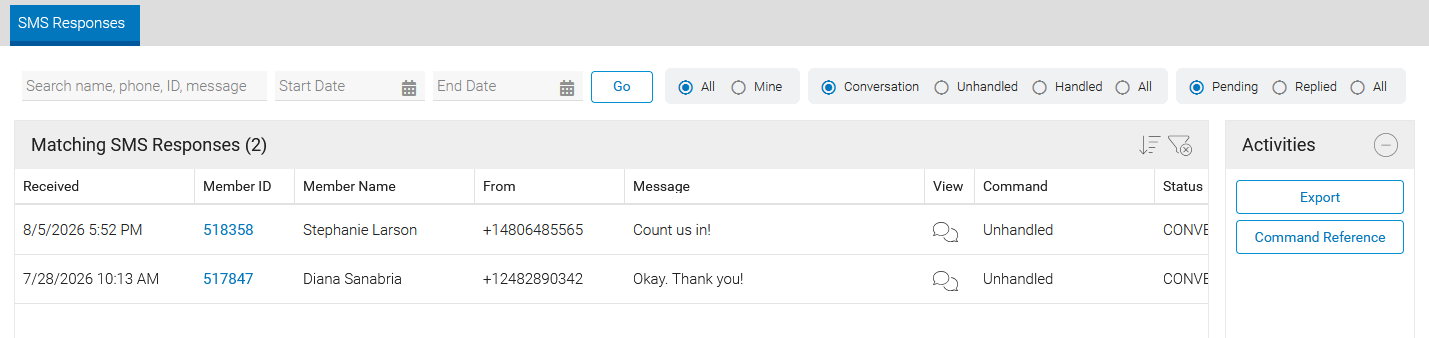
The SMS Responses list provides administrators with a centralized view of all inbound SMS messages. Use this list to monitor incoming member communications, identify messages that may require follow-up, and verify that automated command responses are functioning as expected.
-
Command: Recognized command, if applicable. For more information, see the Understanding Commands section.
-
Status: Possible values are:
-
PROCESSED: Indicates successful processing of receipt and any automation.
-
CONVERSATION: Identified as a conversational message.
-
ERROR: An error occurred in processing.
-
COMPLIANCE_FAILED: The message is from an unknown number OR the customer's opt-in status is currently marked "STOP" in ClearVantage.
-
The "Export" activity button allows exporting the inbound messages to CSV. The "Command Reference" activity button displays the commands that have automated responses set.
Filtering
Use the search field and filters at the top of the SMS Responses list to narrow the results and focus on specific messages. Filters can be used individually or combined to find messages that require review or follow-up.
Search Criteria
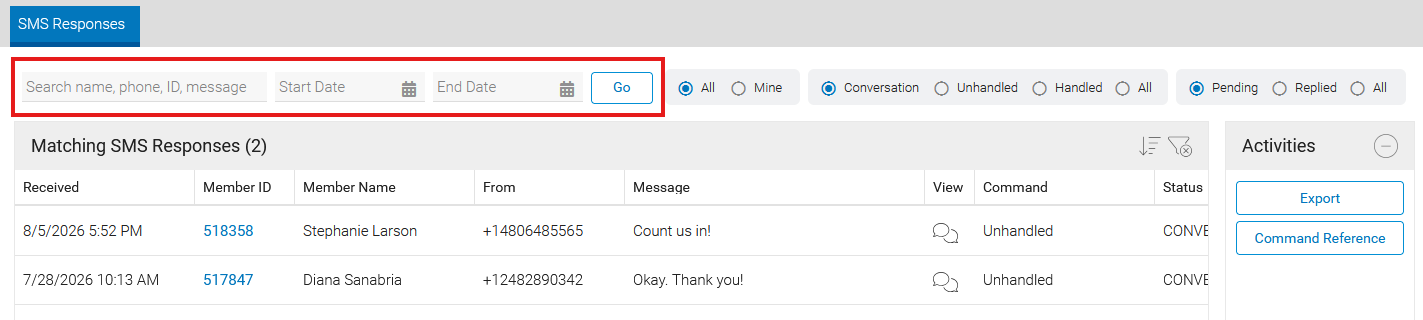
Use the search field and date range filters to find messages that match specific criteria. Click "Go" to apply the search criteria and refresh the results.
-
Search: Enter a member name, phone number, member ID, or text contained in the message.
-
Start Date: Displays messages received on or after the selected date.
-
End Date: Displays messages received on or before the selected date.
Note
When no date range is specified, the list displays messages from the past 30 days.
Quick Filters
Use the radio button filters to narrow the results based on message ownership, processing status, and reply status. These filters can be combined to focus on a specific set of messages.
Scope
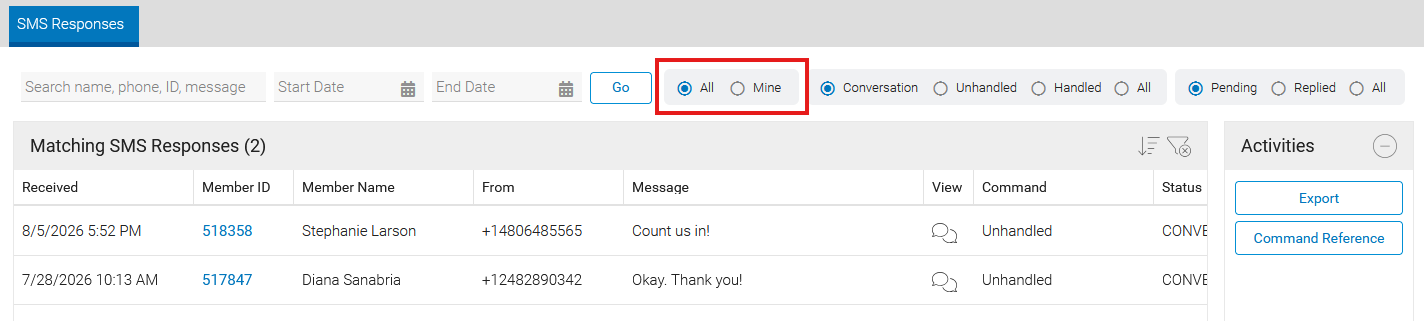
Determines which messages are displayed based on previous SMS activity.
-
All: Displays all inbound SMS messages.
-
Mine: Displays messages from phone numbers that the current staff user has previously sent SMS messages to.
Processing Status
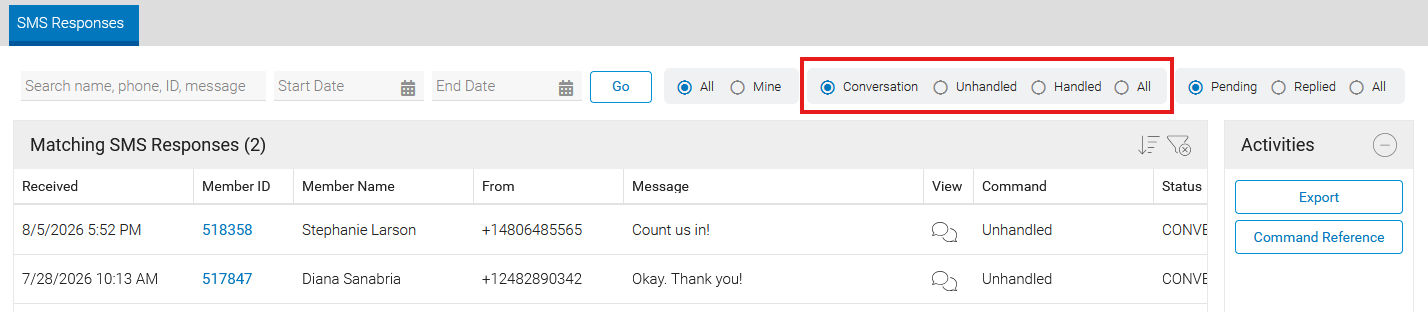
Identifies how the inbound message was processed.
-
Conversation: Displays standard member replies and conversational messages.
-
Unhandled: Displays messages that did not match a configured SMS command and may require staff attention.
-
Handled: Displays messages that matched and were successfully processed by an SMS command. For more information, see the Understanding Commands section.
-
All: Displays all messages regardless of processing status.
Reply Status
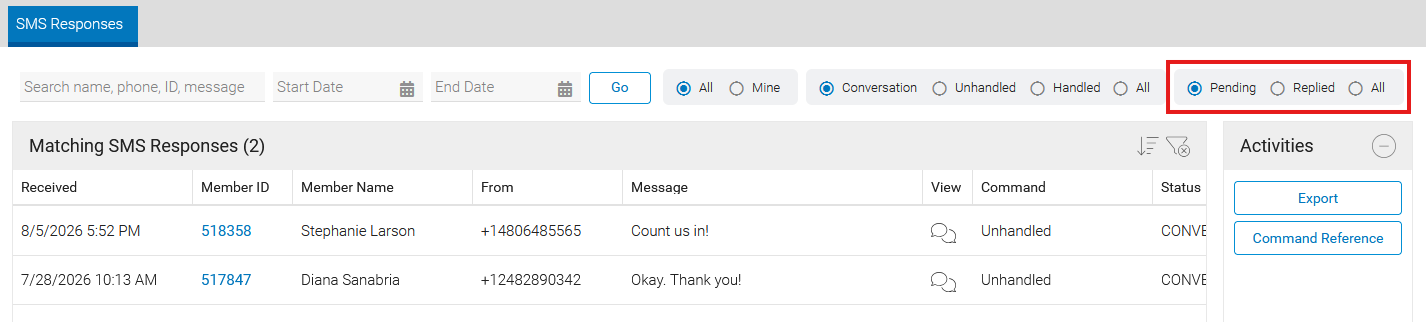
Identifies whether the message has received a staff response.
-
Pending: Displays messages that have not received a staff reply.
-
Replied: Displays messages that have received a staff reply.
-
All: Displays all messages regardless of reply status.
The search criteria and quick filters can be combined to find specific messages and reduce the number of results displayed. Some common scenarios include:
Finding an unhandled STOP message: Set Status to Unhandled and search for "STOP". Review each result and confirm the member's opt-in record was updated correctly. If not, open their Individual notebook and unsubscribe them manually.
Auditing a specific member's inbound replies: Enter the member's name or ID in the search field. All their inbound messages for the selected date range appear, regardless of which Twilio number received them.
Understanding Commands
ClearVantage SMS includes command automation, allowing members to manage their SMS preferences and access certain information by sending text message commands. This helps support SMS compliance requirements by automatically processing common commands such as START, STOP, and HELP, while also providing commands that allow members to opt in or out of specific communication categories. Command automation also supports custom commands that provide members with information and self-service options. For example, a customer can text EVENTS to an organization's SMS number to receive a list of upcoming event registrations. ClearVantage automatically processes the command and replies with the requested information.
Twilio Webhook Required
Twilio webhook configuration is required for command automation. For more information, see the Twilio Webhook section.
When a member sends a supported command, ClearVantage automatically performs the associated action. Commands must be sent as a single word. The standard list of supported commands is shown below and is also available from the "Command Reference" button on the "SMS Response Management" screen. For more information, see the SMS Response Management section.
-
START, BEGIN, OPT-IN, RESUME, RESUBSCRIBE, UNSTOP: Opt in to receive SMS messages.
-
STOP, STOPALL, END, QUIT, CANCEL, UNSUBSCRIBE: Opt out of SMS messages.
-
HELP, INFO: Receive information about available SMS messaging options.
-
ON: ClearVantage global opt-in.
-
OFF: ClearVantage global opt-out.
-
OPTIONS: Receive a list of available SMS communication categories.
-
PREFS: Receive a list of current SMS communication preferences.
-
NEWS: Update the News communication preference. If not currently subscribed, the member is subscribed to the category. If already subscribed, the member is unsubscribed from the category.
-
MEMBERSHIP: Update the Membership communication preference.
-
ORDERS: Update the Orders communication preference.
-
SURVEYS: Update the Surveys communication preference.
-
PROMOTIONS: Update the Promotions communication preference.
-
EVENTS: Receive a list of the member's next three upcoming event registrations, excluding cancelled registrations.
Commands are typically displayed in uppercase for readability; however, command processing is not case-sensitive. For example, START, Start, and start are all processed the same way.
Custom Commands
Custom commands can also be configured. For more information, please contact your Euclid Support Analyst.
Members can text START or other keywords to process their consent. For example, this could be advertised to members at events, with a notice such as:
We now offer SMS notifications for customer service and promotional purposes, simply text START to <our number> to begin receiving messages from us.
When an individual sends a command to opt out of SMS messages, like STOP or QUIT, ClearVantage automatically updates the individual's opt-in status. The individual will not receive any further SMS messages until they opt back in. Staff will also not be able to send SMS messages to the individual.
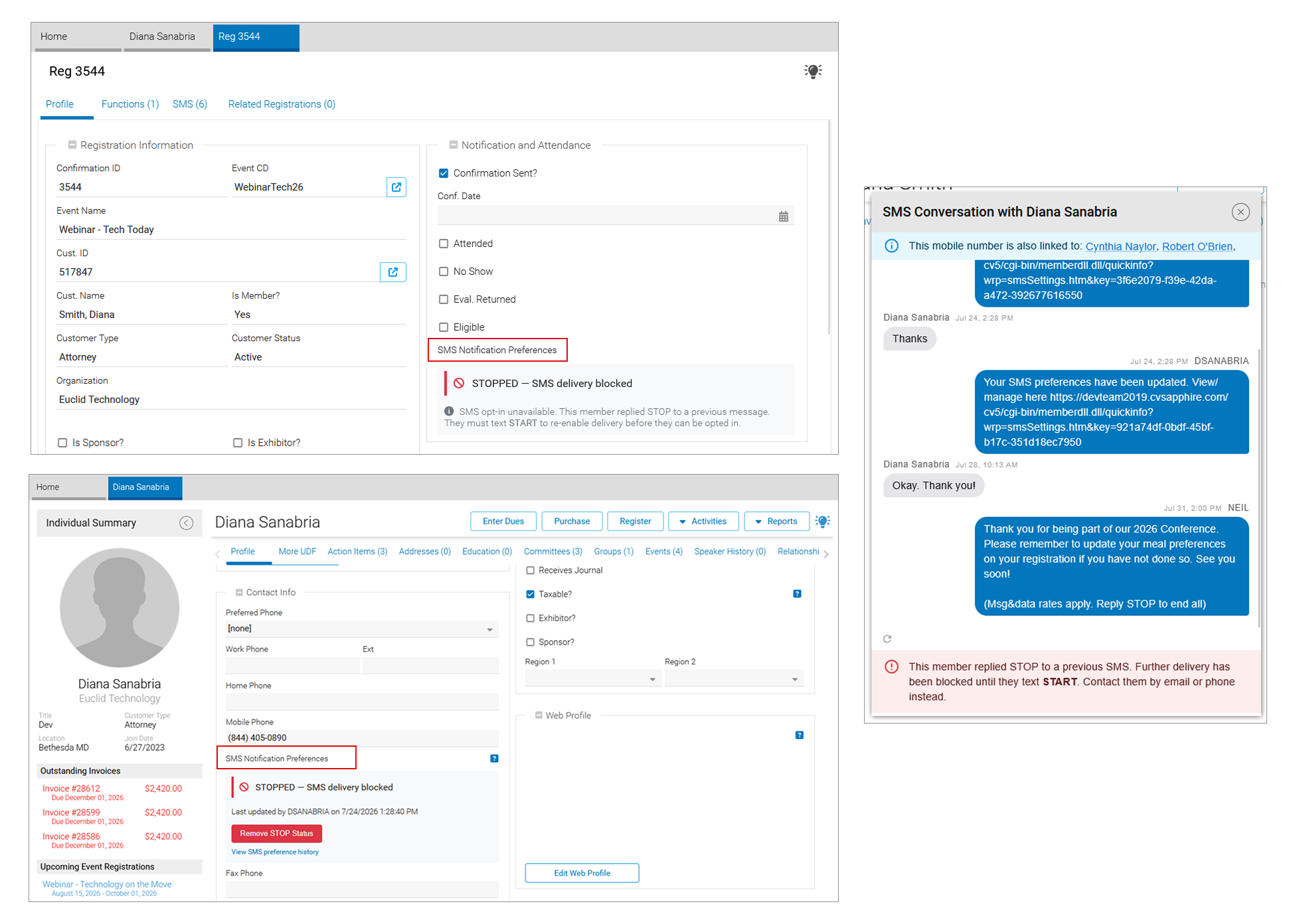
Prior Approval Needed
Manually removing the STOP status from an individual is not recommended. Perform manual changes only when the individual has explicitly requested the update or provided prior approval.
Message Retention
SMS messages sent and received through ClearVantage are stored in the ClearVantage database and contribute to overall database storage usage. Because MMS messaging is not currently supported, SMS messages require minimal storage space, with a standard SMS message being approximately 140 bytes in size. For this reason, the default retention policy is to retain SMS messages indefinitely. Retention policies may change in future releases or be modified for specific client environments.
Reporting and Monitoring
ClearVantage SMS includes several reporting options to monitor usage and issues, manage compliance, and ensure an overall effective SMS program.
SMS Reporting and Analysis Reference
Twilio Error Codes
Twilio error codes identify issues encountered during message delivery. These errors may result from Twilio account configuration issues, API communication failures, or carrier processing and delivery problems. The most common critical errors are categorized as Critical Network Issues in ClearVantage reporting.
-
21212: Not a Valid From Number
-
Indicates that the sending phone number is invalid or incorrectly configured.
-
Typically caused by a configuration issue that prevents successful message delivery.
-
-
30007: Filtered by Carrier
-
Indicates that the message was blocked by the recipient's carrier.
-
Common causes include carrier spam filtering or deliverability restrictions.
-
-
30022: API Rate Limit Exceeded
-
Indicates that Twilio's API rate limit has been exceeded.
-
If this error occurs, contact Euclid Support for assistance.
-
-
30023: Daily Message Limit Exceeded
-
Indicates that the account has exceeded a Twilio messaging limit.
-
Contact Twilio Support to review account limits and available options.
-
-
30034: Unregistered Outgoing Number
- Indicates that the sending phone number has not completed the required Twilio registration or vetting process.
Dashboard reports and the Power Query tool can be used to monitor, investigate, and analyze message delivery errors. For more information, see the Power Query and Dashboard Reports sections.
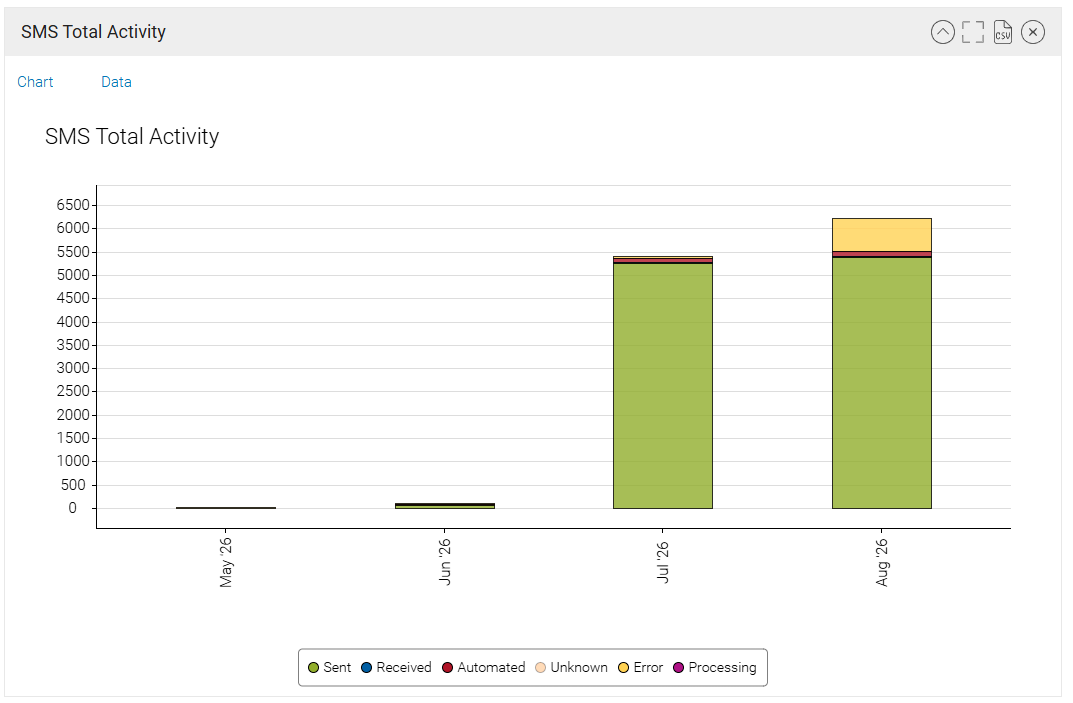
Analysis Category
Each SMS message is assigned an Analysis Category. This value is available in dashboard reports and Power Query results.
-
Sent: Outbound blast and conversational messages that were successfully sent.
-
Received: Inbound conversational messages received from recipients.
-
Automated: Incoming keyword commands and any associated automated responses.
-
Error: Messages associated with an error or processing exception.
-
Processing: Outbound messages that are currently being processed for delivery. This status is most commonly seen during large SMS blasts.
-
Unknown: Messages that could not be assigned to a category.
Issue Type
Exceptions are categorized by Issue Type. This value is available in dashboard reports and can help identify the source of messaging issues.
-
Critical Network Issue: Errors related to Twilio integration, network communication, or carrier message delivery.
-
Data Hygiene: Issues related to data quality, such as invalid phone numbers, improperly formatted phone numbers, or missing SMS consent information.
-
Internal Processing Issue: Errors that occur within ClearVantage, such as failures during blast processing, keyword automation processing, or inbound message matching.
-
Opt-Outs: SMS opt-out activity, including recipients replying with network keywords such as STOP or opting out through supported web forms.
Power Query
Power Query provides SMS-specific filtering options that can be used to identify recipients, review opt-in status, monitor message activity, and investigate messaging issues. For more information, see the Quick Find & Power Query guide.
SMS Opt-ins and Phone
The "SMS Opt-ins and Phone#" section provides filtering options for mobile phone numbers and SMS consent status.
-
Mobile # (Normalized): Search for records using a normalized mobile phone number value.
-
Phone Valid for US/Canada: Filter records based on mobile phone number status, including valid, invalid, blank, or duplicate phone numbers.
-
Opt-in Status: Filter records by SMS consent status, including recipients who are opted in, not opted in, or in a stopped status for a selected opt-in category.
-
Stop Reason: Filter records based on the reason a recipient is in a stopped status.
-
Method of Update: Filter records based on how the SMS consent status was last updated, such as through a web form submission, staff action, or keyword automation.
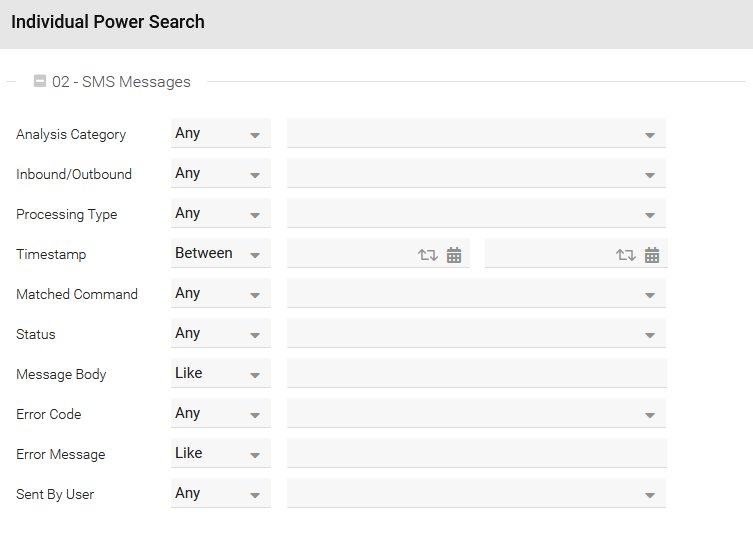
SMS Messages
The "SMS Messages" section provides filtering options for SMS message activity and message processing details.
-
Analysis Category: Filter messages by analysis category. This corresponds to the categories displayed in the "SMS Total Activity" dashboard chart.
-
Inbound/Outbound: Identify whether a message was received (Inbound) or sent (Outbound).
-
Processing Type: Distinguish between standard conversational messages and keyword-driven command messages.
-
Timestamp: Filter messages based on the date and time they were sent or received.
-
Matched Command: Filter messages based on the keyword command identified in an inbound SMS message.
-
Status: Filter messages by processing or delivery status.
-
Message Body: Search based on the content of SMS messages.
-
Error Code: Filter messages associated with a specific network or delivery error code.
-
Error Message: Filter messages based on detailed error information.
-
Sent by User: Identify the staff member who sent a message or determine whether the message was generated automatically.
Dashboard Reports
ClearVantage includes several SMS dashboard gadgets that support monitoring, reporting, and troubleshooting. Consider creating a custom dashboard containing the gadgets most relevant to SMS operations and compliance monitoring.
Note
If the SMS dashboard gadgets are not available, please contact your Euclid Support Analyst.
Monitor SMS Activity
Use the SMS Total Activity snapshot to review overall SMS usage. This gadget displays monthly message totals by activity category, including sent, received, automated, and error-related messages.
Monitor SMS Exceptions and Delivery Issues
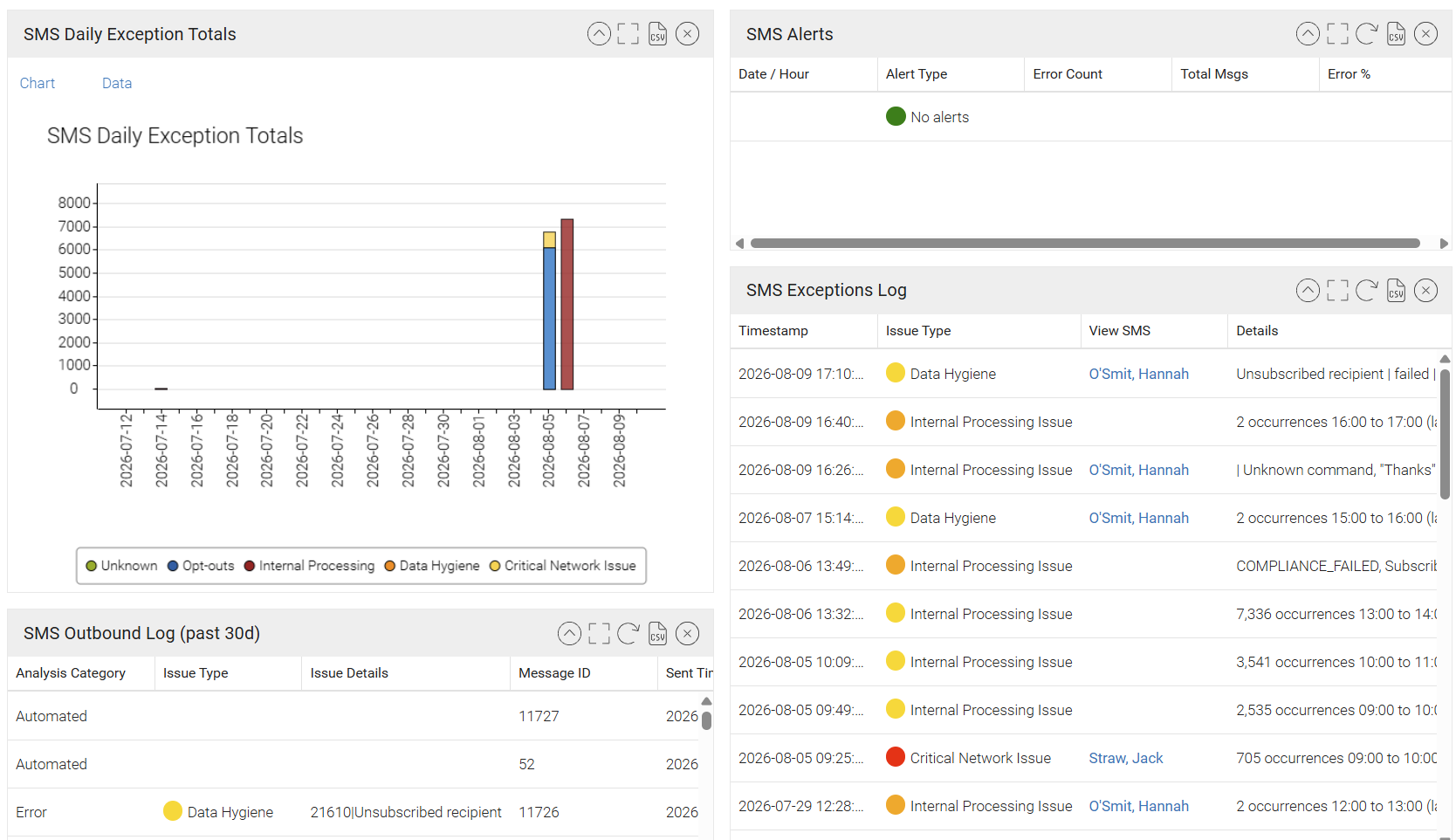
Several dashboard gadgets are available to help identify and investigate SMS-related issues.
-
SMS Daily Exception Totals: Displays daily exception counts by severity level. Significant increases in exception volume may indicate issues that require investigation.
-
SMS Alerts (Spike in Network Issues): Identifies unusual increases in SMS-related network issues, including carrier filtering, API limits, delivery failures, and elevated opt-out activity.
-
SMS Exceptions Log: Provides detailed information for all SMS-related exceptions and errors.
-
SMS Outbound Log: Displays outbound SMS activity for the previous week and can be used to review message delivery activity and trends.
Note
The SMS Outbound Log may contain a large volume of data and can require additional time to load.
Monitor Opt-In Activity
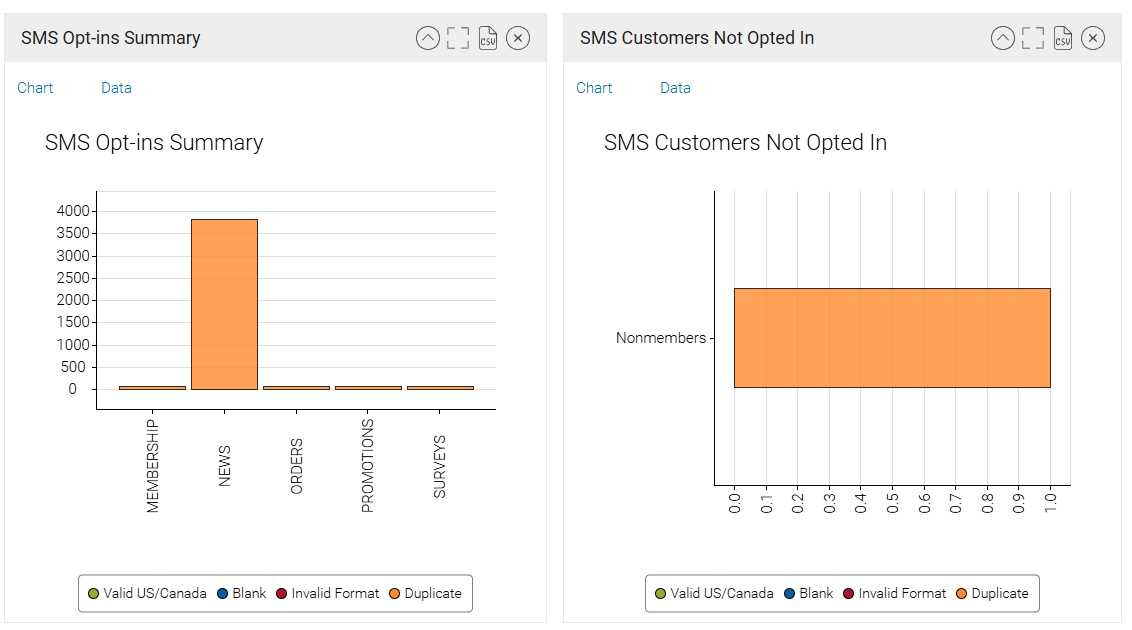
Use the SMS Opt-ins Summary and Customers Not Opted In charts to review SMS consent activity. These reports provide opt-in totals by category and include a breakdown of phone number validity.
These reports can help identify:
-
Recipients who are eligible to receive SMS communications
-
Recipients who are not opted in to an SMS category
-
Data quality issues that may affect SMS delivery
Monitor Phone Number Quality
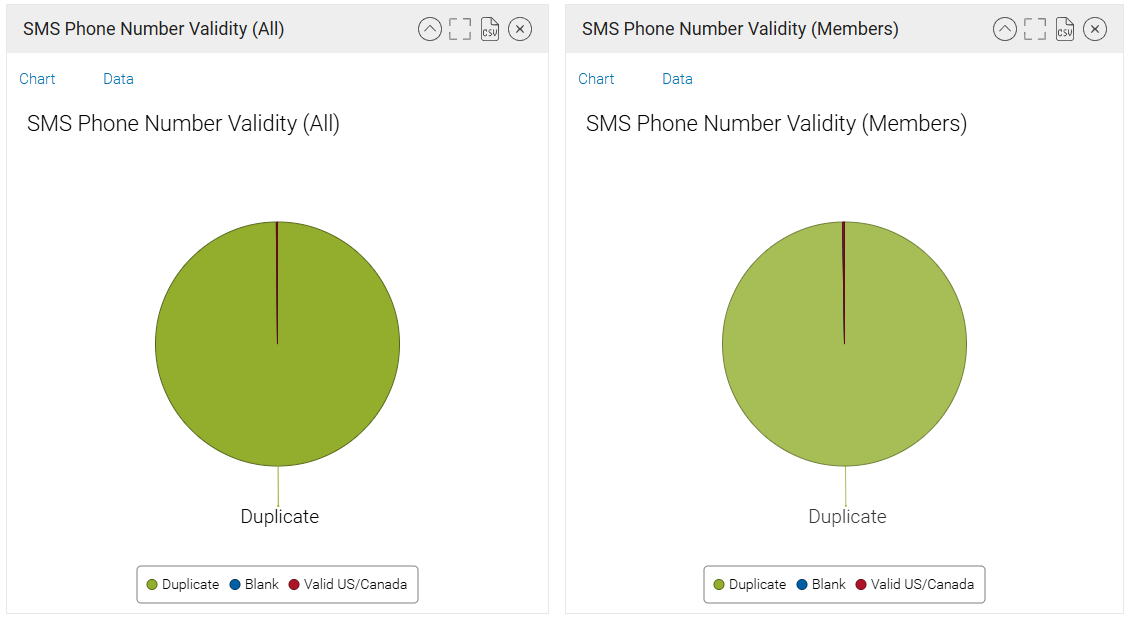
Use the SMS Phone Number Validity (All) and SMS Phone Number Validity (Members) charts to evaluate the quality of mobile phone number data.
These reports categorize phone numbers as:
-
Valid: Phone number meets formatting requirements.
-
Blank: No mobile phone number has been recorded.
-
Invalid Format: Phone number does not meet formatting requirements.
-
Duplicate: The same mobile phone number is associated with multiple records.
Regular review of these reports can help identify data quality issues that may affect SMS delivery and recipient eligibility.